
AI Credits are an organization-level entitlement that controls team access to the AIVA intelligent assistant. Each interaction with AIVA consumes credits from the organization's pool. Use this screen to view the credit balance, see how credits are allocated, and monitor usage across OmniVista Cirrus.
To access the AI Credit details, on the Organization Dashboard, click the License Management option under the “Organization” section of the OmniVista Cirrus Menu. The License Management screen displays your subscription summary, including the AI Credits section showing used and available credits. The AI Credits section appears on this screen when your organization has an active credit entitlement, as shown below:
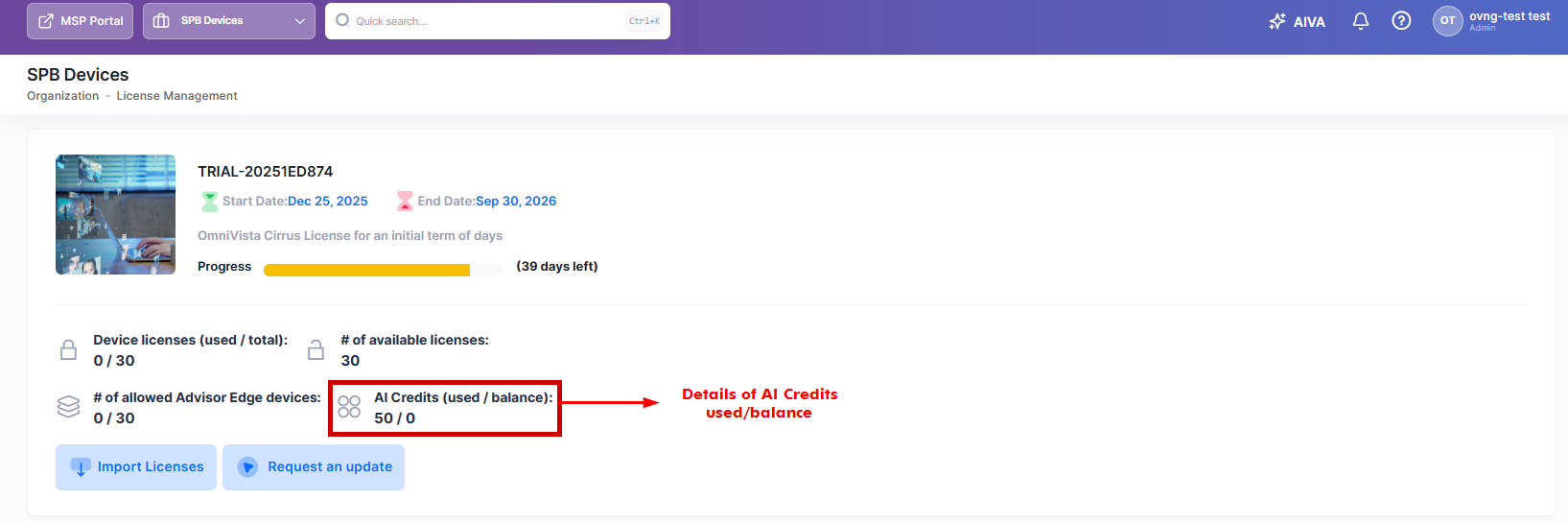
Viewing AI Credits details
The screen displays your AI credit balance alongside other subscription entitlements such as device licenses and Advisor Edge allowances.
The below information is displayed:
-
AI Credits (used / balance) - Displays the number of credits consumed and the total credits remaining in your organization's pool. The format is "used / balance" where "used" is the number of credits already consumed and "balance" is the number of credits still available.
This field is only visible when your organization has been allocated AI credits. If no credits have been provisioned, this field does not appear.
Prerequisites
-
You must have an Organization Administrator or Organization Viewer role to view AI credit information.
-
Your organization must hold an active subscription (Trial, OV Lite, or Paid) that includes AI credit entitlement.
-
An organization administrator must enable the AIVA assistant to view credits in the AIVA panel.
-
An Organization Administrator can import licenses (which resets credits) and perform all subscription management actions. An Organization Viewer has read-only rights.
Monitoring AI Credits in the AIVA Assistant
When your organization enables the AIVA assistant, a credit indicator appears in the AIVA panel header so you can monitor usage without leaving the conversation. Click on AIVA tab to view the AI Credits details as shown below:
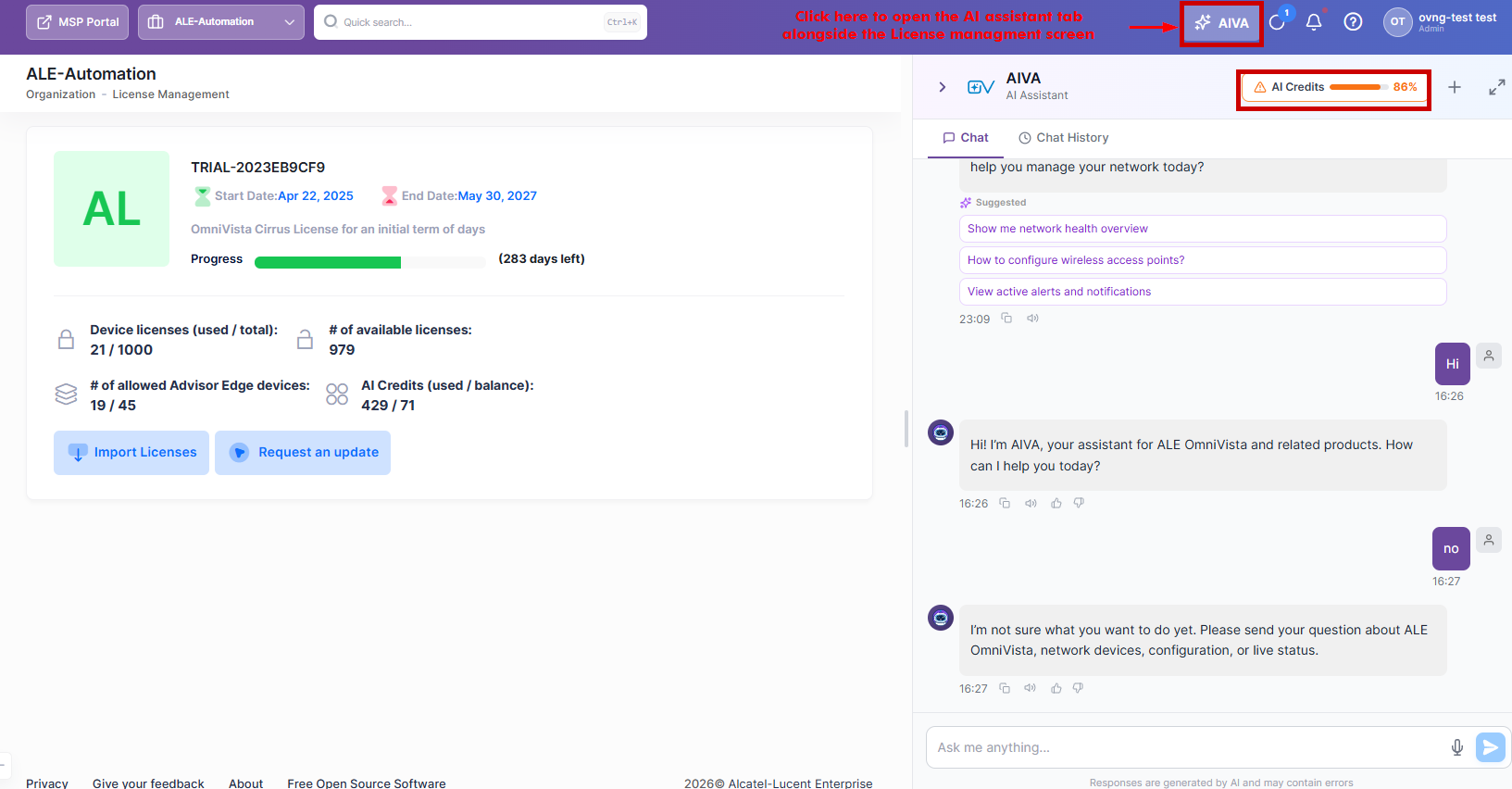
The 'AI Credits' in the AIVA panel header displays:
-
A progress bar showing the percentage of credits consumed.
-
A percentage label indicating current usage level.
-
A visual state indicator:
-
Normal (credit card icon) - Usage is below 80%.
-
Low (warning icon) - Usage is between 80% and 99%.
-
Empty (warning icon) - All credits have been consumed (100%).
-
The progress bar color changes to indicate urgency as your credit pool is consumed.
Display AI Credits Detailed Information
To display detailed information of the AI Credits usage, click the AI Credits in the AIVA panel header.
The below screen appears:
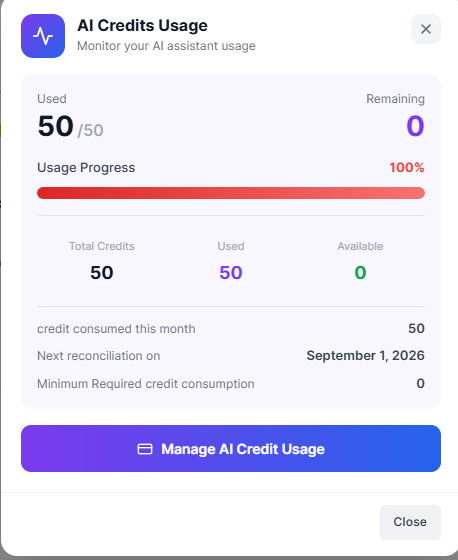
The below field values are displayed:
-
Used - The total number of credits consumed so far.
-
Remaining - The number of credits still available in your pool.
-
Usage Progress - A progress bar with percentage showing how much of your total entitlement has been consumed.
-
Total Credits - The total number of credits allocated to your organization.
-
Available - The number of credits remaining for use.
-
Used - The number of credits used so far.
-
-
Credit consumed this month - The user has to consume this number of credits before they are reduced.
-
Next reconciliation on - The upcoming reconciliation date for credit management.
-
Minimum required credit consumption - The minimum credit count that the customer must consume before the next reconciliation process starts.
Click on Manage AI Credit Usage to view the License Management screen for full subscription details. Click on Close to close the window.
Understanding Credit Allocation
The organization receives AI credits from one of the following models:
-
Trial Organizations - Trial organizations receive a fixed pool of 50 free AI credits valid for the Trial subscription. The trial credit amount cannot exceed 50 credits.
-
OV Lite Organizations - OV Lite organizations receive a fixed pool of 50 free AI credits. The OV Lite credit amount cannot exceed 50 credits.
-
Paid Organizations - Paid organizations receive AI credits from two funding sources:
-
-
Prepaid AI Credit Parts - Importing a prepaid AI credit license (5,000 credits per part) adds credits directly to the organization's pool.
-
Duration-Based Allocation - When eligible BAS, BIZ, or PRM add-on or renewal licenses are imported, credits allocate based on license duration:
-
-
-
1 month: 4 credits
-
1 year: 50 credits
-
3 years: 150 credits
-
5 years: 250 credits
-
Both funding sources contribute to the same shared organization-level pool.
-
Conversion from Trial or OV Lite to Paid - When the organization upgrades from a Trial or OV Lite subscription to a paid BAS, BIZ, or PRM plan, the original free 50 credits and any unused balance are removed. The credit pool then converts to the paid-credit model.
Monthly Reconciliation
For paid organizations using the BAS, BIZ, or PRM credit model, OmniVista performs an automatic reconciliation on the first day of every month.
The reconciliation proceeds as follows:
-
The system calculates a minimum expected consumption (baseline) as the number of active licenses multiplied by 4 credits per license.
-
If actual consumption during the period meets or exceeds the baseline, the system makes no adjustment.
-
If actual consumption falls below the baseline, the shortfall (baseline minus actual consumption) is deducted from your remaining balance.
This ensures the credit pool reflects both actual usage and the monthly baseline. No action is required from you, and reconciliation runs automatically.
Reconciliation does not apply to Trial or OV Lite organizations. Only paid BAS, BIZ, or PRM subscriptions are subject to reconciliation.
-
When credits reach zero, the AIVA credit indicator shows an empty state. To resume using the AIVA assistant, the organization must add credits by importing a prepaid AI credit license part, importing an eligible BAS, BIZ, or PRM add-on or renewal license, or waiting for a license allocation event.
-
When a new subscription license is imported, the existing AIVA credit balance is removed and replaced by the credits associated with the new license. The warning notification message on the “Import Licenses” screen warns you of this reset before you proceed.