
Advisor Edge extends OmniVista Cirrus with advanced anomaly detection and alert routing capabilities. This feature allows Organization Administrators to declare Advisor Edge instances, associate Organization devices for monitoring, manage anomalies, and route alerts to Rainbow communication bubbles. Advisor Edge is available for users with an active subscription or trial license on non-Lite plans.
Consider the following pre-requisites required to start using Advisor Edge:
-
You must have Administrator access to the Organization to declare instances, configure settings, and manage devices and Rainbow bubbles.
-
A Rainbow service account is required for your Organization before you can import Rainbow bubbles.
-
Your Organization must have an active Advisor Edge subscription or trial license (not available on Lite plans).
-
An external OmniVista Network Advisor installation is required to interact with the OmniVista Cirrus Advisor Edge application.
Using OmniVista Advisor Edge
Implementing Advisor Edge anomaly detection functionality for your OmniVista Cirrus Organization involves the following steps:
-
Install OmniVista Network Advisor on a supported Linux host.
-
Declare an Advisor Edge instance for an OmniVista Cirrus Organization. At least one Advisor Edge instance is required. When the first instance is declared, anomalies are automatically fetched from the external Network Advisor installation into OmniVista Advisor Edge. If no external instance is declared, Advisor Edge functionality is not available.
-
Assign Organization devices to the instance for Advisor Edge monitoring.
-
Create and manage Rainbow Bubbles for routing Advisor Edge alerts.
-
Configure settings for the OmniVista Advisor Edge instance.
-
Troubleshooting/FAQs for OmniVista Advisor Edge.
Installing OmniVista Network Advisor
Before you begin using Advisor Edge features in OmniVista, install and prepare OmniVista Network Advisor on a supported Linux host. The following information summarizes the installation prerequisites and procedure.
Installation Prerequisites
-
Internet access is required.
-
Minimum hardware: quad-core CPU with AVX support and 8 GB RAM.
-
Recommended storage: 50 GB (up to 200 devices), 120 GB (about 1,000 devices), 210 GB (about 2,000 devices).
-
Supported Linux distributions: Ubuntu 22.04 Server Edition, Debian 11, Debian 12, or Red Hat Enterprise Linux 9.3.
-
For RHEL installations, stop and disable firewalld before installation.
-
OmniVista compatibility baseline: OmniVista Cirrus 10.6.1 or later.
Installation Summary
-
Download the Advisor Edge package (
ale-ovna.deb) from ALE MyPortal: Network Products > Network Management > OmniVista Network Advisor. -
Transfer the package to the Linux host using SFTP.
-
Install the package with
sudo dpkg -i ale-ovna.deb. -
Run
sudo ale-ovna install. -
After installation, complete the Advisor Edge configuration in OmniVista according to your environment.
See the Installing OmniVista Network Advisor online help for detailed installation and upgrade guidance.
Accessing OmniVista Advisor Edge
To access the OmniVista Advisor Edge menu, click on Advisor Edge under the “Configure” section of the OmniVista Cirrus Menu.
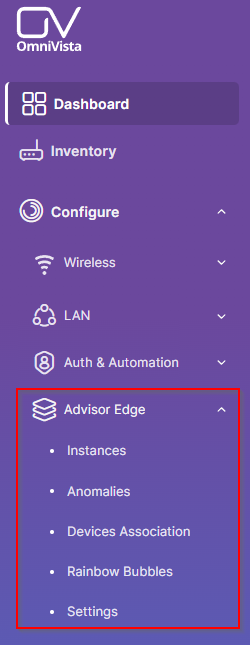
The Advisor Edge menu structure includes the following sub-menus:
-
Instances - Declare and manage Advisor Edge instances.
-
Anomalies - View and manage official anomalies, synchronize with instances, and import custom anomalies.
-
Devices Association - Assign organization devices for monitoring.
-
Rainbow Bubbles - Create and manage alert routing bubbles.
-
Settings - Configure instance-wide behavior, such as auto-remediation.
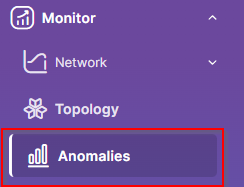
To view detected anomalies, click Anomalies under the “Monitor” section of the OmniVista Cirrus Menu.
Troubleshooting/FAQs
Instance shows "Offline" status
When an Advisor Edge instance displays an "Offline" status, OmniVista cannot communicate with the instance.
Resolution:
-
Verify that the instance is running and accessible at the Application UUID address.
-
On the Instances screen, click Ping on the Actions drop-down menu to trigger an on-demand heartbeat and verify whether the Edge instance is actually offline.
-
Check network connectivity between OmniVista and the instance.
-
Verify that the Application UUID and Serial Number entered during instance declaration are correct.
-
If the instance is restarted, it may take a few moments to reconnect; check again in 2-3 minutes.
-
If the issue persists, contact your system administrator to verify Advisor Edge service availability.
Import Bubble button shows a warning and is disabled
The Import Bubble button requires a Rainbow service account to be configured for your organization.
Resolution:
-
Contact your organization administrator.
-
Ensure that a Rainbow service account has been set up at the organization level.
-
Once configured, the Import Bubble button will be available and you can proceed with bubble imports.
Devices are not appearing in the Devices Association screen
If you cannot see organization devices when managing device associations, the instance may not be reachable.
Resolution:
-
Verify that the selected Advisor Edge instance has an "Online" status.
-
Check that the instance is properly declared and the Application UUID is correct.
-
Verify that organization devices have been added to the system.
-
If the instance is offline, you can still modify device selections in the Devices Association page; changes will be synchronized when the instance comes back online.
Anomalies are not appearing in history
If the anomaly history shows no results, check the following:
Resolution:
-
Verify that you have selected the correct Advisor Edge instance from the dropdown.
-
Check that the date range filter includes the dates you expect to see anomalies.
-
Confirm that devices are assigned to the instance and have been running long enough to generate detections.
-
Verify that the instance has an "Online" status. If offline, anomalies may not be captured until the instance reconnects.
Cannot save instance configuration changes
If configuration changes are not being saved in the Settings screen:
Resolution:
-
Verify that you have organization administrator permissions.
-
Ensure the Advisor Edge instance is online and reachable.
-
Check that all required fields have valid values (timeout values must be positive integers).
-
Try saving again; if the issue persists, refresh the page and attempt once more.
-
If the problem continues, contact your system administrator.
Cannot find the Application UUID during instance declaration
If you need the Application UUID or Serial Number while declaring an instance, retrieve them from the OmniVista Network Advisor host.
Resolution:
-
Open a terminal session on the Linux host where Network Advisor is installed.
-
Run the following command:
sudo ale-ovna id -
In the output, locate the “Installation Identifiers” section.
-
Copy the values shown for
APP_UUIDandSERIAL_NUMBER. -
Use these values in OmniVista when completing instance declaration fields.
Expected output example:
Installation Identifiers:
-
APP_UUID:
11111111-2222-4333-8444-555555555555 -
SERIAL_NUMBER:
ABCDE12345F6789
Device checkboxes are disabled in Devices Association
If you cannot select devices in the Devices Association page, the issue is likely related to device configuration or license availability.
Resolution:
-
Check device prerequisites:
-
Verify that the device has an IP address configured. Devices without an IP address cannot be assigned.
-
Verify that the device has a valid OmniVista license. Devices with expired or missing OmniVista licenses have their checkboxes disabled.
-
-
Check Advisor Edge license availability:
-
If a red alert banner appears above the device list stating "No licenses available," your Advisor Edge license pool is exhausted. Contact your organization administrator to purchase additional licenses or free up licenses from inactive devices.
-
If a yellow warning banner appears stating "No Advisor Edge license is configured," contact your organization administrator to set up an Advisor Edge license pool.
-
-
License status updates:
-
If a device's OmniVista license status recently changed (e.g., expired), the page may not reflect the update immediately. Refresh the page to reload the latest license status from the system.
-
Bubbles page is empty or shows an error
If the Rainbow Bubbles page displays an empty list, a loading spinner, or an error message, check the following:
Resolution:
-
Verify prerequisites:
-
Ensure that at least one Advisor Edge instance has been declared (see "Declaring an Instance").
-
Verify that a Rainbow service account is configured for your organization. If not, an Import Bubble button warning will appear, and no bubbles can be imported.
-
-
Check your permissions:
-
Only Organization Administrators can view and manage bubbles. If you have a Limited or Viewer role, you have read-only access.
-
If you cannot see the Bubbles page at all, verify your role with your organization administrator.
-
-
Refresh the page:
-
If the page is stuck on a loading spinner, try refreshing the browser or clearing the page cache.
-
If bubbles were recently created or imported, they may not appear immediately. Wait a few moments and refresh.
-
-
Contact support:
-
If the page consistently shows an HTTP error or fails to load bubbles, contact your system administrator to verify that the Advisor Edge service is running and the Rainbow account configuration is correct.
-
Cannot create a new bubble
If you cannot access the Add Bubble button or if bubble creation fails, check the following:
Resolution:
-
Verify prerequisites:
-
Ensure that at least one Advisor Edge instance has been declared. You cannot create bubbles without an active instance.
-
Verify that you have organization administrator permissions. Only administrators can create bubbles.
-
-
Check form validation:
-
If the Save button is disabled, ensure that you have entered a unique Bubble Name.
-
Verify that you have selected at least one anomaly in the Anomalies tab or chosen "All Anomalies".
-
Verify that you have selected at least one device in the Devices tab or chosen "All Devices".
-
-
Save operation failed:
-
If the save fails after submission, the bubble name may already exist. Try using a different name.
-
If the error persists, contact your system administrator to verify Advisor Edge service availability.
-