
After declaring an Advisor Edge instance, configure how the instance behaves—specifically, how it responds to detected anomalies and monitors network traffic. To access the Settings screen, navigate to Configure > Advisor Edge > Settings. There are two tabs on the Advisor Settings screen: General and Notifications.
Click on the General tab to configure automatic remediation and monitoring mode settings.
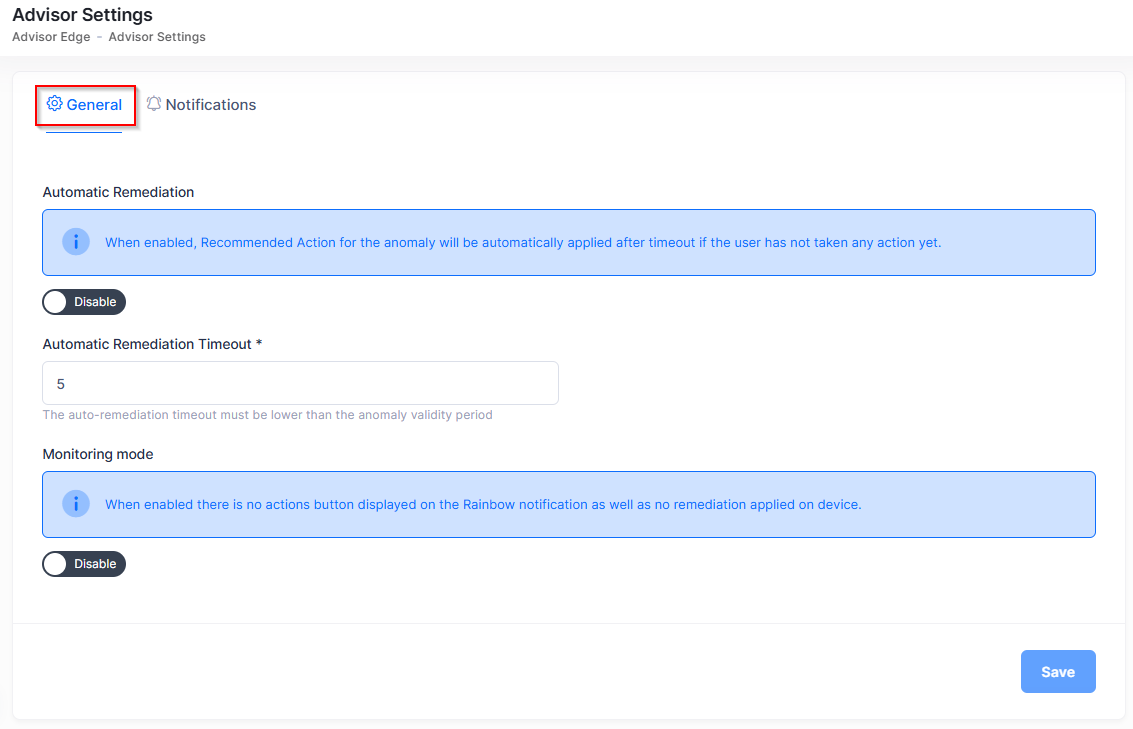
Configure the General tab settings as described below.
-
Automatic Remediation - Enable or disable automatic remediation of detected anomalies. Default: disabled. When enabled, the system attempts to fix issues without manual intervention.
-
Auto-remediation Timeout - The maximum time in seconds the system waits for a remediation action to complete before timing out. Default: system-defined.
-
-
Monitoring Mode - Enable to activate real-time monitoring of network devices and anomalies. Default: disabled.
Click on the Notifications tab to configure alert delivery settings.
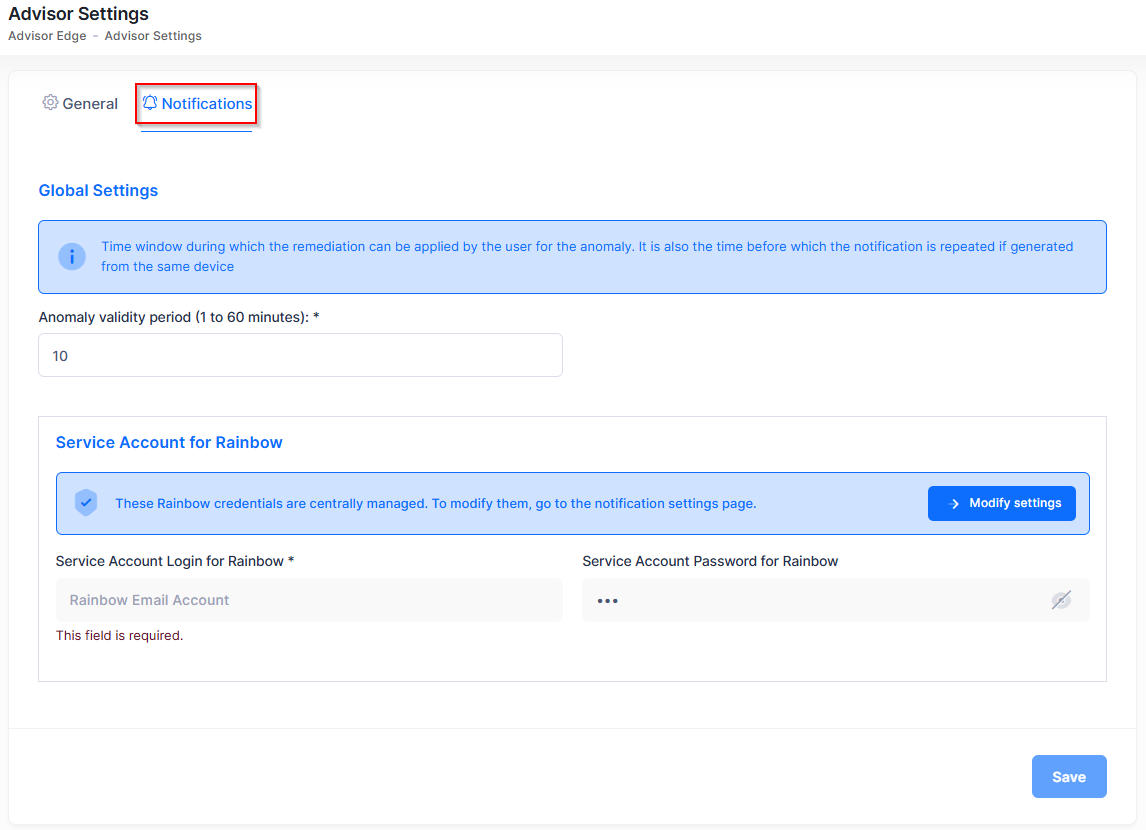
Configure the Notifications tab settings as described below.
-
Global Settings - This defines the amount of time for the following:
-
Time window during which the user can apply the remediation for the anomaly.
-
Rainbow notification delay time. If the same anomaly is detected on the same IP address, a notification is not sent to Rainbow until this delay has elapsed. This delay can be set to a minimum of 1 minute, allowing you to control the alert frequency in Rainbow.
-
Anomaly Validity Period (1 to 60 minutes) - The duration in minutes an anomaly remains valid after detection. Once this period expires, the anomaly is considered resolved. (Default = 10 minutes)
-
-
-
Service Account for Rainbow - Rainbow integration credentials are centrally managed. Click on Modify settings to access the Rainbow Notifications screen on which you can modify the service account credentials.
Click Save to apply the configuration. These settings apply to all instances declared for your organization.
Configuration values stored in OmniVista Cirrus are synchronized with your Advisor Edge instance. If an instance is offline, you can still view and edit configuration via the OmniVista interface.