
Rainbow Bubbles are communication channels within Rainbow that route Advisor Edge alerts to specific team members. You can manually create Bubbles or import Bubbles from your Rainbow account. Only Organization Administrators can create, import, edit, or delete bubbles; other users have read-only access.
Consider the following when managing Rainbow Bubbles used for Advisor Edge alerts:
-
Declare at least one Advisor Edge instance.
-
Configure a Rainbow service account for your organization.
-
You must have Organization Administrator role.
To view and manage Advisor Edge Rainbow Bubbles, navigate to Configure > Advisor Edge > Rainbow Bubbles. The Rainbow Bubble List screen appears.
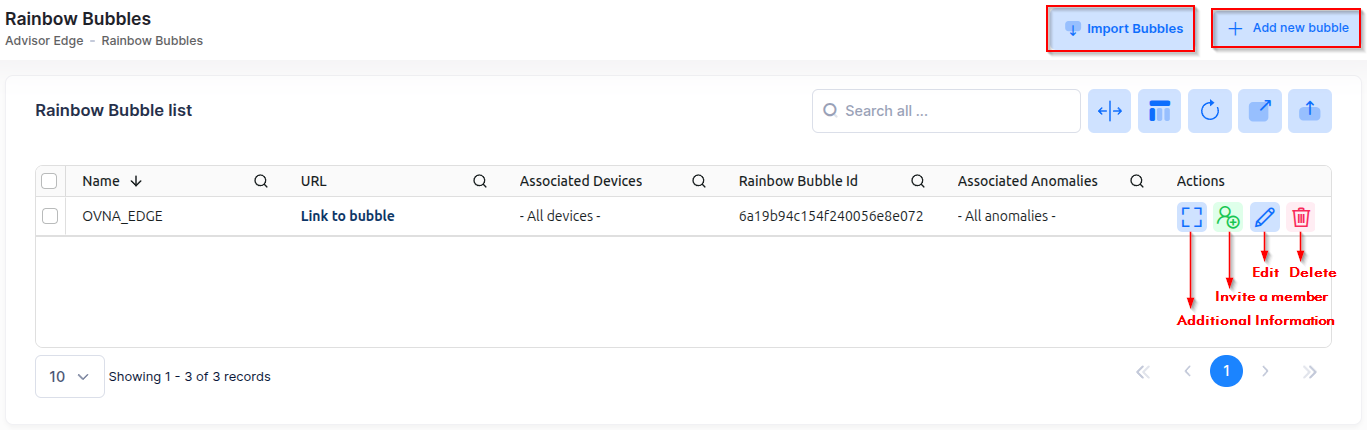
The following information is provided for each bubble in the list:
-
Name - The bubble display name, read-only after creation.
-
URL - The Rainbow public URL for accessing the bubble.
-
Associated Devices - Devices whose alerts are routed to this bubble, shown as "All Devices" or a list of specific devices.
-
Rainbow Bubble ID - The internal Rainbow identifier for the bubble.
-
Associated Anomalies - Anomaly types that trigger alerts in this bubble, shown as "All Anomalies" or a list of specific anomalies.
-
JID - The Rainbow JID/Jabber ID of the bubble.
-
Members - Rainbow users who are members of this bubble.
-
Description - A note describing the bubble's purpose.
-
Created At - The date and time the bubble was created.
Importing Rainbow Bubbles
To import Rainbow Bubbles into Advisor Edge, click Import Bubbles at the top-right of the screen. The following modal displays.
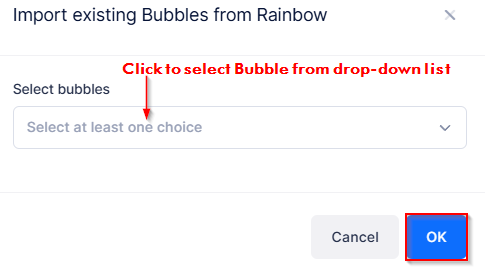
Click on the “Select bubbles” field to display a drop-down list of available Bubbles in your Rainbow account. Select the Bubbles you want to import, then click OK. The imported bubbles will appear in the Rainbow Bubbles List.
If no Rainbow service account is configured for your Organization, the Import Bubble button shows a warning and cannot be used. Contact your Organization Administrator to configure a Rainbow account.
Creating a Rainbow Bubble
To create an Advisor Edge Rainbow Bubble, click on + Add New Bubble at the top-right of the screen. The New Rainbow Bubble screen appears.
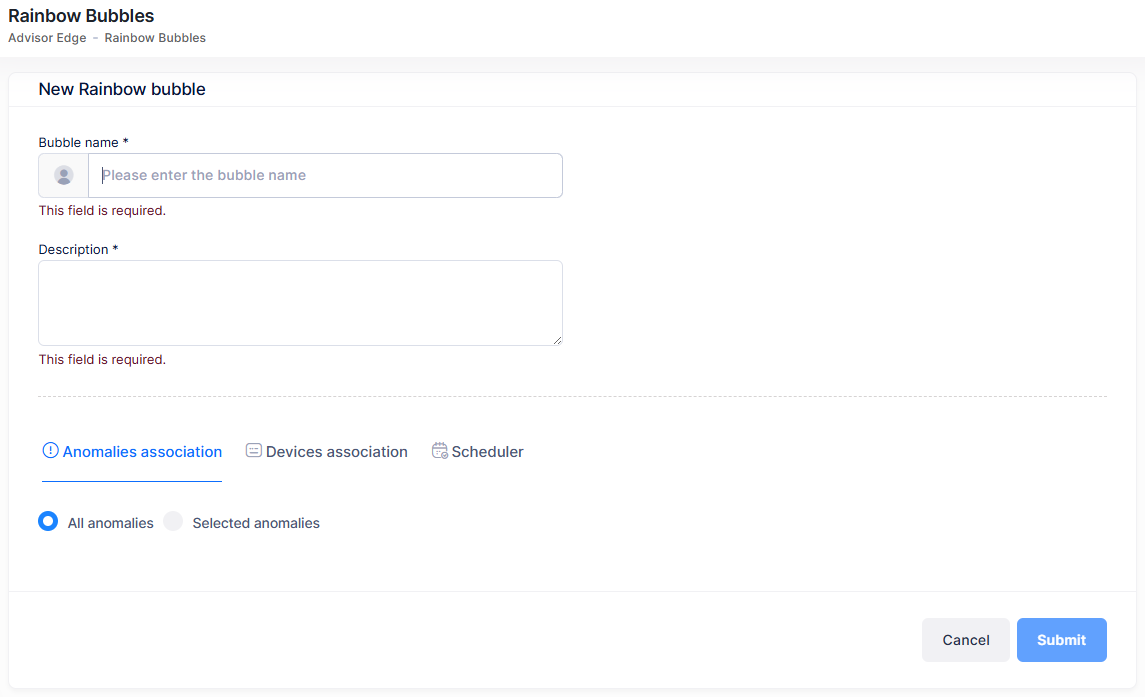
Complete the fields as described below.
-
Bubble name - A unique name to identify the Rainbow Bubble. You cannot change the name after the Bubble is created.
-
Description - An optional description to describe the purpose of the Bubble.
-
Anomalies association - Choose "All Anomalies" to route alerts for all anomaly types to this Bubble, or choose "Selected Anomalies" to route alerts only for specific anomaly types.
-
Devices association - Choose "All Devices" to include all organization devices in this Bubble, or choose "Selected Devices" to include only specific devices.
-
Scheduler (optional) - Configure a weekly schedule to control when this Bubble receives alerts by specifying the day of the week and time ranges for alert routing.
Click Submit to create the Bubble. The new Bubble appears in the Rainbow Bubble List and is accessible in your Rainbow account.
Editing a Rainbow Bubble
To edit a Bubble configuration, click on the Edit icon for the Bubble entry under the “Actions” column. The Edit Rainbow Bubble screen opens.
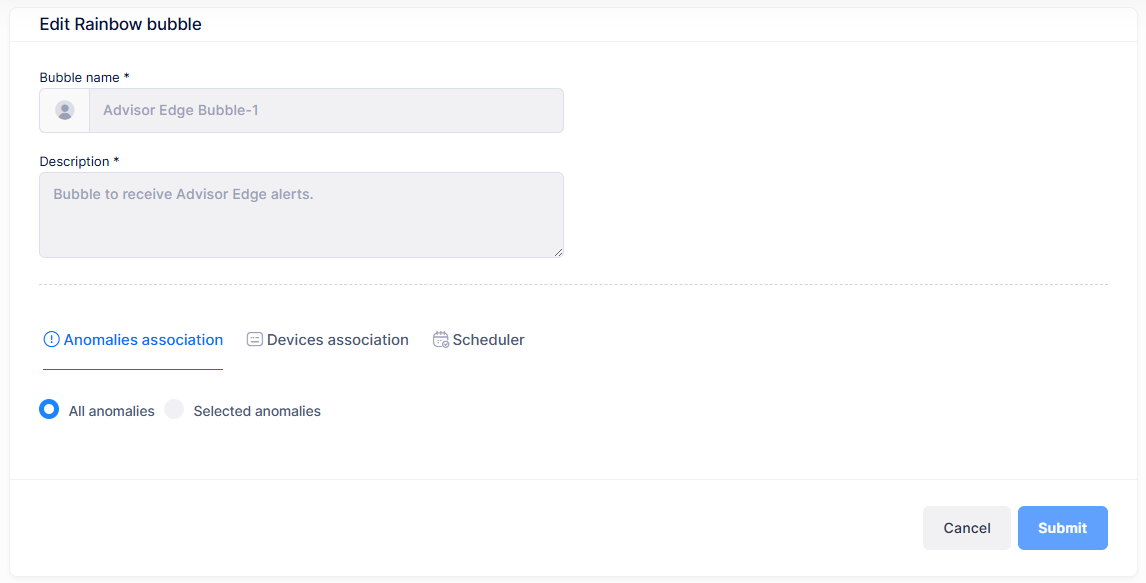
Note that the Bubble name and description are not configurable. You can only edit the following information:
-
Anomalies association - Choose "All Anomalies" to route alerts for all anomaly types to this Bubble, or choose "Selected Anomalies" to route alerts only for specific anomaly types.
-
Devices association - Choose "All Devices" to include all organization devices in this Bubble, or choose "Selected Devices" to include only specific devices.
-
Scheduler (optional) - Configure a weekly schedule to control when this Bubble receives alerts by specifying the day of the week and time ranges for alert routing.
Click Submit to apply your changes.
Deleting a Rainbow Bubble
To delete an Advisor Edge Rainbow Bubble, select one or more Bubbles, click Actions, and select Delete from the drop-down menu, or click the Delete icon for the Bubble entry under the “Actions” column. A Warning prompt appears.
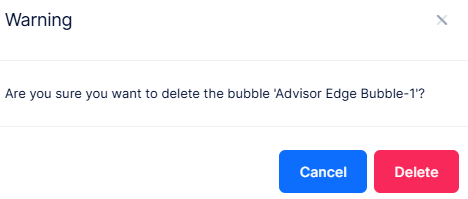
Click Delete to confirm. The Bubble is then removed from the Rainbow Bubble List.
When an Advisor Edge Rainbow Bubble is deleted, all device and anomaly associations with the Bubble are also removed.