
AIVA settings are managed at the Organization level. Changes affect all users within the Organization.
By default, AIVA is disabled for all new Organizations. The Organization Administrator must enable AIVA before users can access the AI assistant.
To configure the AIVA settings, click on Settings > AIVA under the “Organization” section of the OmniVista Cirrus Menu.
Enabling/Disabling AIVA
The AIVA Assistant toggle at the top of the settings page controls whether AIVA is available to all users in the organization.
-
Enabled - AIVA is active and accessible to all users in the organization.
-
Disabled - AIVA is hidden from all users. The AIVA icon at the top-right of the header toolbar appears grayed out with the tooltip "AIVA assistant is disabled by the organization administrator".
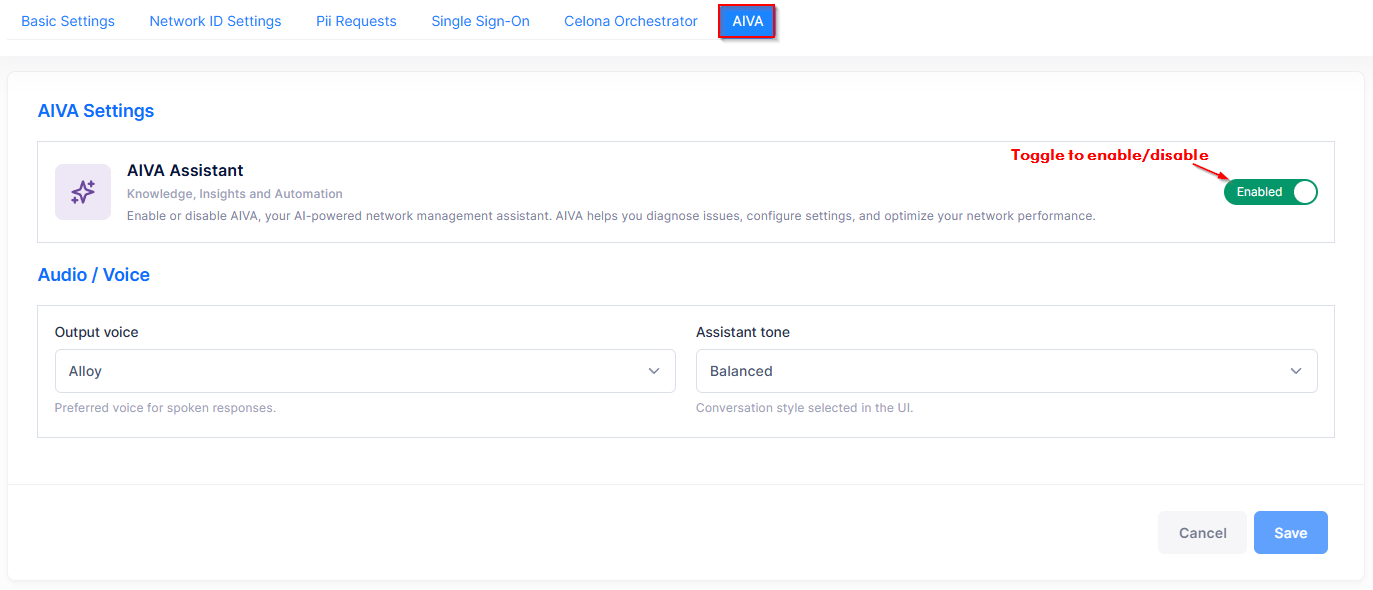
Audio / Voice Settings
The Audio / Voice section is visible only when AIVA is enabled.
Output voice - The voice used when AIVA reads a response aloud using text-to-speech.
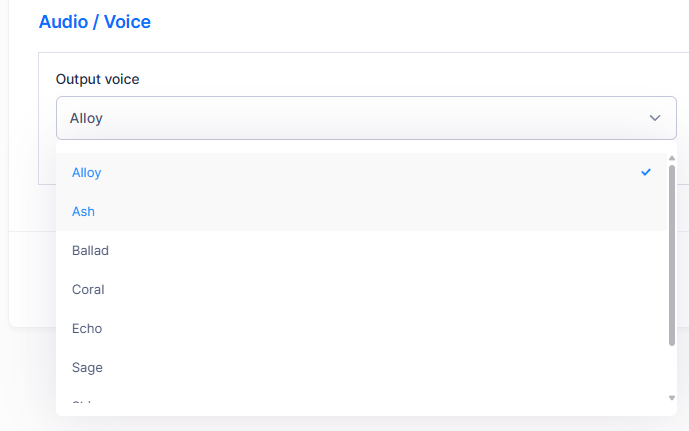
Select the Output Voice from the dropdown menu:
-
Alloy — Default
-
Ash
-
Ballad
-
Coral
-
Echo
-
Sage
-
Shimmer
-
Verse
Assistant tone — the conversational style AIVA uses when composing its responses.
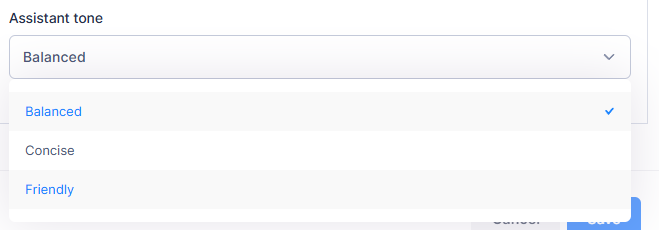
Select the Assistant Tone from the dropdown menu:
-
Balanced — a professional, neutral tone suitable for most use cases.
-
Concise — shorter, more direct answers.
-
Friendly — a more conversational, approachable style.
After making any changes, click Save to apply them, or click Cancel to discard changes.