The Logs screen displays all execution log entries for all past runs in your organization.
Use the Logs screen to display information about all of the execution Logs across the organization. Refer to the troubleshooting section for solutions to your queries. This screen also allows you to delete, and export execution Logs. To access the Logs screen, click on Auth & Automation > Scripts > Logs under the “Configure” section of the OmniVista Cirrus Menu. The below screen appears:
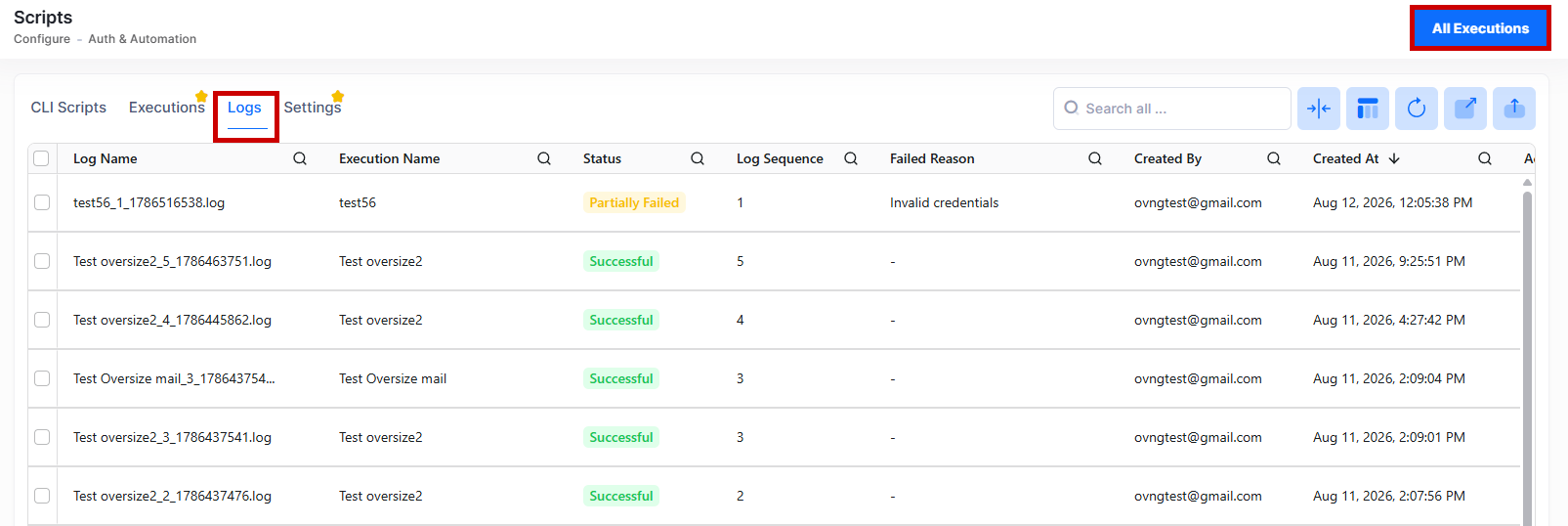
The following information is displayed:
-
Log Name - The name of the Log.
-
Execution Name - The name of the execution configuration.
-
Status - The current state of the execution Log.
-
Log Sequence - The sequence in which the log is generated.
-
Failed Reason - The reason for the execution has failed.
-
Created By - The user who created the execution Log.
-
Created At - The date and time the execution Log was created.
To view the per-device result logs for that execution click on View Consolidated Log tab under Logs List to view the logs. The below screen appears:
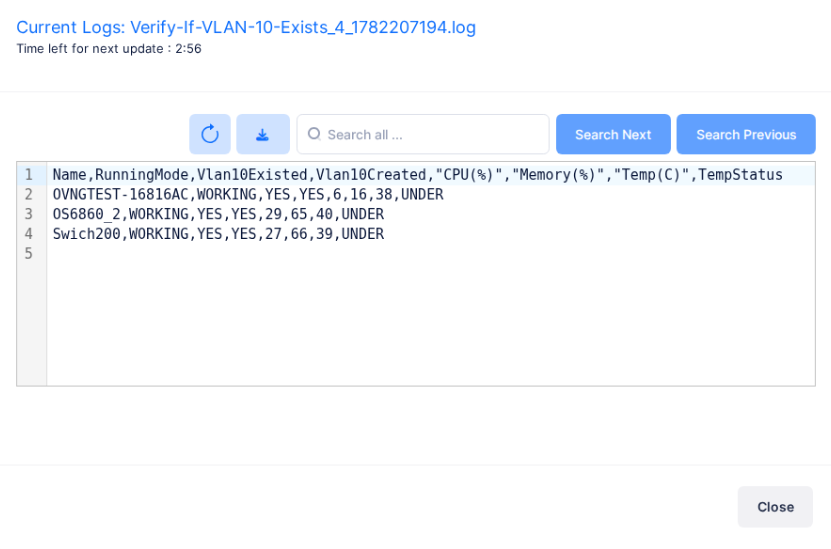
Each device's output is listed separately with its status and any failure reason.
The consolidated log is generated only when the script contains at least one cli.report() call and at least one device completes successfully. Per-device logs are created when the script uses a sendCmd() call or a CFG-format command.
Delete an Execution Logs
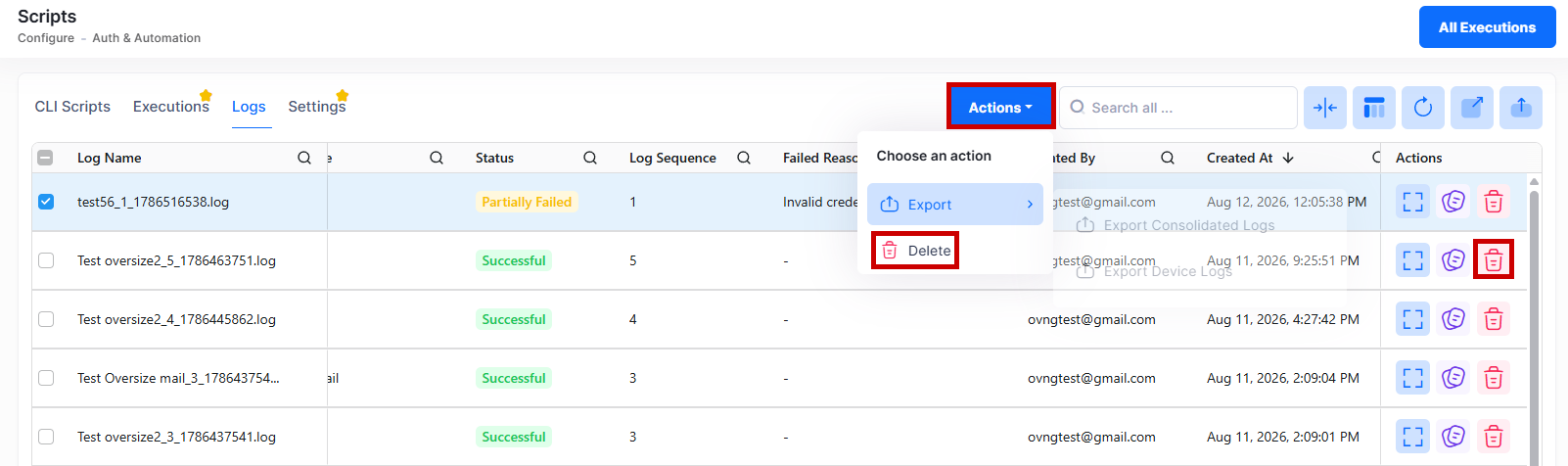
To delete an Execution Log, use one of the following methods to select theLog Name you want to delete:
-
Select the name to delete by clicking on the checkbox next to the list, click on Actions, then select Delete from the drop-down menu.
-
Click on the trash can icon under the “Actions” column next to the Log Name that you want to delete.
The following confirmation prompt appears:
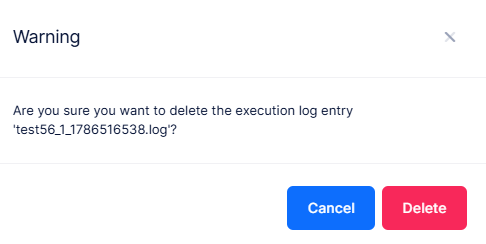
Click on Delete to confirm. All related execution logs will also be deleted.
Troubleshooting/FAQs
The consolidated log is empty or unavailable after a completed execution.
The consolidated log is only generated when the script includes at least one cli.report() call and at least one device executed successfully. Open the script on the CLI Scripts screen and verify that a cli.report() call is present in the Script Content. If the issue persists after adding the call, contact the administrator.
No device log is available for a device.
Per-device logs are generated only when the script includes a sendCmd() call or a CFG-format command. Verify that the script contains at least one of these. If neither is present, no device-level output is captured.
The execution log display notification "Connection timeout" for a device.
The device did not respond within the allowed time. Verify that the device is online and reachable from OmniVista. For scheduled executions, confirm that the device is online at the scheduled execution time. You can extend the timeout for individual commands in your script using setTimeout().
The execution log display notification "No route to host" or "Connection refused by host".
OmniVista Cirrus cannot connect to the device at the specified IP address. Verify the device is online, confirm the IP address in the Device Catalog screen, and ensure no network or firewall rules block the connection.
The execution log display notification "Syntax error" or "Unknown identifier in script".
The script contains a JavaScript syntax error or references an undefined function or variable. The error detail in the execution log includes the line and column number. Correct the script on theCLI Scripts screen and use Re-Execute to run again.
The execution log display notification "Undefined variable in script" or "Variable resolution failed".
A built-in variable used in the script could not be resolved for the target device. Verify that the device has the required property (such as an IP address or system name) configured and accessible in OmniVista Cirrus. Also check that the variable name is spelled correctly with the $ prefix.