
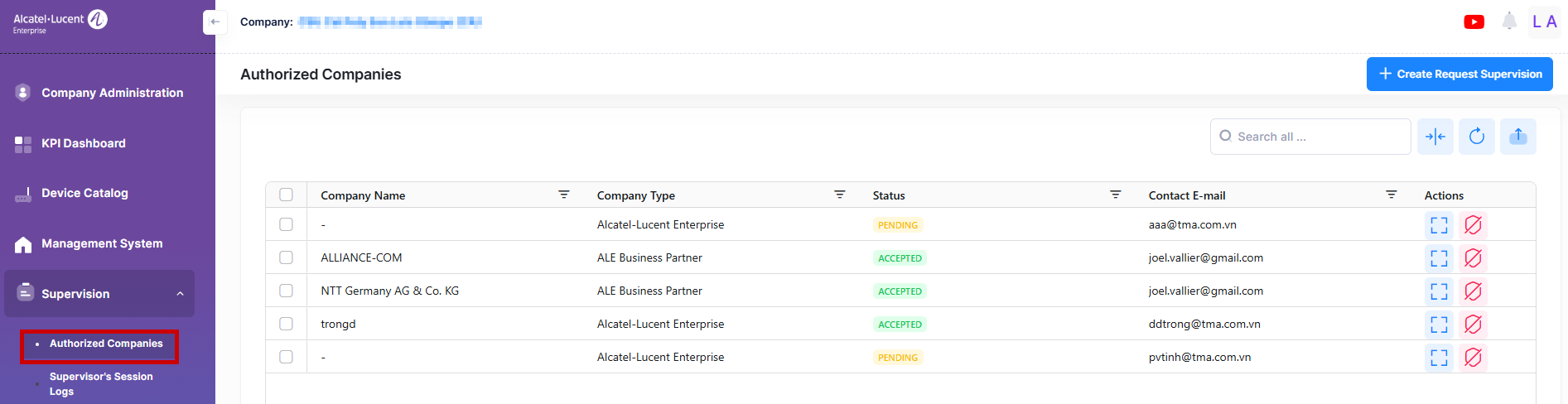
This screen displays all authorized companies that have Accepted or have Pending invitations to supervise this company.
It also allows you to create new supervision requests, Display Authorized Companies list, cancel supervision and revoke supervision. To access the Authorized Companies Supervision screen, click the Supervision > Authorized Companies option under the Fleet Supervision menu.
Data displayed in each widget can be exported into a CSV or Excel sheet format. You can also switch the widgets to full-screen mode for a better display.
Display Authorized Companies
This screen displays all authorized companies that have accepted or are pending an invitation to supervise this company. To display detailed information about a specific profile, click on the Additional Information icon under the “Actions” column. The information displayed on this screen is defined below.
-
Company Name of the Supervisor Company - For an Alcatel-Lucent Enterprise company, this field remains blank when the status is “Pending Response” and shows the company name after the request is accepted. For an ALE Business Partner company, it displays the company name selected by the user when creating the request.
-
Company Type - Type of the Supervisor company.
-
Status - Displays the status of the request for Supervision (Accepted or Pending Response).
-
Accepted - The request to supervise has been accepted.
-
Pending Response: The request to supervise is pending.
-
-
Contact E-mail of the Supervisor Company - For an Alcatel-Lucent Enterprise company, it displays the email provided by the user when creating the request. For an ALE Business Partner company, it remains blank when the status is “Pending Response” and shows the email of the user who accepted the supervision request.
Create Request Supervision
When you want to allow a supervisor company to supervise your company, you can send a supervision invitation to that company, provided you have Admin or Modifier permission. To create a new Supervision request, click on the add icon to display the Create Request Supervision screen. The Request Supervision screen opens as shown below.
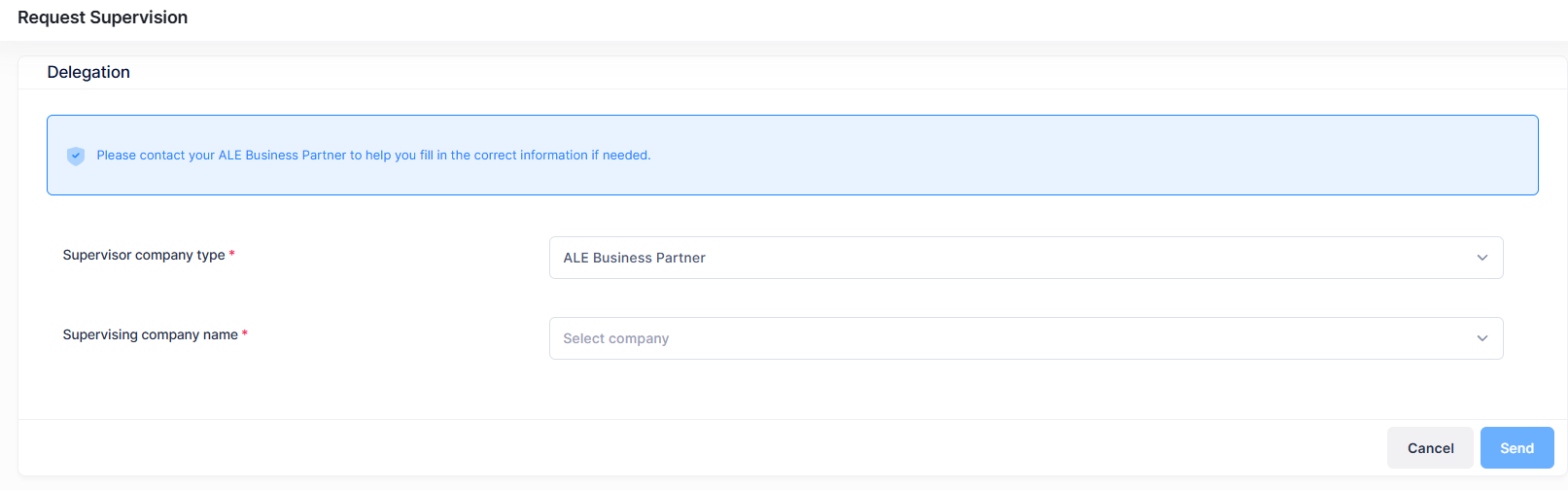
A customer company can be supervised by either an Alcatel-Lucent Enterprise supervisor or an ALE Business Partner company. Select the Supervisor company type option from the drop-down list.
-
If the Supervisor company type is ‘ALE Business Partner Company’
-
Supervising Company Name - If you select ALE Business Partner as the Supervisor, enter the company name from the drop-down list. (Note: You cannot select a business partner company already in pending or accepted status).
-
-
If the Supervisor company type is ‘Alcatel-Lucent Enterprise’
-
Supervising ALE contact email address - If you select ALE as the supervisor, enter a valid ALE email address to send a supervision invitation. You cannot send the invitation to an ALE email address with pending or accepted status. The email address must belong to the ALE domain.
-
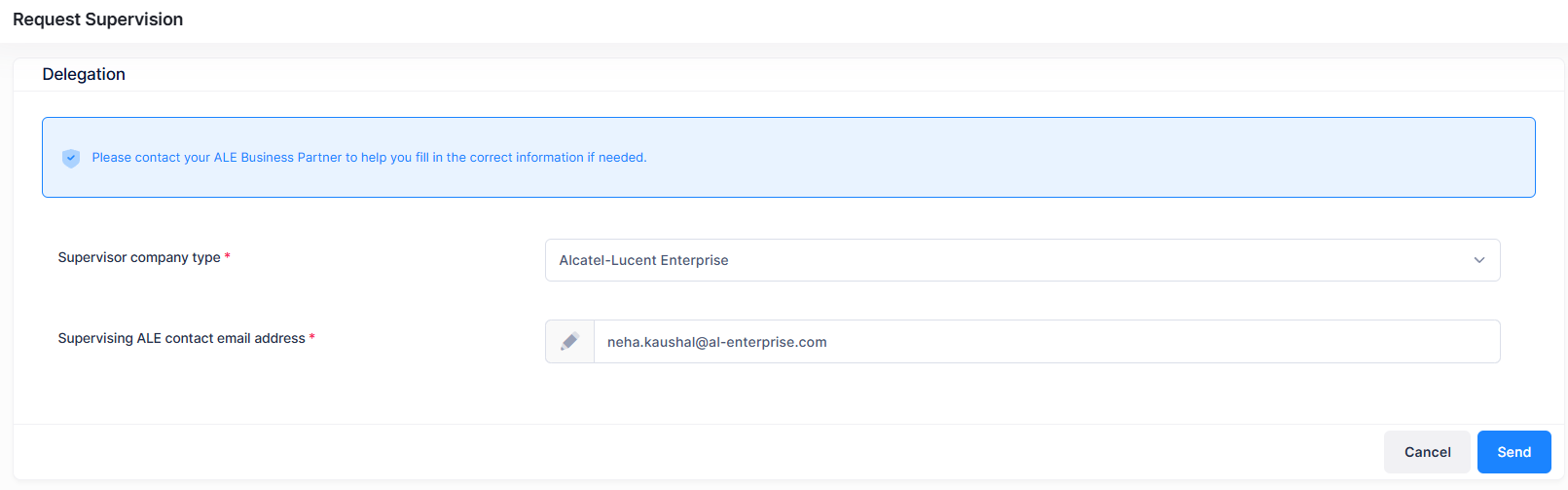
Click the Send button to send the invitation. The created request will appear on the Authorized Companies screen.
Revoke Supervision
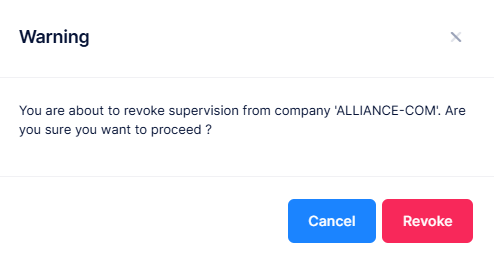
Select a Company name with the status “Accepted” from the Authorized Companies list and click on the Revoke icon under the “Actions” column. When the following confirmation prompt appears, click on Revoke to revoke the supervision from the selected company.
Cancel Supervision
You can cancel the Supervision invitation for a company from the Authorized Companies list and click on the Revoke icon under the “Actions” column. When the following confirmation prompt appears, click on Revoke to cancel the supervision for the selected company.
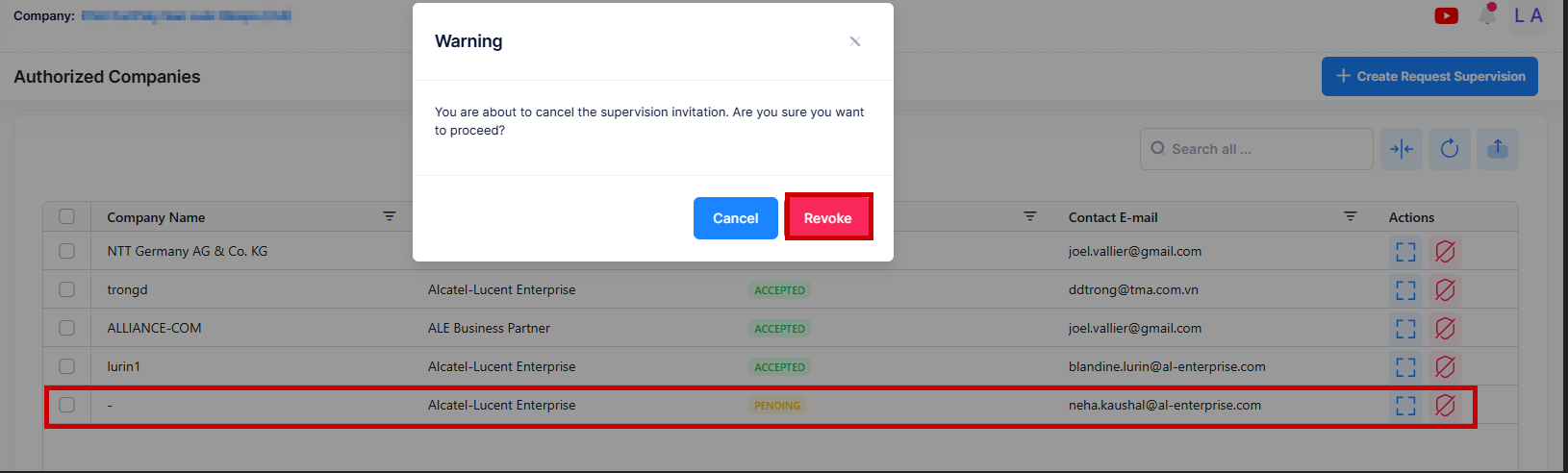
Note: Cancel a Supervision invitation applies only when the Supervision request is in the 'Pending' state.