
The Fleet Supervision Menu is displayed on the left-hand side of any User Interface screen. The menu provides links to all of the Fleet Supervision applications used to configure and monitor the Devices, as well as manage the Devices.
The menu is divided into five (5) areas: Company Administration, KPI Dashboard, Device Catalog, Management System, and Supervision. The section below provides an overview of each application/function by section.
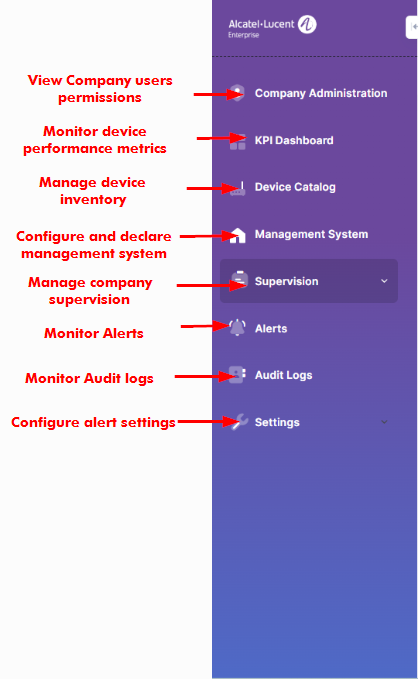
Fleet Supervision Applications and Functions
The Fleet Supervision Menu is divided broadly into five (5) areas: Company Administration, KPI Dashboard, Device Catalog, Management System, and Supervision.
Company Administration
This section lists company users and the permissions granted to modify or delete user settings.
KPI Dashboard
This section display the charts which provides the performance metrics information of Network Devices which are managed by the OmniVista NMS instance.
Device Catalog
This section is used to declare the unmanaged Network Devices into Fleet Inventory. Use the Device Catalog screen to manually import the Network Devices which are not managed by an OmniVista NMS instance to your inventory.
Management System
This section is used to configure a connection to the OmniVista NMS instance where the managed devices are declared. Each connection is referred to as a Management System.
Supervision
This section displays the list of supervised and supervisor companies with rights to request supervision by a supervised company from a supervising company. You can also view the activity logs and session logs of users from supervised and supervisor companies.
Alerts
This section displays the list of alerts generated in real time based on the network device event and configuration failures. You can configure alert settings to view alert history logs.
Audit Logs
This section lists all actions performed by supervised and supervisor companies within a specific time range.