
Remote packet capture allows users to remotely trigger, collect, and manage packet captures (pcap) from OmniVista-connected Access Points (APs), enabling centralized network troubleshooting, security analysis, and performance diagnostics without on-site intervention. Captures can be done in wireless or interface mode. Once the capture is done, it will be uploaded to OmniVista.
-
Unsupported AP models: AP11xx, AP12xx
-
Unsupported AP versions: 5.0.3.x and below
Remote Packet Capture (RPC) is accessible from Diagnostic Tools > Device Support > Remote Packet Capture on the OmniVista Cirrus Menu.
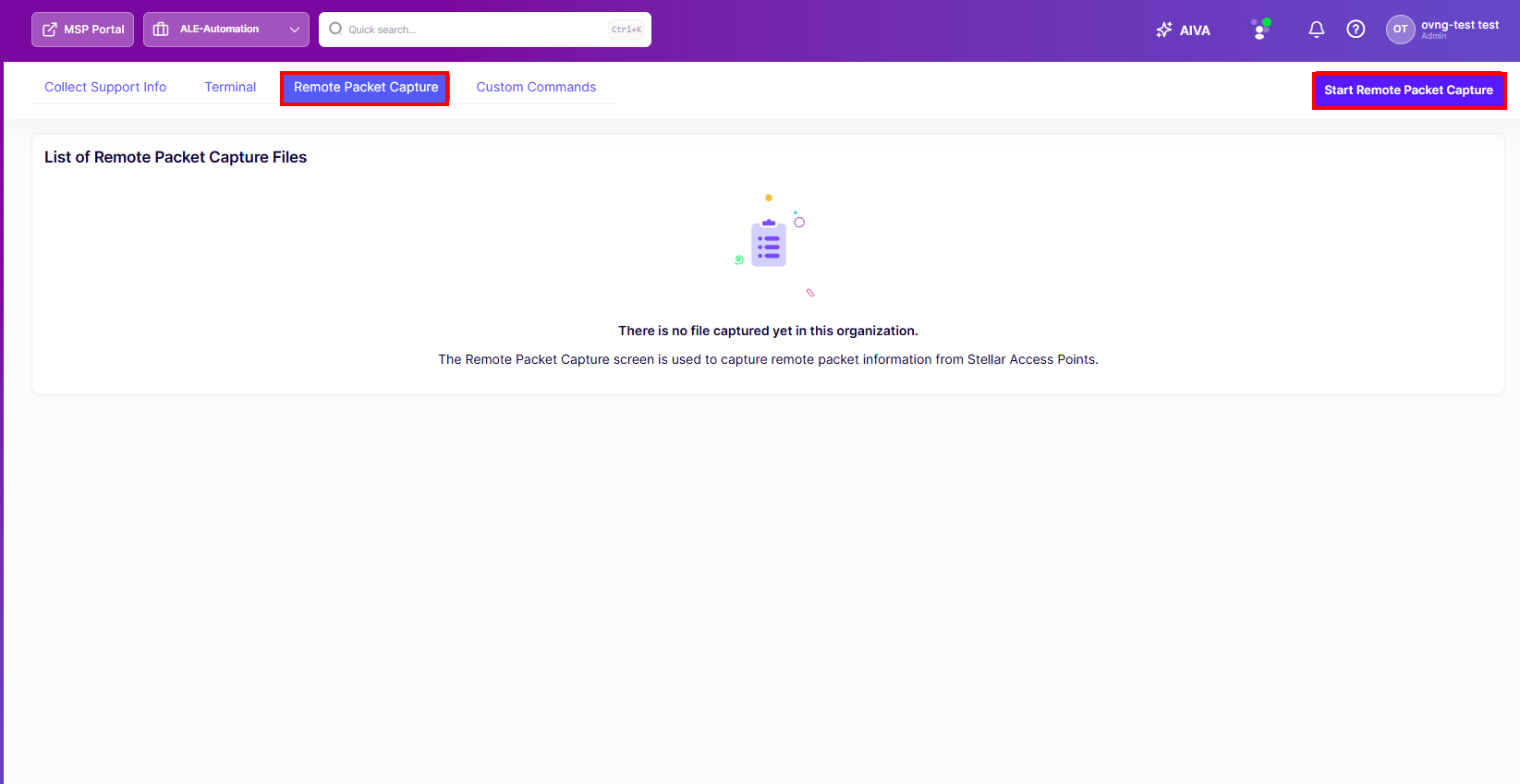
The table displays the list of captured files in the format APMAC-[WIRELESS/WIRED]-[BAND-CHANNEL/VLAN]-YYMMDDHHMM-SeqNum.pcap. Files can be downloaded or deleted using the available actions.
The user can download only the last segment of the APMAC-[WIRELESS/WIRED]-[BAND-CHANNEL/VLAN]-YYMMDDHHMM-SeqNum.pcap file (maximum size: 500 MB).
Performing a Packet Capture
-
Click on Start Remote Packet Capture.
-
Select the devices from which to capture and click Next.
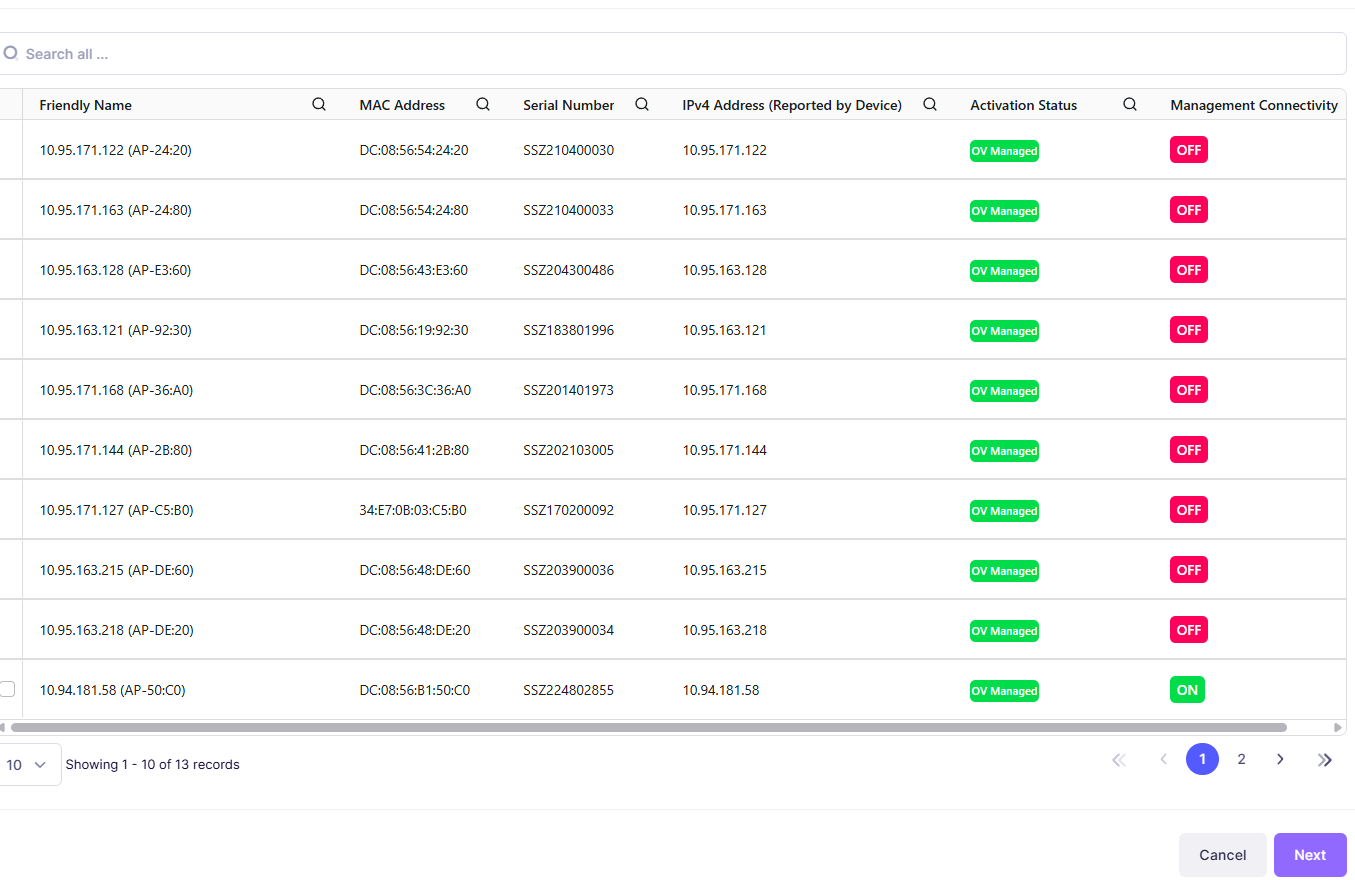
The list displays all OmniVista-managed devices regardless of their connectivity status. However, users cannot select devices whose connectivity status is OFF.
Capture Mode Wireless
-
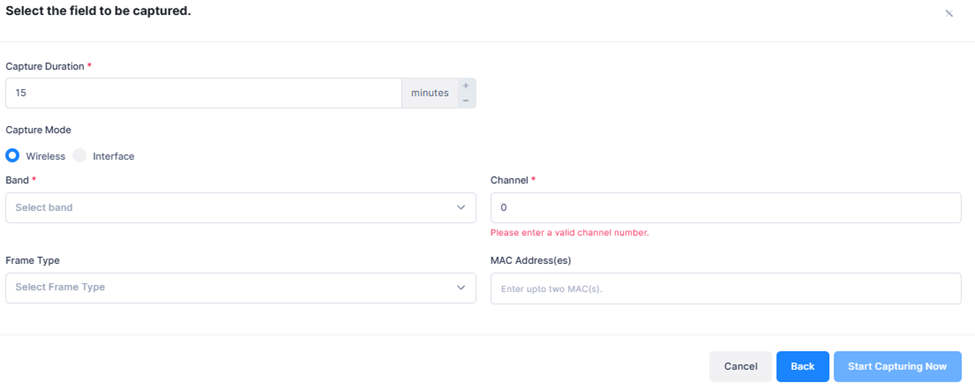
Capture Duration - Specify the packet capture duration. 1 mins (Minimum) - 60 mins (Maximum). Default - 15 minutes.
-
Band - 2.4G, 5G, 6G
-
Channel (e.g., 1-11 for 2.4G, 36-165 for 5G)
-
Frame Type - The type(s) of wireless frames to include in the capture. (management, control, data).
-
MAC Address(es) - One or more device MAC addresses to filter the capture to. You can enter up to five MAC addresses. An error message appears if an entered value is not a valid MAC address.
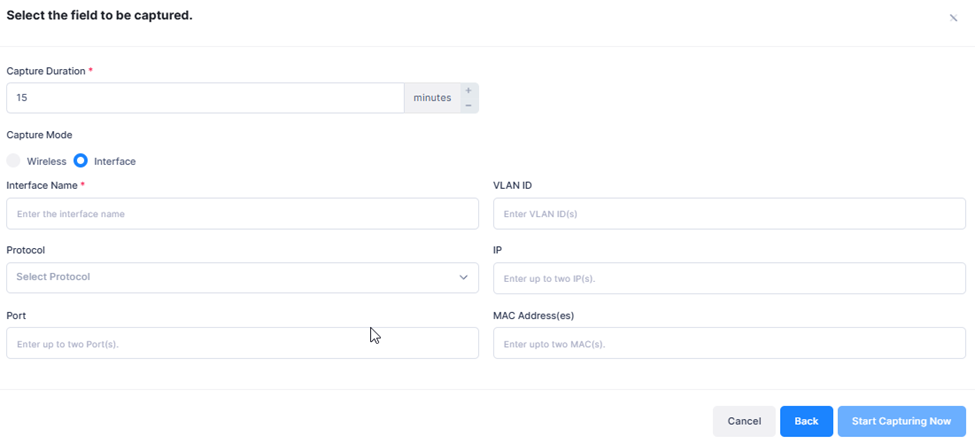
Capture Mode Interface
-
Capture Duration - Specify the packet capture duration. 5 mins (Minimum) - 60 mins (Maximum). The capture will stop automatically when it times out.
-
Interface Name - One or more interface names to capture traffic on (for example, eth0). Only the first interface is used.
-
VLAN ID - One or more VLAN IDs to filter the capture to. (Range = 1 - 4094). An error message appears if an entered value is out of range.
-
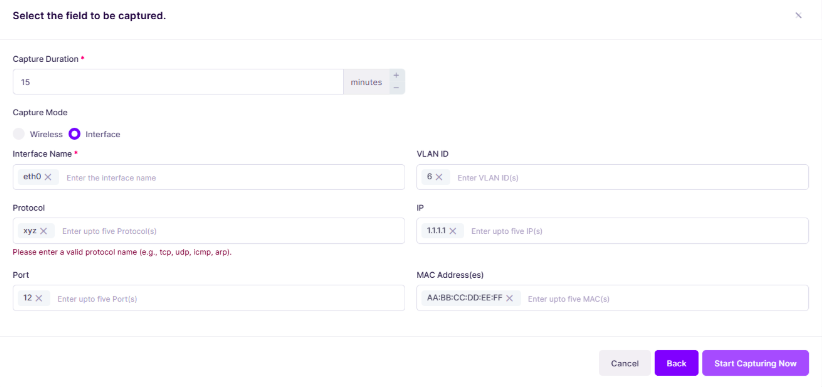
Protocol - One or more protocols to filter the capture to. You can enter up to five protocols. (Optional). An error message appears if an entered value is not one of the supported protocols: tcp, udp, icmp, arp, ip, ip6, icmp6, igmp, esp, ah, sctp, gre, rarp, ipv6, pim, vrrp, ospf, l2tp, eigrp.
-
IP - One or more IP addresses (IPv4 or IPv6) to filter the capture to. You can enter up to five IP addresses. (Optional). An error message appears if an entered value is not a valid IP address.
-
Port - One or more port numbers to filter the capture to. You can enter up to five ports. (Optional). An error message appears if an entered value is not a valid number.
-
MAC Address (es) - One or more device MAC addresses to filter the capture to. You can enter up to five MAC addresses. (Optional). An error message appears if an entered value is not a valid MAC address.
Field values (e.g., Channel, Band, VLAN ID, etc.) are not validated. The administrator must ensure that the correct values are provided for packet capture.
-
Click Start Capturing Now.
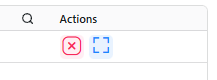
Once the capture starts, an entry is created in the table with the “Capturing” state. The capture will stop automatically and the file will be available for download based on the Capture Duration parameter value. The capture can be stopped at any time during the capturing process using the Stop Capture action.
Understanding Capture Status and Downloading Files
Each entry in the Remote Packet Capture list shows a Status value that indicates where the capture is in its lifecycle:
-
Capturing - The information is being captured from the Access Point.
-
File Pending - The information has been captured, and the file is uploading from the Access Point.
-
Captured - The capture is complete, and the file is available to download.
-
Failed - The capture has failed. A common reason is that OmniVista could not connect to the device.
While a capture is running, the access point sends its captured data to OmniVista as a series of files rather than one large file. OmniVista collects and accumulates these files in the background as they arrive and merges them into a single file once the capture finishes. Because of this, you never need to track or download multiple pieces yourself, regardless of how many files the access point produced during the capture; only one combined file is ever available for you to download.
Once an entry shows the Captured status, click the download icon in the Actions column to download this merged file. Larger files may take a few minutes to finish downloading after you click download.
To remove entries you no longer need, select one or more entries and click the trash icon under the “Actions” column.
Stopping and Deleting Captures
To stop a capture that is still in progress, click the Stop Capture icon under the “Actions” column next to the capture entry showing a Capturing status.
To remove a capture entry, select one or more entries you want to delete in the “Actions” column next to the entry name. You will be asked to confirm before an entry is deleted.
Troubleshooting/FAQs
I entered a protocol in Interface mode but got a validation error.
The Protocol field only accepts protocol names supported by the capture engine: tcp, udp, icmp, arp, ip, ip6, icmp6, igmp, esp, ah, sctp, gre, rarp, ipv6, pim, vrrp, ospf, l2tp, eigrp. If you enter any other value, the following message is displayed, and you cannot proceed until it is corrected:
The Next or Start Capturing Now button stays disabled.
This happens when a required field is missing, or a field contains an invalid value. In Wireless mode, Band and Channel are required and the entered MAC address(es) must be valid. In Interface mode, at least one Interface Name is required, and any entered VLAN ID, Protocol, IP, Port, or MAC Address must be valid.
My capture shows a Failed status.
A 'Failed' status usually means OmniVista could not connect to the Access Point during the capture. Verify the device is online and reachable, then start a new capture.
I tried to start a capture on a device and got a message that a capture is already in progress.
Only one remote packet capture can run at a time per device. If you get a notification that a remote packet capture process is already in progress for the device, wait until the device finishes collecting log files for the current capture before starting a new one.