These release notes apply to OmniVista Cirrus (OVCX) 10.6.1 MR1 build (10.6.1.013.12).
New in This Release
This section details the following features introduced in this maintenance release. These features completed the full validation cycle and are officially supported in OmniVista Cirrus 10.6.1 MR1.
OmniVista AIVA (AI Assistant)
The following additional features are now available with the OmniVista AI Assistant:
-
Scheduled Reports - AIVA can produce a report on demand, from a question in the chat, and on a schedule. Schedules are managed in the AIVA panel, where the generated reports are also listed. Generate network summary reports to show network status and provide insights for fast root-cause analysis.
-
Creating a schedule - A schedule can be created in two ways: by asking AIVA in plain language in the chat, or from the New schedule form of the Reports and Scheduler tab.
The form carries:-
the report type, Network Summary Report or Custom Report;
-
for a custom report, a description of the subject the report must cover;
-
the report language, which is the language the report itself is written in, independently of the language of the OmniVista interface;
-
the recurrence: every day, Monday to Friday, selected days of the week, or selected dates of the month;
-
the time and the time zone.
-
-
A summary line under the form states the resulting recurrence and time zone before the schedule is created. For a monthly schedule set on a date that some months do not have, those months are skipped. A schedule set on day 31 produces no report in a month of 30 days.
-
-
OmniVista application used to schedule a report - A scheduled report runs when nobody is signed in, so it needs credentials of its own. OmniVista creates them automatically.
-
The first time a schedule is created, an OmniVista application named AIVA Artifact Scheduler Report is created automatically for the account, with the description “Created automatically by AIVA to run scheduled reports. Deleting it stops your scheduled reports.”
-
Nothing has to be created or configured by hand. The application appears in the organization’s applications on its own.
-
This application belongs to AIVA. It should not be renamed, reused for anything else, or deleted.
-
Deleting this application stops the scheduled reports. Existing schedules remain listed but their runs fail, and the failure is shown in the Reports and Scheduler tab. Reports produced before the application was deleted are retained.
-
-
-
Reading the results - The Reports and Scheduler tab lists each report with its type, title, timestamp, status, and whether it came from a schedule or from a question in the chat.
-
Opening an entry displays the stored report; it can be exported to PDF.
-
A failed run is listed with its error message.
-
Reports produced on demand also stay in the conversation that produced them, and can be reopened from there later.
-
-
-
Configuration Agent - AIVA can apply network configuration from a request written or spoken in plain language. Administrators can now talk to the AI Virtual Assistant for day-to-day operational needs and insights.
-
How a configuration request is handled
-
-
-
-
-
The user describes what they want in plain language, for example “create an SSID called Guest-WiFi on the Paris site”.
-
AIVA identifies the matching configuration action and reads what that action requires.
-
AIVA asks only for the mandatory values that have no default and cannot be deduced safely. This is the behaviour of the OmniVista interface itself: when a form is filled in, only the mandatory fields are asked for and the rest takes the standard default values. AIVA applies the same defaults.
-
AIVA stops and displays an approval card listing the action, the object, the organization and every parameter retained, including the values it filled in itself, which are marked as defaults.
-
The user approves, edits the parameters, or cancels. Nothing is applied before approval.
-
-
-
Consider the following when using the Configuration Agent:
-
-
-
-
The stop before execution is enforced by the product, not by the assistant’s judgement. There is no path by which a configuration is applied without the approval card.
-
AIVA acts only on the organization of the current conversation. Naming another organization in the request does not make it act there.
-
When several configurations depend on each other, AIVA proposes them one after the other, each with its own approval card, offering to create the missing one or to use an existing one.
-
-
-
What is not in this release - AIVA applies one configuration at a time, with its immediate dependencies resolved and proposed in turn. It does not take a complete use case and build the whole chain from a single request: asking for a guest wireless network does not produce the captive portal template, the guest access strategy, the access policy and the SSID in one go. Each is proposed and approved in turn.
-
Orchestrating a complete use case from one request is planned for a later release.
-
-
-
Voice Agent - Administrators can now talk to the AI Virtual Assistant for day-to-day operational needs and insights. The following AI Assistant voice settings are configured on the AIVA Settings screen (Organization > Settings > AIVA):
-
Voice interaction mode: how the assistant listens during a voice session - Three modes:
-
Push to talk (the user holds the microphone button to speak).
-
Hands free, interruption allowed (the assistant listens continuously and the user can interrupt an answer).
-
Hands free, no interruption (the assistant listens continuously and finishes its answer before listening again).
-
-
Output voice - The voice used for spoken answers.
-
Assistant tone - The conversation style of the assistant.
-
Speech speed - The speed of the spoken answers.
-
-
OmniVista Network Advisor (OVNA) Edge - AIVA integrated with OVNA Edge to show the remediation and anomalies detected in the network.
OmniVista Lite
-
Additional Supported Devices - OmniVista Lite Organization obtains a list of supported devices from the OmniVista Cirrus 4 global datapond. This table contains: AP1501, AP1501S, AP1561, AP1571, AP1572, OS6370 family. If a device is added or removed from the global datapond, the device is successfully onboarded or failed.
Known Issues/Workarounds
Inventory
Access Point Is Stuck In “Connected to OV” State (OVNG-25565)
Summary: When “From LLDP” is enabled, the AP sends the switch location in the registration flow. However, the switch location value may contain invalid or special characters, so the AP remains in the “Connected to OV” state.
Workaround: When configuring the switch location information for LLDP/LLDP-MED on OmniSwitch devices, use standard alphanumeric (printable) characters only. Avoid using non-printable, control, or otherwise unsupported characters in the switch location configuration. Please remove any non-standard or invalid characters.
RAP Device Does Not Get New Management VPN Settings After Reset (OVNG-26129)
Summary: When a change is made to the Management VPN, a Remote Access Point (RAP) managed by OV Terra does not get the updated settings after the RAP device is reset. The RAP device keeps the OV Terra certificate and can NOT call OV Cirrus to get new Management VPN Settings.
Workaround: There are two possible workarounds for this issue based on whether the network configuration is working:
-
The current network configuration is still working
When you switch to the new Management VPN settings, the existing on-site network configuration remains functional. The old and new Management VPN settings can operate in parallel.In this case, RAP devices can still connect to the OVTx Activation Server and send requests. You can work around the issue by assigning the troubleshooting command
resetDeviceToFactoryDefaultto the RAP devices.-
Navigate to Diagnostics > Device Support > Custom Commands.
-
Click on Assign Command, select the RAP device from the Devices list (Step 1), then click Next.
-
Select resetDeviceToFactoryDefault from the command list (Step 2) and click Next.
-
Set the Command Args “clearCertificateAndPrivateKey” value to Yes (Step 3) and click Next.
-
Review the Assign Command Info and click Assign Command.
-
-
The current network configuration is not working
If the old Management VPN settings, including the mapping to the OVTx Activation Server, are no longer working and the user needs to switch to the new Management VPN settings, RAP devices cannot send the Call Home request to the OVTx Activation Server to retrieve the troubleshooting commands.In this case, you need to apply the workaround by running the following command:
Bashrm -rf /tmp/cloudurl /var/cluster_config/acv_client.conf /.ocloud/dhcp_ocloud_info /etc/config/ngcloudurl /tmp/dhcp_ocloud_info && echo 'Activation_Server_URL:activation.dev.myovcloud.com' > /tmp/dhcp_ocloud_info && cd /.ocloud && rm -f callhome_hash.json certificateFile.cert csr.csr privateKey.key publicKey.key && callhome.sh
Backup of switches running AOS 8.10R4 or later partially completes when you include security files (OVNG-22975)
Summary: Security files have root-level permissions. Due to enhanced security introduced in AOS 8.10R4 and later, OmniVista can no longer back up these files.
Workaround: Exclude security files from the backup.
Device Fails to Get Certificates (OVNG-21279)
Summary: When re-adding a device or moving a device between OmniVista 4 and OmniVista Cirrus 10, there are no issues as long as the device retains its certificates and calls home using the certificates. However, if the device certificate is lost and the device calls home using a hash, the device will receive a “FailedToGetCertificate” response. This occurs because the Certificate Server does not permit issuing new certificates to the same device more than once.
Workaround: Contact Alcatel-Lucent Technical Support to request manual certificate regeneration for the affected devices.
Cannot Onboard a Virtual Chassis if Adding Two Slave Devices into Device Catalog (OVNG-15331)
Summary: When onboarding a Virtual Chassis (VC) with two Slave switches, provisioning fails if the switches do not use the default Admin account for login credentials. This occurs if the default password for the Admin account was already changed before the VC was onboarded.
Workaround: Set the Initial Configuration again (either the Management User Template or Provisioning Template/Value Mapping). Note that after provisioning fails, only one record shows in the Device Catalog. Search for the device by Serial Number and update the Initial Configuration.
Set Desired Software Version May Fail for Switch VC if Primary Switch Serial Number Doesn’t Match VC Serial Number (OVNG-13619)
Summary: When adding a switch Virtual Chassis (VC) to OmniVista Cirrus, you can enter any Master or Slave serial number that belongs to the VC into the Device Catalog. After the switch sends a Call Home request to OmniVista Cirrus, the record in the Device Catalog is updated to the VC Serial Number (vcSerialNumber). Usually, the serial number of the current Master equals the vcSerialNumber. However, if a VC split, takeover, etc., occurs, the serial number of the current master may not match the vcSerialNumber. This discrepancy may cause problems when attempting to set the Desired Software Version for the VC.
As soon as the VC Switch is added to OmniVista Cirrus (before the device sends a Call Home request) or after the VC Switch becomes managed, you can set the Desired Software Version.
-
If the VC Switch has been added to OmniVista Cirrus but not yet managed, the Desired Software Version changes to 'Do not upgrade' when you add the Master/Slave serial number (not vcSerialNumber).
-
If the VC Switch is managed on OmniVista Cirrus, the Desired Software Version may not display correctly when the Virtual Chassis switches are split or broken.
Workaround: Check the Call Home request sent from the switch Virtual Chassis (VC) in the “/flash/libcurl_log” file. You can access this file by running Collect Support Info on the Switch and downloading it to your computer to examine the contents. Here’s an example Call Home request found in the “/flash/libcurl.log” file showing the VC serial number:
Request data: {"data": {"devices": [{"serialNumber": "V3981563", "deviceMacAddress": "2c:fa:a2:a2:ea:71", "modelName": "OS6560-P24Z8", "partNumber": "903953-90", "role": "master", "hash": "5e9275478352a44861dedbb659523f46b1046eb80eb78e43ecc30c141395e221", "vcSerialNumber": "ALE203981575", "vcMacAddress": "2c:fa:a2:a2:fb:01", "currentSoftwareVersion": "8.9.92.R04", "currentCertifiedSoftwareVersion": "8.9.92.R04", "currentRunningDirectory": "working", "deviceCloudGroup": "-", "authMethod": "certificate", "thinClient": 0, "typeCallHome": "periodic", "deviceMode": "CAPEX", "naasLicenses": []}, {"serialNumber": "JSZ203981575", "deviceMacAddress": "2c:fa:a2:a2:fb:01", "modelName": "OS6560-P24Z8", "partNumber": "903953-90", "role": "slave", "deviceMode": "CAPEX"}]}}
When the issue occurs:
-
If the VC Switch has been added to OmniVista Cirrus but not yet managed, manually reset the Desired Software Version for the VC Switch.
-
If the VC Switch is managed on OmniVista Cirrus and is split or broken, complete the following steps:
-
Remove all Chassis entries belonging to the Virtual Chassis switches.
-
Completely reset the Virtual Chassis switches.
-
Add the switch again using the VC serial number from the request (recommendation).
-
Adding a Switch to a Virtual Chassis May Cause the Primary Switch to Return to the Register State (OVNG-17750)
Summary: When adding another switch to a Virtual Chassis configuration, the new switch does not consume a license and the VC primary switch moves to “Registered” status.
Workaround: Release the license for the primary switch, then assign the license again. The license count is then updated on the next periodic or manual rediscovery.
Provisioning Fails for 8.10R1 Default Factory Switch (OVNG-17310)
Summary: When a switch running AOS 8.10.R1 GA boots up without a vcboot.cfg file for auto-configuration, the SSH is disabled by default, causing provisioning to fail. Only the console is enabled. This is not limited to a particular platform and can be seen on any switch running AOS 8.10.R1.
Workaround: Enable AAA authentication SSH on the 8.10R1 switch via the CLI. Problem is fixed in the AOS 8.10R1 MR1 release.
Force Provisioning Required for Switches Managed on a Previous Release of OmniVista Cirrus 10 (OVNG-18116)
Summary: When a new switch is onboarded in the current OmniVista Cirrus 10.4.3 release, the latest version of the OmniVista Cirrus Agent is pushed to the switch. However, If the device was already managed in a previous release of OmniVista Cirrus 10, the latest version of the OmniVista Cirrus Agent is not pushed to the switch.
Workaround: Force Provision the switch device to install the latest version of the OmniVista Cirrus Agent.
ISSU
Cloud Agent Status “Unknown” After ISSU Upgrade on AOS 8.9Rx Switch (OVNG-14310)
Summary: After an ISSU upgrade on an OmniVista Cirrus 10 managed switch, the Cloud Agent Status on the switch is “Unknown”.
Workaround: Manually copy the cloudagent.cfg file from "/flash/working/cloudagent.cfg" to "/flash/issu/cloudagent.cfg" on every managed switch after the ISSU upgrade. This will be fixed in the next AOS 8 release.
LAN Management
OmniVista Cirrus 10 Does Not Correctly Process More Than 2000 VLANs From a Switch (OVNG-18228)
Summary: If VLANs are created, updated, or deleted through the switch CLI and there are more than 2000 VLANs configured on the switch, OmniVista Cirrus does not correctly process the switch changes when the switch is next polled. As a result, OmniVista Cirrus UI does not reflect the updated switch VLAN configuration.
Workaround: To get the latest OmniVista Cirrus Agent and switch configuration, Force Provisioning is required for existing managed switches.
Network Monitoring
Collect Support Info Feature Does Not Work on NaaS APs that have an expired Management License (OVNG-5850)
Summary: If the NaaS management license expires for an AP in NaaS mode, the Collect Support Info operation will fail.
Workaround: Make sure the NaaS Management License is active when the AP is functioning in the NaaS mode.
Final Access Role Profile in Authentication Record Does Not Update Immediately After Captive Portal Authentication on Switch (OVNG-14892)
Summary: The "Final Access Role Profile" field displayed in the Authentication Record is the Access Role Profile (ARP) that the Switch actually applies to the device after successful Captive Portal authentication, but it is not the ARP that you would expect to apply to the device.
Workaround: Disconnect the client, then connect the client again to update the final ARP as expected.
LLDP Link Information On Device Detail Page Incorrect Between Managed and Unmanaged Switches (OVNG-14208)
Summary: When you click on the “LLDP” tab on the Device Detail screen for a switch, the LLDP link port information may not be correct and some fields blank. This occurs only with an unmanaged switch and a managed switch.
Workaround: There is no workaround at this time.
Unified Access
When Applying Two Policies With the Same Condition Group Simultaneously, the Latest Data on the AP Is Not Updated (OVNG-19125)
Summary: OmniVista Cirrus pushes the correct data to the AP when two Unified Policies with the same Condition Group are applied simultaneously. However, the latest policy data is not updated on the AP.
Workaround: Restore policy data synchronization to ensure APs will successfully receive and apply the most current policy configurations. This requires completing the following steps to re-establish policy associations:
-
Navigate to Policy Management
Access the Unified Policies screen (Configure > Auth & Automation > Access Profiles > Policy).
Locate the two affected policies that share the same Condition Group. -
Unlink policies from the AP group
Access the assignment settings for each affected policy.
Remove the AP group association from both policies.
Confirm the AP group is no longer listed under either policy's applied groups. -
Re-apply policies sequentially
Return to the first policy's assignment page.
Re-add the AP group to this policy's applied groups.
Wait for the assignment to complete and propagate.
Repeat the process for the second policy. -
Validation through Unified Policies Screen
Verify both policies now show the AP group in their applied assignments.
Confirm the shared condition group is properly configured in both policies.
Monitor AP status to ensure the latest policy data has been synchronized.
Redirect URL Not Working After Successful BYOD Portal Authentication (OVNG-10674)
Summary: After BYOD Portal Authentication passes, the Success Portal Page displays but the user is not redirected to the “Go to initial URL” specified in the BYOD Access Strategy. This issue occurs only when the initial URL begins with “HTTPS”.
Workaround: No workaround at this time.
UPAM-NAC
Cannot Save Customized Captive Portal Template with Video Content (OVNG-20902)
Summary: When using the Firefox browser, Captive Portal template customization with a new video layout is not saved.
Workaround: Use the Chrome browser instead of Firefox.
Errors Occur When the Client Continuously Connects and Reconnects to SSID Portal (OVNG-9735)
Summary: When a user logs into the network, then logs out, and then logs in again, the user may see error messages on the login portal and won’t be able to access the network.
Workaround: User should try to avoid continuously logging in and logging out of the network.
After Upgrading to Android 11 or 12, EAP-TLS Protected Wi-Fi No Longer Works (OVNG-9786)
Summary: In 2021, Android (Google) made a change in their OS to enforce "Validate Server Certificate" option for a 802.1X authentication. This means that, Android 11 and 12 will validate the server's device certificate. Hence users need to specify server's device certificate chain (Root And/Or Intermediate CA's) on their Android devices. If not the authentication will fail. Android 10 and below still works.
Workaround: An alternative is to upgrade the devices to Android 13. Android 13 offers "Trust on First Use" (TOFU) feature. TOFU enables installing the Root CA certificate received from the server during initial connection to a new network. The user must approve installing the Root CA certificate.
Client Unable to Join 802.1X SSID When All EAP = NO and Allowed Method = EAP-TLS for the Access Policy (OVNG-10155)
Summary: When you create an SSID and select an Access Policy with All EAP set to “No” and Allowed Method set to “EAP-TLS” for the SSID Authentication Strategy, the client is unable to join an 802.1X SSID.
Workaround: There is no workaround at this time.
Delay in Seeing BYOD IPv4 Client in the List of BYOD Device Records (OVNG-10759)
Summary: Once a client connects to a BYOD SSID, there is a delay before seeing the Client IPv4 address in BYOD device records. The AP to which the Client is connected will send the client IPv4 with the second accounting packet.
Workaround: No workaround at this time.
Captive Portal Screen Displayed on Microsoft Edge (OVNG-13528)
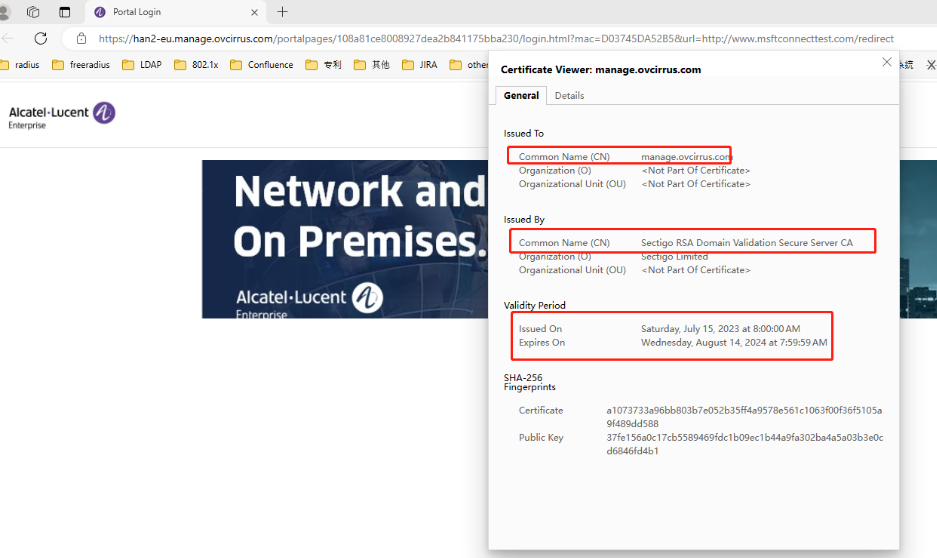
Summary: When a guest device using a Microsoft Edge browser opens the Captive Portal Template after connecting to an SSID, the sign in/sign up form may not display (no username, password input shown). If this happens, there may be a mismatch between the hostname the Web browser is attempting to reach and the hostname sent by the Web server in a digital certificate.
Workaround: Click the Lock → Connection is Secure → Certificate Icon on the browser to check if the certificate is correct. For example:
Wireless
Mesh Topology and Topology Do Not Show Links for AP Bridge Connections (OVNG-22977)
Summary: When you configure an AP as an AP Bridge (either Root or non-Root role), the links for AP Bridge connections are not displayed in the Mesh Topology or Topology applications.
Workaround: There is no workaround at this time.
AP does not Send “portal.report” Event when Wrong Username/Password Entered (OVNG-2811)
Summary: When a user logs in to UPAM Captive Portal with an incorrect username/password, the login will fail but the failure is not immediately indicated on the QoE Analytics UI. Only after 15 minutes will QoE report the failure and the failure is reported as a “Timeout”. Two consequences of this are: Users won’t find out about the failures to login to UPAM Captive Portal until after 15 minutes, and the user will not be able to differentiate between a true “Timeout” with UPAM Captive Portal versus wrong credentials entered at UPAM Captive Portal login.
Workaround: No workaround at this time.
"HostName" Information Lost in “user.report” After the Client Roams to Another AP (OVNG-7792)
Summary: The Client Name (aka “HostName”) information in WLAN Client List is lost after the client roams to another AP.
Workaround: No workaround at this time.
AP Client is Assigned to Untagged VLAN Instead of Tunnel ID Configured in Access Role Profile (OVNG-11683)
Summary: When an Access Role Profile (ARP) with Tunnel only mapping is applied to an AP client, the client is assigned an IP Address in the Untagged VLAN network, not an IP address in the Tunnel network.
Workaround: No workaround at this time.
Issues Fixed
PRs Fixed in 10.6.1 MR1
-
OVNG-27881: mqtt-source-ovng-wlan-ap-incoming-messages silently drops ~422k AP messages (non-UTF-8 switch_location from LLDP) - no task failure, no alert, no DLQ
-
OVNG-28219: ovng-edge-service killed by "fatal error: concurrent map writes" — unsynchronised writers map in kafka.Producer.getOrCreateWriter
-
OVNG-29434: [OVTx][Installation] Default Time Zone “Asia/Saigon” rejected: “This value is not allowed”
-
OVNG-27925: ovng-wlan-analytics logs at DEBUG despite LOG_LEVEL=INFO — 168 GB of logs in 4 days, OpenSearch disk at 92%
-
OVNG-27999: License Provider change OAuth to OAuth 2
-
OVNG-28189: Monitoring pages return 500 (42P01) for ~25 s after org creation — OVNG-22976 fix is OVTx/Dashboard-scoped and does not cover SwitchAnalytics/WlanAnalytics
-
OVNG-28172: An organization with no subscription is unreachable for everyone: the activation-request modal is no longer opened by any screen, so a self-signup org without MSP is permanently locked out (even for a super admin)
-
OVNG-28225: L3VPN poll incorrectly due to L3VPN poll before Service
-
OVNG-28270: [SPB] Manual Access Port should allow to select in List Port when configuration SAP
-
OVNG-27807: [Edge advisor]for no co-termination edge license is not getting consumed after instance is assigned
-
OVNG-28176: Some switches do NOT display a list of ports
-
OVNG-28370: [UPAM] All SMS sent by UPAM fail with NoSuchMethodError - samp-service image ships httpclient 4.5.2 while message-center needs 4.5.10 (twilio 8.24.0)
-
OVNG-28399: discovery-manager-entries/warning takes 0.12 s per Discovery Manager entry (PBKDF2 decrypt per row), called 2x on org entry + on every progress-popup poll
-
OVNG-28286: Flyway V1.000.0.26 reports success but converts only 4 of 13 columns: responder.responder_id stays varchar, /networkevents/responder returns 500 permanently
-
OVNG-29023: [Lite Supported Models] PLM user cannot add Lite Support Models
-
OVNG-29080: [10.6.1 MR] Update OV Cirrus supported equipment List
-
OVNG-28759: [Lite Supported Models] Missing Success Toast Message After Deleting a Model
-
OVNG-27975: Manage supported device models for OV LITE organizations using metadata.
-
OVNG-28088: Debug
raise logleft active in the analytics provisioning trigger floods the PostgreSQL server log on every cluster and every org schema (up to 74 GB/day on sqa-sca, ~70% of prod-eu log bytes) -
OVNG-27927: Quick UI improvements
-
OVNG-28041: mongo-source connectors: heartbeat records discarded by the dropNullRecords SMT, so the change stream resume token is never refreshed -> silent data loss (errors.tolerance=all) or permanent task failure (errors.tolerance=none)
Customer PRs Fixed
-
CRNOV-8659 Unable to disable AIVA after OVNA configuration
-
CRNOV-8549 SMS sent by UPAM fail with NoSuchMethodError
-
CRNOV-8509: Atrium#00884356 // OMNIVISTA CIRRUS-OVC10 does not show virtualChassisStatusChange trap definition, only the interger code
PRs Fixed Since Release 10.5.2
-
Error Occurs When Accessing/Deleting an Organization (OVNG-22976)
-
It Takes More Than 45 Minutes for a Client to Appear on the Application Visibility Widgets Page (OVNG-19911)
-
Schedule Upgrade Using Set Desired Software Version (OVNG-10325)
-
Cannot Enter Another Username/Password in Terminal Session Modal (OVNG-14678)
-
Manual Rediscovery Does Not Update All Objects Changed on Switch (OVNG-17911)
-
Unified Access Profiles in Pending Status After Upgrade to OmniVista Cirrus 10.5.1 (OVNG-21343)
-
BYOD Self-Service Login Page Account Password Rules and the Account Password Rules Are Inconsistent (OVNG-22726)
-
Cannot Edit an AP Web/External CP Certificate if Name Contains a Dot (OVNG-23397)
-
Each AP Group Can Only Support Up to Seven SSIDs (OVNG-9610)
Customer PRs Fixed
-
If Message-Authenticator verification fails, the authentication failure reason is displayed incorrectly as "Unprintable Password" instead of the actual cause.(CRNOV-7838 OVNG-23139)
-
OVNG Display wrong client roaming history showing client connected to 2 different AP at the same time (CRNOV-7920 OVNG-24700)
-
OVNG Web Page delay and latency issue ( CRNOV-8210 CRNOV-8135 CRNOV-8134 CRNOV-8118 CRNOV-7629 OVNG-21185)
-
OVNG user should be able to fetch traps from a switch (CRNOV-8128 OVNG-21904)
-
Employee Account / Guest Operator: show hidden password is wrong in the Edit page (CRNOV-8099 OVNG-23485)
-
Unable to map the ports to the VLAN via OVC 10 (CRNOV-8277 OVNG-25640)
-
Issue with SSO for login to OVNG via Entra ( CRNOV-8270 OVNG-26000)
-
Improve error message for Access Policy limit (CRNOV-7951 OVNG-24595)
PRs Fixed Since Release 10.5.1 Patch 1
-
Unable to add static neighbor for AP (OVNG-23562)
Customer PRs Fixed
-
Cannot import company property from CSV or XLSX. (CRNOV-7494 OVNG-21709)
-
Unable to search the RF profile details. (CRNOV-7604 OVNG-21903)
-
The username with "space" in captive portal guest account is not working if it is created using self-registration strategy. (ALEISSUE-2249)
-
Unable to modify SSID parameters after update 10.5.1. (CRNOV-7632 OVNG-22034)
-
Issue with License Release when deleting Floor/Building. (CRNOV-7635 OVNG-21962)
-
Reset UPAM/Email templates after customization. (CRNOV-7600 OVNG-22821)
-
OmniVista should allow user to delete Incremental/Value mapping template that was not used. (CRNOV-7375 OVNG-22906)
-
Notify When Access Role Profiles Are Removed from Switches. (CRNOV-7621 OVNG-21933)
-
License utilization is showing incorrectly in OmniVista. (CRNOV-7500 OVNG-21556)
-
Unable to SSH the switch from OmniVista with 3 letter usernames. (CRNOV-7495 OVNG-21774)
-
There's a typo error in the External Captive Portal Template. (CRNOV-7852 OVNG-22951)
PRs Fixed in Release 10.5.1 Patch 1
-
Cannot Import a Flexible Pay License (OVNG-21421)
-
License Management > Manual assignment behavior (Step 2) differs during license import vs License Management (OVNG-21544)
-
License Status Information Count is Incorrect in Org List, Default Dashboard, and License Management (OVNG-21210)
-
Automatically assign licenses are disabled when clicking F5 (OVNG-21486)
-
"Do you want to automatically assign licenses to any new device added to the Device Catalog?" When you enable by clicking “Yes” (during import license), it initially appears to be enabled but switches back to “No” after the license upgrade. (OVNG-21533)
-
When you click on the device Friendly Name in the Alerts list, the Device Details screen opens with the following error message: “The requested source does not exist” (OVNG-21453)
-
Alerts not displayed in the Alerts table when the “Group by Window” option is not set to “none” (OVNG-21324)
-
Alerts are not displayed for Organization Limited Admin and Viewer user when the Organization scope filter is applied (OVNG-21461)
-
When editing a Unified Policy List with AOS and AP Group change, the AOS device is not updated (OVNG-21465)
-
Unable to SSH to the switch from OVC 10 with 3-letter usernames (OVNG-21539)
-
Error message “The requested source does not exist” displays when you click on Create Access Classification (OVNG-21456)
-
Changes made in Edit IP interface screen for device type IPIP tunnel and GRE tunnel are not reflected in the UI and AOS (OVNG-21433)
-
Unit in “Upload Bytes distributed by Top 10 Connection Mode” and “Upload Bytes distributed by Top 10 SSID” is not correct in “Client Summary Report and Client Health Report” (OVNG-21355)
-
The Custom Attributes value of the Guest Account is not visible in the UI after registration (OVNG-21025)
-
Guest Account addition failed (OVNG-21184)
-
Cannot import Guest Accounts after creating one manually (OVNG-21468)
-
Missing Service Level / Registration Profile attribute when creating Guest Account (OVNG-21420)
-
Export of Guest Remembered Devices data fails (OVNG-21313)
-
When the "OmniVista Advanced Analytics" switch in the Provisioning Configuration is turned off, the AP mdps process does not exit (OVNG-21153)
-
The “Copy whole content to clipboard” option for the Golden Configuration is not working (OVNG-21416)
-
When you disable “Mesh/Bridge Configuration”, only the “Mesh/Bridge Configuration” parameter changes (OVNG-21229)
-
IOT failed to start in EU Prod after production upgrade (OVNG-21609)
-
EU Prod 10.5.1 ovng-lan, two instances crashed 3 times due to webview error in content of ext_ov_lan_mqtt_src_aos_ip_interface_info_incoming_messages (OVNG-21703)
-
OVC 10.5.1 backend fails to connect to datapond due to expired token (OVNG-21462)
-
The Actions button does not display on the AP Details screen (OVNG-21815)
Issues Fixed Since Release 10.4.3
Customer PRs Fixed
-
Management connectivity status is OFF for AOS switch (SR # 00807386 CRNOV-7152)
-
OV Cirrus Account Activation Failure due to time zone mismatch (SR # 00810183 CRNOV-7191/OVNG-19901)
-
AP stuck in calling home in hash mode with FailedToGetCertificate status when onboarding to OmniVista Cirrus (SR # 00816825 CRNOV-7318/OVNG-14879)
-
AP Friendly Names Reverting to Default (AP-XX:XX) (SR # 00820756, 00821852 CRNOV-7334/OVNG-21004)
Release Note Issues Fixed
-
If the SSID Name in a “aproqueinfo.report” Contains a Semicolon, WIPs Alerts and Analytics are Not Generated (OVNG-14205)
-
Need to Wait One Day After License Renewal to Add Devices (OVNG-14988)
-
Error Message When Filtering Auth Resource Column in Authentication Records List (OVNG-15414)
-
Incorrect Event Responder Information When Device is Moved to a Different Site (OVNG-15663)
-
Link on the Topology Map Is Lost When the Switch Goes Down (OVNG-14922)
-
CSV Analytics Report File Displays More Fields Than the Created Report (OVNG-15429)
-
Completed Wired Client Sessions Not Shown After Device is Deleted (OVNG-15250)
Issues Fixed Since Release 10.4.2
-
Start/End Date Values Not Shown When Editing a Report with a Custom Date Range (OVNG-14672)
-
Cannot Edit a Tunnel Profile with “%” or “+” in the Profile Name (OVNG-15410)
-
Creating/Editing Unified Policy With Allowed Special Character Does Not Always Work (OVNG-15415)
-
Save Disabled When Editing the Responder Status (OVNG-15530).
-
Auto-Group VLANs Fails to Apply a New Profile to an AP (OVNG-15351)
-
Limitation When Selecting an Existing Group for a Unified Policy Condition (OVNG-10690)
-
Limitations for Deleting Unified Access Profiles on AOS Switches (OVNG-17942)
-
All of the Special Characters Not Allowed in Unified Policy List Name are Not Specified (OVNG-15404)
-
Data VPN Setting With Shorthand Mask IP Address Ending in Zero Fails (OVNG-15394)
-
Rogue AP Cleared Alert Is Not Generated if Organization Status Is Update Requested (OVNG-14906)
Issues Fixed Since Release 10.4.1
-
Current Client Density Screen Displays Incorrect Session Start Time for AP Clients (OVNG-11243)
-
AP Location is Empty in Live Wireless Client Additional Information (OVNG-12164)
-
Editing the AP Device Location Disrupts Connectivity With the AP (OVNG-12252)
-
Mismatch Between Time Filters on the Client Analytics Screen and the Clients Screen (OVNG-12257)
-
Service Temporarily Unavailable Message With External RadSec Server (OVNG-11277)
Issues Fixed Since Release 10.3
-
PKSC8 private key is not supported for LDAP cert and AP Web Cert (OVNG-7726)
-
False Portal Authentication Failure Alert Messages Received (OVNG-11239)
-
Current Client Density Screen Displays Incorrect Session Start Time for AP Clients (OVNG-11243)
Additional Documentation
Online help is available in OmniVista Cirrus and can be accessed by clicking on the Help Link (?) in the upper-right corner of any screen. You can also search through the online help on the OmniVista Cirrus Documentation home page to familiarize yourself with OmniVista Cirrus 10.5.2 features and functionality.
Technical Support
Alcatel-Lucent Enterprise technical support is committed to resolving our customer’s technical issues in a timely manner. Customers with inquiries should contact us at:
Region Phone Number
North America 1-800-995-2696
Latin America 1-877-919-9526
Europe Union +800 00200100 (Toll Free) or +1(650)385-2193
Asia Pacific +65 6240 8484
Internet: Customers with Alcatel-Lucent service agreements may open cases 24 hours a day via Alcatel-Lucent’s support web page at: https://myportal.al-enterprise.com/.
Upon opening a case, customers will receive a case number and may review, update, or escalate support cases on-line. Please specify the severity level of the issue per the definitions below. For fastest resolution, please have telnet or dial-in access, hardware configuration—module type and revision by slot, software revision, and configuration file available for each switch.
Severity 1 - Production network is down resulting in critical impact on business—no workaround available.
Severity 2 - Segment or Ring is down or intermittent loss of connectivity across network.
Severity 3 - Network performance is slow or impaired—no loss of connectivity or data.
Severity 4 - Information or assistance on product feature, functionality, configuration, or installation.