
This release of OmniVista Cirrus is available as a free trial or paid version of the full OmniVista Cirrus Solution. The trial version extends for 90 days and can be used to monitor up to 20 Access Point and Switch devices combined (additional time and number of devices can be requested). You can then upgrade from the free trial version to a paid licensed version of OmniVista Cirrus.
OmniVista Cirrus 10.5.2 (OVC 10.5.2) provides an elastic cloud scale platform supporting dynamic expansion, ensuring high availability and resilience. You can access OVC 10.5.2 from anywhere using any approved browser and device (e.g., workstation, tablet). Access to OmniVista Cirrus is supported on the following browsers: Chrome 79+ (on Windows and Redhat/SuSE Linux client PCs), and Firefox 62+ (on Windows and Redhat/SuSE Linux client PCs).
These Production Notes detail features and enhancements, network/device configuration prerequisites, supported devices, and known issues/workarounds in OmniVista Cirrus 10.5.2. Please read the Production Notes in their entirety as they contain important operational information that may impact successful use of the application.
New in This Release
The following sections provide an overview of the features and enhancements introduced with this release.
New Devices Supported
Stellar Access Points
The following Wi-Fi Gen 7 OmniAccess Stellar Access Points are now supported:
-
OAW-AP1501
-
OAW-AP1561
-
OAW-AP1571
-
OAW-AP1572
AOS Switches
The following AOS switch models are now supported:
-
OS6920-D32, OS6920-C40D6
-
OS6575-P12, OS6575-MP16, OS6575-U28
See the Supported Devices section below for a list of all devices currently supported in OmniVista Cirrus 10.5.2.
Software Supported
-
AWOS 5.0.4 - OmniVista Cirrus 10.5.2 supports AWOS 5.0.4 on all supported Access Points.
AOS 8.9R4 is the minimum software version supported by OmniVista Cirrus. AOS software versions below 8.9R4 are not supported.
-
AOS 8.10.86.R04 - OmniVista Cirrus 10.5.2 supports AOS 8.10R4 on all supported AOS Switches, except for the OS6900-T20/T40/X20/X40/X72/Q32 models, which do not support AOS 8.10R1 or higher versions.
-
AOS 8.10.87.R04 - OmniVista Cirrus 10.5.2 supports AOS 8.10.87.R04 non-secure images only on the OS6360, OS6465, OS6560, and OS6570M switch models. These images do not require a U-Boot update.
Modifying the default password of “admin” user is strongly recommended for all switches. Changing the password is a mandatory requirement for AOS versions 8.10.R04 and above.
-
If the default credentials have not yet been changed on the switch, you must set the new password on switches through the Management User Template by either creating a new template or editing an existing template. Otherwise, the switch will fail to onboard in OmniVista.
-
For switches running AOS 8.10.R03 or earlier, changing the default password is not mandatory but is still strongly recommended.
New Features and Functions
This section details the following new features introduced in this release.
Global Configuration Settings
You can now apply the following global configuration settings to network devices:
-
Redirect Pause Timer - Configures the amount of time the switch filters traffic from a non-supplicant (non-802.1x device) on a UNP port.
-
Auth. Server Down Timeout - Configures the authentication server down timer value, in seconds. When the timer runs out for a particular device, the switch clears the device from the Auth Server Down Access Role Profile and triggers another authentication attempt for that device.
-
Redirect Port Bounce - When a client is moved from one VLAN to another after a Change of Authorization (COA) request, the port is administratively put down. This triggers DHCP renewal and re-authentication.
-
UNP Dynamic VLAN Configuration - Enables UNP Dynamic VLAN configuration when assigning Access Role Profiles to Switch devices.
-
Auth. Server Down Access Role Profile - Specifies an Authentication Server Down Access Role Profile. This is the profile to which a device is classified if MAC or 802.1x authentication fails because the RADIUS-capable server is unreachable.
-
Redirect Proxy Server Port - Specifies the HTTP proxy port number to use for redirection to UPAM or the CPPM Server.
-
Redirect Server Host - Specifies the server host address used for redirection of HTTP traffic to UPAM or the CPPM Server.
IPv6 Support
-
DHCPv6 option for IPv6 address
-
Inter-AP communication via IPv6
-
IPv6 address for VPN server's public IP address
-
IPv6 address for VPN server's VPN IP address
-
IPv6 address for Client VPN address pool
-
UPAM IPv6 support
-
OmniSwitch IPv6 Management support
-
Stellar AP IPv6 Management support
Data VPN profile with IPv6 address can be created in OmniVista Cirrus, but it is not pushed to the device.
Locator
The Locator feature in OmniVista provides a centralized and intuitive way for network administrators to find, identify, and track user devices and clients across the network. The primary purpose of the Locator feature is to provide operational overview of the device or user connected in the network.
-
Using the Locator screen, you can quickly view an overview of the type of devices connected (APs and Switches), the number of devices up, the number of devices down, the number of live wireless clients, and the number of live wired clients.
-
The search bar allows you to locate entities using:
-
MAC address
-
IP address (IPv4 or IPv6)
-
Username (Client or Device)
-
-
The time filter allows you to:
-
Search for currently connected entities.
-
Review recent or historical activity.
-
Organization Dashboard Improvements
Two new Organization Dashboards are automatically created by default for new Organizations:
-
Operational Dashboard - Displays a real-time view of your network health, highlights key metrics, device status, and active alerts so you can quickly identify and troubleshoot issues.
-
Configuration Dashboard - Provides visibility into sites, devices, users, licenses, and recent configuration changes to help you set up and manage your Organization. Focuses on deployment status, setup progress, and administrative actions, giving you a clear overview of how your environment is configured.
The Default Dashboard for existing Organizations is retained and labeled “Default Dashboard (archived default)”.
MACsec Encryption
MACsec Encryption for provisioning configurations assigned to Access Points Groups. This allows you to configure MACsec support for member devices of the associated Access Point Group.
-
MACsec functionality is supported in AWOS 5.0.3 GA (and above) only on the AP1321 and AP1361.
-
Only specific OmniSwitch models and ports support MACsec. Ensure your AP is connected to a port that supports MACsec. Refer to the AOS documentation for the OmniSwitch model you are using for more details.
Remote Packet Capture (AWOS)
Remote packet capture allows users to remotely trigger, collect, and manage packet captures (pcap) from OmniVista-connected Access Points (APs), enabling centralized network troubleshooting, security analysis, and performance diagnostics without on-site intervention. Captures can be done in wireless or interface mode. Once the capture is done, it will be uploaded to OmniVista.
-
Unsupported AP models: AP11xx, AP12xx.
-
Unsupported AP versions: 5.0.3.x and below.
Service Manager - Shortest Path Bridging (SPB)
Configuring SPB Services on AOS Switches is now supported. This implementation of SPB provides the following functionality:
-
SPB Fabric (Backbone) - View the ISIS-SPB backbone VLAN (BVLAN) configuration for the bridge or ISIS protocol enabled network devices, SPB ISIS interface configuration, and SPB ISIS Adjacency.
-
L2 Profile - Configure Layer 2 Profiles that you can associate with an SPB Service Access Point (SAP).
-
Service Configuration - View and configure Services on network devices.
-
SPB Topology Overlay - Can select to view an SPB Map on the Topology application screen. The SPB Map displays SPB-configured switches as an overlay of the Topology network. The Topology for non-SPB devices remains visible beneath the SPB Map overlay.
SAML SSO (Single Sign-On)
SAML SSO is a protocol that allows users to log into multiple applications and online services using a single authentication. This means that a user only needs to log in once, and can then access all applications that support Azure or OKTA without having to re-enter their password.
-
The OmniVista Cirrus implementation is based on the SAML 2.0 Authentication and Authorization framework, which is an XML-based open standard for exchanging authentication and authorization data between an application service provider and an identity management system used by an enterprise. The “Service Provider” initiated SSO is supported.
-
“Service Provider” is the provider of a business function or OmniVista Cirrus service. OmniVista Cirrus requests and obtains an identity assertion from the customer’s Identity Provider (IDP). Based on this assertion, OmniVista Cirrus allows users to access the service.
UPAM Authorization of Celona Devices - Celona Integration (Phase 1)
-
Celona Edge first performs authentication based on SIM, then users are authorized by validating the SIM card (IMSI) or the device (IMEI) with Enterprise NAC (UPAM).
-
NAS Clients are configurable as third-party devices to accommodate Celona device integration.
-
UPAM IMSI/IMSE database for UPAM authorization of Celona devices.
UI Improvements
OmniVista Cirrus Left-Hand-Side (LHS) menu and feature screens optimized for efficient menu navigation and management of Organization data.
-
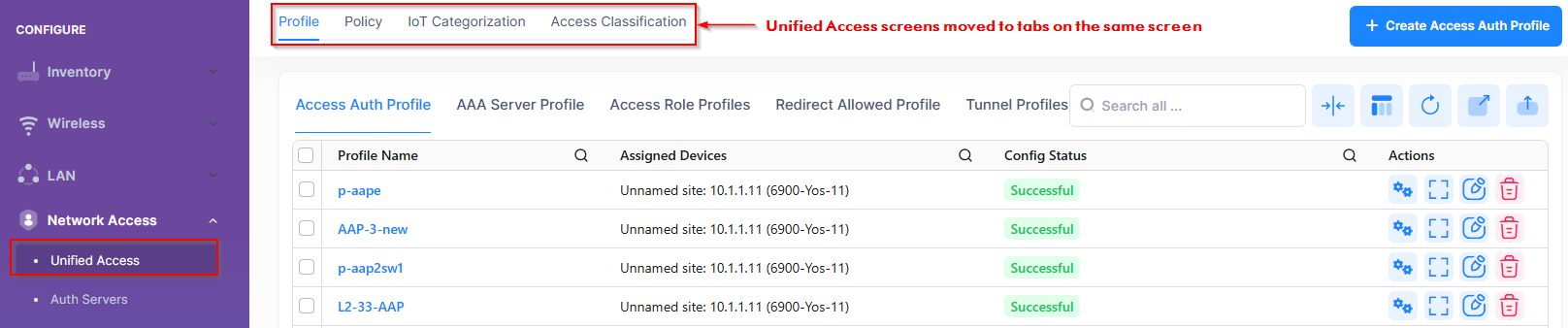
Two levels of screen nesting. Third and fourth level screens are combined into groups or accessible as tab views.
-
Multiple tab views displayed on a single screen.
-
Table functionality remains unchanged from its original standalone view (search, filters, sorting, pagination)
For example, Unified Access sub-menus combined onto a single screen accessible with tabs instead of sub-menu items.
Application Updates/Enhancements
-
Countries of Service for OmniVista Cirrus - You can now select the country of Japan to create a 6GHz band RF Profile.
-
Guest Access Strategy - New “Don’t Allow Guest Registration from the Following Domains” option when creating a Guest Access Strategy. This option allows administrators to specify the email domains to block from guest self-registration.
-
The “Don’t Allow Guest Registration from the Following Domains” parameter becomes visible when “Email ID” is selected under the Required Attributes section.
-
Note that this new option does not work with customized Captive Portal templates created prior to release 10.5.2.
-
-
DHCP Option 82 - The Global DHCP Option 82 is now configurable for Access Points. DHCP Option 82 allows a DHCP Relay Agent to insert specific information into a request that is being forwarded to a DHCP Server.
-
External Engines (Asset Tracking) - The “iBeacon & Raw Data” option is now available when configuring the BLE tag beacon format that will be reported to the BLE Location Server.
-
External LDAP/AD Server - An External LDAP (Lightweight Directory Access Protocol) or Active Directory Server is now supported as an external source for Authentication and Authorization with role mapping.
-
License Management- AP license categories are now based on specific AP models. It is possible to use an APH license for any supported AP models, even models that use an APL license when there are not enough APL licenses available. For example, when sufficient APL licenses are available, models that use an APL license will prioritize using an APL license and cannot be assigned an APH license. Only when there are not enough APL licenses will those models use an APH license.
-
Management Template - You can now automatically change the default “admin/switch” login credentials during the switch onboarding process using the new “Change default password of 'admin' user" option. This option is available when selecting existing credentials or creating new credentials to use for the Management Template.
Note: Changing the default “admin” password is highly recommended and mandatory after the first login starting with AOS 8.10.R04. -
Report Sharing - You can now share analytics reports to users that do not have access to OmniVista. A new “Emails” field allows you to enter one or more email addresses for users that you want to receive the report.
-
Restore Switch Configuration Backups - You can now restore a configuration to the device from a previous backup.
-
Scheduled Upgrades - You can now schedule automatic upgrades to specific AOS Switches during specific time windows (e.g., non-business hours) to ensure minimal network disruption.
-
SSID
-
WPA3-AES Transition Mode - Support added to enable WPA3-AES Transition Mode for an SSID.
-
Enable this mode to define a single SSID across the three bands: 2.4GHz, 5GHz, and 6GHz.
-
The WPA3-AES Transition Mode is an encryption option available only when the SSID usage is set to Enterprise Network for Employees (802.1X).
-
Note: WPA3_AES Transition Mode is supported only on APs running AWOS 5.0.3 MR1 or above. Enabling this mode for APs running older AWOS versions may cause the SSID to revert to an open SSID after a reboot. Upgrading your network is highly recommended.
-
-
-
Topology Enhancements
-
Network Topology Map Views:
-
Physical (Default View) - Displays a representation of Switch icons and AP icons with lines connecting the icons to represent physical connections.
-
SPB - Displays a Shortest Path Bridging overlay representing SPB service connections in the network.
-
VLAN - Displays a visual representation of the VLANs configured in the network and the VLAN connections.
-
-
Geography - Displays a Wi-Fi heatmap to provide a visual representation of the wireless signal coverage and strength of Access Points connected to the network.
-
-
Unified Access
-
Access Role Profile - Attributes now supported on AOS Switches:
-
Location Policy - Defines a specific location from which a device can access the network.
-
Period Policy - Specifies the days and times during which a device can access the network
-
Access Classification - Provides an additional method for classifying a device into an Access Role Profile. If authentication is not available or does not return a profile name for whatever reason, Access Classification rules are applied to determine the profile assignment.
-
-
Early Availability Features
The following Early Availability (EA) features are available in OmniVista Cirrus 10.5.2 and can be configured. However, they have not gone through the complete validation cycle and are therefore not officially supported.
-
OmniVista AIVA (AI Virtual Assistant) - AIVA, our new AI-powered chatbot for the OmniVista platform, is now available in early access. AIVA is available in early access upon request, with a free two-week activation. Customers interested in participating should contact their ALE sales representative.
-
Celona Integration (Phase II) - The following functionality further enhances OmniVista Cirrus integration with the Celona Private Wireless solution:
-
OmniVista Cirrus implementation of SAML SSO (Single Sign-On) - Provides the required login to access the Celona Orchestrator.
-
If the same SSO user account is configured for both the Celona Orchestrator and OmniVista Cirrus, users will have seamless access to both systems via single sign-on.
-
Single Sign-On is integrated with Okta and Azure identity Providers to follow the SAML 2.0 protocol authentication.
-
The OmniVista Cirrus SSO access to Celona Orchestrator authenticates users and provides tokens/assertions (like SAML tokens) to the Celona Orchestrator.
-
-
Device Catalog View - OmniVista Cirrus fetches Celona access points on demand from the Celona Orchestrator and displays detailed inventory information in the OmniVista Device Catalog view.
-
Network Topology View - The network topology for Celona access points is shown in the OmniVista Cirrus topology view. Topology is derived from LLDP information provided by the configured switch.
-
Alerts (Rainbow notifications) - Alerts from the Celona Orchestrator are reported in OmniVista Cirrus on the Alerts page. If desired, alerts can also be pushed as Rainbow notification bubbles.
-
-
Application Visibility (DPI) - Support for AOS Switches.
Feature Parity Matrix
The following tables in this section provide an overview of OmniVista 10.5.x parity with OmniVista Cirrus 4.x:
Network Management
|
|
OVC 4.x |
OV 10.5.1 |
OV 10.5.2 |
|
INVENTORY |
|
|
|
|
Device Catalog |
✔ |
✔ |
✔ |
|
Device License Status |
✔ |
✔ |
✔ |
|
Notifications - Alerts / Traps |
✔ |
✔ |
✔ |
|
Device Trouble Shooting |
✔ |
✔ |
✔ |
|
Scheduled Upgrades |
✔ |
✔ WLAN |
✔ LAN |
|
Device Backup/Restore (LAN) |
✔ |
✔ Backup |
✔ Restore |
|
Private Firmware upgrade (OVC) |
Not supported |
✔ |
✔ |
|
RBAC - Users & Group |
✔ |
✔ |
✔ |
|
RBAC – Users external source auth |
✔ |
Not supported |
Not supported |
|
PROVISIONING |
|
|
|
|
Template based configuration |
✔ |
✔ |
✔ |
|
AP groups management |
✔ |
✔ |
✔ |
|
Provisioning/password compliance |
Not supported |
✔ |
✔ |
|
Bulk configuration |
✔ |
✔ |
✔ |
|
Golden configuration |
✔ |
✔ |
✔ |
|
Configuration audit |
✔ |
✔ |
✔ |
|
Unified access |
✔ |
✔ LAN |
✔ Classification rules |
|
CLI Scripting |
✔ AOS CLI and Javascript |
Not supported |
Not supported |
|
VLAN |
✔ |
✔ |
✔ |
|
U-Boot/Miniboot |
✔ |
Not supported |
Not supported |
|
IP Interface |
✔ |
✔ |
✔ |
|
IP Multicast |
✔ On-Prem Only |
Not supported |
Not supported |
|
MVRP |
✔ |
Not supported |
Not supported |
|
Floor Plan Tool |
✔ |
Not supported |
Not supported |
|
DHCP Option 82 |
✔ |
Not supported |
✔ |
|
mDNS Configuration |
✔ |
✔ Template based |
✔ Template based |
|
Hotspot2.0 Improvements (Ameriband and others) |
Not supported |
Not supported |
Not supported |
|
BLE 3rd party integration, send raw data for unknown advType |
✔ |
Not supported |
✔ |
|
IoT AWOS BLE IoT support Enable "Discover all devices" |
✔ |
Not supported |
✔ WLAN |
|
IoT AWOS BLE IoT support "iBeacon & RawData" |
✔ |
Not supported |
✔ WLAN |
|
MacSec |
Not supported |
✔ LAN + WLAN |
✔ LAN + WLAN |
|
SERVICE MANAGER APPLICATIONS |
|
|
|
|
SPB |
✔ |
Not supported |
✔ (LAN) |
|
SPB Services Topology |
✔ |
Not supported |
✔ (LAN) |
|
VxLAN |
✔ |
Not supported |
Not supported |
|
E-VPN Orchestrator |
Not supported |
Not supported |
Not supported |
|
VxLAN Services Topology |
Not supported |
Not supported |
Not supported |
|
L2GRE |
Not supported |
✔ Template based |
✔ Template based |
|
ERP - Ethernet Ring Protection |
Not supported |
✔ Template based |
✔ Template based |
|
ERP Services Topology |
✔ |
Not supported |
Not supported |
|
IPv6 Support |
|
|
|
|
DHCPv6 option for IPv6 address |
Not supported |
Not supported |
✔ |
|
Inter-AP communication via IPv6 |
Not supported |
Not supported |
✔ |
|
RAP managed by OV via IPv6 |
Not supported |
Not supported |
✔ |
|
IPv6 address for VPN server's public IP address |
Not supported |
Not supported |
✔ |
|
IPv6 address for VPN server's VPN IP address |
Not supported |
Not supported |
✔ |
|
IPv6 address for Client VPN address pool |
Not supported |
Not supported |
✔ |
|
UPAM IPv6 support |
Not supported |
Not supported |
✔ |
|
OmniSwitch IPv6 Mgt support |
Not supported |
Not supported |
✔ |
|
Stellar AP IPv6 Mgt support |
Not supported |
Not supported |
✔ |
Monitoring and Analytics
|
|
OVC 4.x |
OV 10.5.1 |
OV 10.5.2 |
|
Network Level & Device Level |
✔ |
✔ |
✔ |
|
Device Health |
✔ |
✔ |
✔ |
|
QoE |
Not supported |
✔ WLAN |
✔ WLAN |
|
TOP N Poe Switch Utilization |
✔ |
✔ |
✔ |
|
Switch Device Faceplate |
Not supported |
✔ |
✔ |
|
Port Health & Utilization Trends |
✔ |
✔ |
✔ |
|
Traffic Utilization By Bytes/Interface |
✔ |
✔ |
✔ |
|
Customizable Statistics Dashboard |
Not supported |
✔ |
✔ |
|
Topology |
✔ |
✔ |
✔ |
|
Locator |
✔ |
✔ Monitor → Clients |
✔ Search |
|
Reports |
✔ Basic |
✔ Advanced |
✔ |
|
IoT Categorization |
✔ |
✔ LAN |
✔ LAN |
|
Application Based Analytics (DPI) |
✔ |
✔ WLAN |
✔ WLAN
|
|
Diagnostic Tools |
✔ |
✔ |
✔ |
|
Monitor Live & Historical Clients |
✔ |
✔ |
✔ |
|
Webhooks |
Not supported |
Not supported |
Not supported |
|
Heatmap (RTLS) |
Not supported |
✔ |
✔ |
|
Sflow |
✔ On-Prem Only |
Not supported |
Not supported |
|
Quarantine Manager |
✔ |
Not supported |
Not supported |
|
SAML/SSO |
Not supported |
Not supported |
✔ |
|
Web content filtering |
✔ |
Not supported |
Not supported |
|
Open Rest API |
✔ Basic |
✔ Advanced |
✔ |
|
SNMP/Third Party Device Monitoring |
✔ |
Not supported |
Not supported |
|
AI Telemetry use cases |
Not supported |
Not supported |
✔ WLAN |
|
AI Agent Chatbot on Real Time data |
Not supported |
Not supported |
✔ Early Availability |
UPAM NAC
|
|
OVC 4.x |
OV 10.5.1 |
OV 10.5.2 |
|
Company Property/MAC-Auth |
✔ |
✔ |
✔ |
|
Employee User DB |
✔ |
✔ |
✔ |
|
802.1x Auth |
✔ |
✔ |
✔ |
|
Guest Portal Auth |
✔ |
✔ |
✔ |
|
BYOD Portal Auth |
✔ |
✔ |
✔ |
|
PROXY External AAA/Radius |
✔ |
✔ |
✔ |
|
External LDAP/AD |
✔ |
✔ Local |
✔ Native - OVTX |
|
RADSEC Client |
Not supported |
✔ |
✔ |
|
Device Specific PSK |
✔ |
✔ |
✔ |
|
PGPSK (Private Group Pre-Shared Key) |
Not supported |
✔ |
✔ |
|
Dynamic VLAN Assignament |
Not supported |
✔ |
✔ |
|
UPAM Auth transaction view (record) |
Not supported |
✔ |
✔ |
|
GUEST MANAGEMENT |
|
|
|
|
INTEGRATED CP |
✔ Advanced |
✔ Customizable |
✔ Customizable |
|
External Captive Portal |
✔ Access Role Profile |
Not supported |
Not supported |
|
Upload custom CP template |
✔ |
✔ |
✔ |
|
CP WALLED GARDEN |
✔ Access Role Profile |
✔ |
✔ |
|
Manually add Guest to Database |
✔ |
✔ |
✔ |
|
Manually add guest device to Database |
✔ |
✔ |
✔ |
|
Guest self-Registration |
✔ |
✔ |
✔ |
|
Guest Social Login |
✔ Facebook, Rainbow |
✔ |
✔ |
|
Microsoft Office365/ Guest Social Login |
Not supported |
✔ Time & Data |
✔ Time & Data |
|
Time and data limited vouchers |
✔ Data Only |
✔ |
✔ Time & Data |
|
Employee/Guest account name and password policy |
Not supported |
✔ |
✔ |
|
Analytics |
✔ |
✔ |
✔ |
|
AP External Sources/ Interface |
|
|
|
|
External AAA RADIUS |
✔ |
✔ |
✔ |
|
External AAA RADIUS RadSec |
✔ |
✔ Preemption |
✔ Preemption |
|
External LDAP Integration (AP as Local GW) |
✔ No Preemption |
✔ Preemption |
✔ Preemption |
|
External Guest CP + WALLED GARDEN |
✔ |
✔ |
✔ |
|
Entra ID (Azure AD) |
Not supported |
✔ |
✔ |
|
Authenticated switch access |
✔ |
✔ |
✔ |
License Management/Scalability
|
|
OVC 4.x |
OV 10.5.1 |
OV 10.5.2 |
|
Management Licenses |
Subscription, 1 license per device (OVC) |
OVCX 1, 3 or 5Y subscription (Flex and CAPEX)
|
OVCX 1, 3 or 5Y subscription (Flex and CAPEX)
|
|
Scalability |
Up to 4000 APs per instance (OVE)/per tenant (OVC)
|
OVCX: 12K per cluster (10K AP & 2K SW) OVTX: 2K (1.5K AP & 500 SW) |
OVCX: 12K per cluster (8K AP & 4K SW) OVTX: 5K (3K AP & 2K SW) |
Regulatory Compliance
OmniVista Cirrus 10.5 compliance in US, EU, and abroad:
-
General Data Protection Regulation (GDPR)
-
California Consumer Privacy Act (CCPA)
Third-Party and Open-Source Contributions
Software Bill of Materials (SBOM) is available in CycloneDX format.
Network and Device Prerequisites
To ensure the necessary communication between devices (Access Point/Switch) and OmniVista Cirrus 10.5.2, verify/configure the following prerequisites on your local network:
-
Network Prerequisites - Network deployment, bandwidth, proxy, firewall, and NTP server requirements.
-
Device Prerequisites - Supported Access Point software and models.
-
If your fully managed Access Points are running AWOS 4.0.8, it is recommended that you upgrade to AWOS 5.0.4 by setting the Desired Software Version first before accessing OmniVista Cirrus 10.5.2.
-
It is also recommended that you upgrade your OmniSwitch AOS release to 8.10R3.
-
-
Onboarding Devices Workflow - The basic steps involved to onboard Switches and Access Points for management in OmniVista Cirrus.
Supported Devices
-
Click here for a list of supported Stellar Access Points and AOS Switch models, which includes the supported software releases and the license information based on the licensing model (Flexible Pay or CAPEX).
-
The following Access Point models are not supported:
-
OAW-AP1101
-
OAW-AP1201L
-
OAW-AP1201H
-
OAW-AP1201HL
-
OAW-AP1201BG
-
OAW-AP1261
-
REST API Management
You can use REST APIs for scripting or integration with any third-party systems in your management network. The complete API reference can be found at the following link based on your region (no login is required):
EU: https://eu.manage.ovcirrus.com/apidoc/apidoc.html
Americas: https://us.manage.ovcirrus.com/apidoc/apidoc.html
For more information, see Automation with APIs.
Known Issues/Workarounds
Dashboard
Error Occurs When Accessing/Deleting an Organization (OVNG-22976)
Summary: An error message may appear when you immediately access an Organization that was just created, or when you delete an Organization and try to access another.
Workaround: Wait approximately 5 minutes before trying to access an Organization.
Inventory
Backup of switches running AOS 8.10R4 or later partially completes when you include security files (OVNG-22975)
Summary: Security files have root-level permissions. Due to enhanced security introduced in AOS 8.10R4 and later, OmniVista can no longer back up these files.
Workaround: Exclude security files from the backup.
Device Fails to Get Certificates (OVNG-21279)
Summary: When re-adding a device or moving a device between OmniVista 4 and OmniVista Cirrus 10, there are no issues as long as the device retains its certificates and calls home using the certificates. However, if the device certificate is lost and the device calls home using a hash, the device will receive a “FailedToGetCertificate” response. This occurs because the Certificate Server does not permit issuing new certificates to the same device more than once.
Workaround: Contact Alcatel-Lucent Technical Support to request manual certificate regeneration for the affected devices.
Schedule Upgrade Using Set Desired Software Version (OVNG-10325)
Summary: When an AP already follows a group schedule and the software version is changed using the “Set Desired Software Version” option from the Edit Device drop-down menu, note the following:
-
If the AP Group of the AP device is not part of a schedule upgrade, then the Desired Software Version is set to “Do Not Upgrade”.
-
If the AP Group of the AP device is part of a schedule upgrade, the AP device will be upgraded to the Desired Software Version based on the schedule upgrade for the group.
Workaround: Use the “Information” or “Schedule Software Upgrade” options from the Edit Device drop-down menu to have an AP already following a group schedule upgraded to the specified software version on the next call home.
Cannot Enter Another Username/Password in Terminal Session Modal (OVNG-14678)
Summary: If you enter an incorrect Username/Password when establishing an SSH Terminal Session with a device, an error message is displayed and the Device Credentials modal re-opens. Entering another Username/Password in the modal does not correct the problem, so the SSH connection still fails.
Workaround: Close the Device Credentials modal and the Terminal Session window, then select the device and start a new session.
Cannot Onboard a Virtual Chassis if Adding Two Slave Devices into Device Catalog (OVNG-15331)
Summary: When onboarding a Virtual Chassis (VC) with two Slave switches, provisioning fails if the switches do not use the default Admin account for login credentials. This occurs if the default password for the Admin account was already changed before the VC was onboarded.
Workaround: Set the Initial Configuration again (either the Management User Template or Provisioning Template/Value Mapping). Note that after provisioning fails, only one record shows in the Device Catalog. Search for the device by Serial Number and update the Initial Configuration.
Set Desired Software Version May Fail for Switch VC if Primary Switch Serial Number Doesn’t Match VC Serial Number (OVNG-13619)
Summary: When adding a switch Virtual Chassis (VC) to OmniVista Cirrus, you can enter any Master or Slave serial number that belongs to the VC into the Device Catalog. After the switch sends a Call Home request to OmniVista Cirrus, the record in the Device Catalog is updated to the VC Serial Number (vcSerialNumber). Usually, the serial number of the current Master equals the vcSerialNumber. However, if a VC split, takeover, etc., occurs, the serial number of the current master may not match the vcSerialNumber. This discrepancy may cause problems when attempting to set the Desired Software Version for the VC.
As soon as the VC Switch is added to OmniVista Cirrus (before the device sends a Call Home request) or after the VC Switch becomes managed, you can set the Desired Software Version.
-
If the VC Switch has been added to OmniVista Cirrus but not yet managed, the Desired Software Version changes to 'Do not upgrade' when you add the Master/Slave serial number (not vcSerialNumber).
-
If the VC Switch is managed on OmniVista Cirrus, the Desired Software Version may not display correctly when the Virtual Chassis switches are split or broken.
Workaround: Check the Call Home request sent from the switch Virtual Chassis (VC) in the “/flash/libcurl_log” file. You can access this file by running Collect Support Info on the Switch and downloading it to your computer to examine the contents. Here’s an example Call Home request found in the “/flash/libcurl.log” file showing the VC serial number:
Request data: {"data": {"devices": [{"serialNumber": "V3981563", "deviceMacAddress": "2c:fa:a2:a2:ea:71", "modelName": "OS6560-P24Z8", "partNumber": "903953-90", "role": "master", "hash": "5e9275478352a44861dedbb659523f46b1046eb80eb78e43ecc30c141395e221", "vcSerialNumber": "ALE203981575", "vcMacAddress": "2c:fa:a2:a2:fb:01", "currentSoftwareVersion": "8.9.92.R04", "currentCertifiedSoftwareVersion": "8.9.92.R04", "currentRunningDirectory": "working", "deviceCloudGroup": "-", "authMethod": "certificate", "thinClient": 0, "typeCallHome": "periodic", "deviceMode": "CAPEX", "naasLicenses": []}, {"serialNumber": "JSZ203981575", "deviceMacAddress": "2c:fa:a2:a2:fb:01", "modelName": "OS6560-P24Z8", "partNumber": "903953-90", "role": "slave", "deviceMode": "CAPEX"}]}}
When the issue occurs:
-
If the VC Switch has been added to OmniVista Cirrus but not yet managed, manually reset the Desired Software Version for the VC Switch.
-
If the VC Switch is managed on OmniVista Cirrus and is split or broken, complete the following steps:
-
Remove all Chassis entries belonging to the Virtual Chassis switches.
-
Completely reset the Virtual Chassis switches.
-
Add the switch again using the VC serial number from the request (recommendation).
-
Adding a Switch to a Virtual Chassis May Cause the Primary Switch to Return to the Register State (OVNG-17750)
Summary: When adding another switch to a Virtual Chassis configuration, the new switch does not consume a license and the VC primary switch moves to “Registered” status.
Workaround: Release the license for the primary switch, then assign the license again. The license count is then updated on the next periodic or manual rediscovery.
Provisioning Fails for 8.10R1 Default Factory Switch (OVNG-17310)
Summary: When a switch running AOS 8.10.R1 GA boots up without a vcboot.cfg file for auto-configuration, the SSH is disabled by default, causing provisioning to fail. Only the console is enabled. This is not limited to a particular platform and can be seen on any switch running AOS 8.10.R1.
Workaround: Enable AAA authentication SSH on the 8.10R1 switch via the CLI. Problem is fixed in the AOS 8.10R1 MR1 release.
Force Provisioning Required for Switches Managed on a Previous Release of OmniVista Cirrus 10 (OVNG-18116)
Summary: When a new switch is onboarded in the current OmniVista Cirrus 10.4.3 release, the latest version of the OmniVista Cirrus Agent is pushed to the switch. However, If the device was already managed in a previous release of OmniVista Cirrus 10, the latest version of the OmniVista Cirrus Agent is not pushed to the switch.
Workaround: Force Provision the switch device to install the latest version of the OmniVista Cirrus Agent.
Manual Rediscovery Does Not Update All Objects Changed on Switch (OVNG-17911)
Summary: When you do a manual Rediscover action, OmniVista Cirrus does not update the following objects with any changes configured through the Switch CLI:
-
Access Role Profile,
-
Access Authentication Profile
-
Unified Policy
-
Unified Policy List
Manual Rediscover only updates the following objects with any changes configured through the Switch CLI:
-
Device hardware information
-
Device system information
-
Device status information
-
IP Interface
-
Port information
-
UNP Ports
-
VLAN Members
-
Poll link
Workaround: Wait for automatic rediscovery that occurs once an hour for updates to the Access Role Profile, Access Authentication Profile, Unified Policy, and Unified Policy List.
ISSU
Cloud Agent Status “Unknown” After ISSU Upgrade on AOS 8.9Rx Switch (OVNG-14310)
Summary: After an ISSU upgrade on an OmniVista Cirrus 10 managed switch, the Cloud Agent Status on the switch is “Unknown”.
Workaround: Manually copy the cloudagent.cfg file from "/flash/working/cloudagent.cfg" to "/flash/issu/cloudagent.cfg" on every managed switch after the ISSU upgrade. This will be fixed in the next AOS 8 release.
LAN Management
OmniVista Cirrus 10 Does Not Correctly Process More Than 2000 VLANs From a Switch (OVNG-18228)
Summary: If VLANs are created, updated, or deleted through the switch CLI and there are more than 2000 VLANs configured on the switch, OmniVista Cirrus does not correctly process the switch changes when the switch is next polled. As a result, OmniVista Cirrus UI does not reflect the updated switch VLAN configuration.
Workaround: To get the latest OmniVista Cirrus Agent and switch configuration, Force Provisioning is required for existing managed switches.
Network Monitoring
It Takes More Than 45 Minutes for a Client to Appear on the Application Visibility Widgets Page (OVNG-19911)
Summary: When Daylight Savings Time is configured, new records do not appear for one hour, and old records display with a one-hour delay.
Workaround: There is no workaround at this time.
Collect Support Info Feature Does Not Work on NaaS APs that have an expired Management License (OVNG-5850)
Summary: If the NaaS management license expires for an AP in NaaS mode, the Collect Support Info operation will fail.
Workaround: Make sure the NaaS Management License is active when the AP is functioning in the NaaS mode.
Final Access Role Profile in Authentication Record Does Not Update Immediately After Captive Portal Authentication on Switch (OVNG-14892)
Summary: The "Final Access Role Profile" field displayed in the Authentication Record is the Access Role Profile (ARP) that the Switch actually applies to the device after successful Captive Portal authentication, but it is not the ARP that you would expect to apply to the device.
Workaround: Disconnect the client, then connect the client again to update the final ARP as expected.
LLDP Link Information On Device Detail Page Incorrect Between Managed and Unmanaged Switches (OVNG-14208)
Summary: When you click on the “LLDP” tab on the Device Detail screen for a switch, the LLDP link port information may not be correct and some fields blank. This occurs only with an unmanaged switch and a managed switch.
Workaround: There is no workaround at this time.
Unified Access
Unified Access Profiles in Pending Status After Upgrade to OmniVista Cirrus 10.5.1 (OVNG-21343)
Summary: After upgrading to OmniVista Cirrus 10.5.1, the configuration status of existing Unified Access profile templates is “Pending”.
Workaround: The configuration status will return to a normal state when you try to edit the template and apply it to devices again. Another workaround is to navigate to the device view of the template (by clicking on the template name), select all Device Config entries and perform a multi-edit action.
When Applying Two Policies With the Same Condition Group Simultaneously, the Latest Data on the AP Is Not Updated (OVNG-19125)
Summary: OmniVista Cirrus pushes the correct data to the AP when two Unified Policies with the same Condition Group are applied simultaneously. However, the latest policy data is not updated on the AP.
Workaround: Restore policy data synchronization to ensure APs will successfully receive and apply the most current policy configurations. This requires completing the following steps to re-establish policy associations:
-
Navigate to Policy Management
Access the Unified Policies screen (Configure > Network Access > Unified Access > Unified Policies).
Locate the two affected policies that share the same Condition Group. -
Unlink policies from the AP group
Access the assignment settings for each affected policy.
Remove the AP group association from both policies.
Confirm the AP group is no longer listed under either policy's applied groups. -
Re-apply policies sequentially
Return to the first policy's assignment page.
Re-add the AP group to this policy's applied groups.
Wait for the assignment to complete and propagate.
Repeat the process for the second policy. -
Validation through Unified Policies Screen
Verify both policies now show the AP group in their applied assignments.
Confirm the shared condition group is properly configured in both policies.
Monitor AP status to ensure the latest policy data has been synchronized.
Redirect URL Not Working After Successful BYOD Portal Authentication (OVNG-10674)
Summary: After BYOD Portal Authentication passes, the Success Portal Page displays but the user is not redirected to the “Go to initial URL” specified in the BYOD Access Strategy. This issue occurs only when the initial URL begins with “HTTPS”.
Workaround: No workaround at this time.
UPAM-NAC
BYOD Self-Service Login Page Account Password Rules and the Account Password Rules Are Inconsistent (OVNG-22726)
Summary: BYOD self-service portal login is not successful on iOS devices when the Employee Account password is less than eight characters.
Workaround: Create an employee account with a password length greater or equal to eight characters.
Cannot Save Customized Captive Portal Template with Video Content (OVNG-20902)
Summary: When using the Firefox browser, Captive Portal template customization with a new video layout is not saved.
Workaround: Use the Chrome browser instead of Firefox.
Errors Occur When the Client Continuously Connects and Reconnects to SSID Portal (OVNG-9735)
Summary: When a user logs into the network, then logs out, and then logs in again, the user may see error messages on the login portal and won’t be able to access the network.
Workaround: User should try to avoid continuously logging in and logging out of the network.
After Upgrading to Android 11 or 12, EAP-TLS Protected Wi-Fi No Longer Works (OVNG-9786)
Summary: In 2021, Android (Google) made a change in their OS to enforce "Validate Server Certificate" option for a 802.1X authentication. This means that, Android 11 and 12 will validate the server's device certificate. Hence users need to specify server's device certificate chain (Root And/Or Intermediate CA's) on their Android devices. If not the authentication will fail. Android 10 and below still works.
Workaround: An alternative is to upgrade the devices to Android 13. Android 13 offers "Trust on First Use" (TOFU) feature. TOFU enables installing the Root CA certificate received from the server during initial connection to a new network. The user must approve installing the Root CA certificate.
Client Unable to Join 802.1X SSID When All EAP = NO and Allowed Method = EAP-TLS for the Access Policy (OVNG-10155)
Summary: When you create an SSID and select an Access Policy with All EAP set to “No” and Allowed Method set to “EAP-TLS” for the SSID Authentication Strategy, the client is unable to join an 802.1X SSID.
Workaround: There is no workaround at this time.
Delay in Seeing BYOD IPv4 Client in the List of BYOD Device Records (OVNG-10759)
Summary: Once a client connects to a BYOD SSID, there is a delay before seeing the Client IPv4 address in BYOD device records. The AP to which the Client is connected will send the client IPv4 with the second accounting packet.
Workaround: No workaround at this time.
Captive Portal Screen Displayed on Microsoft Edge (OVNG-13528)
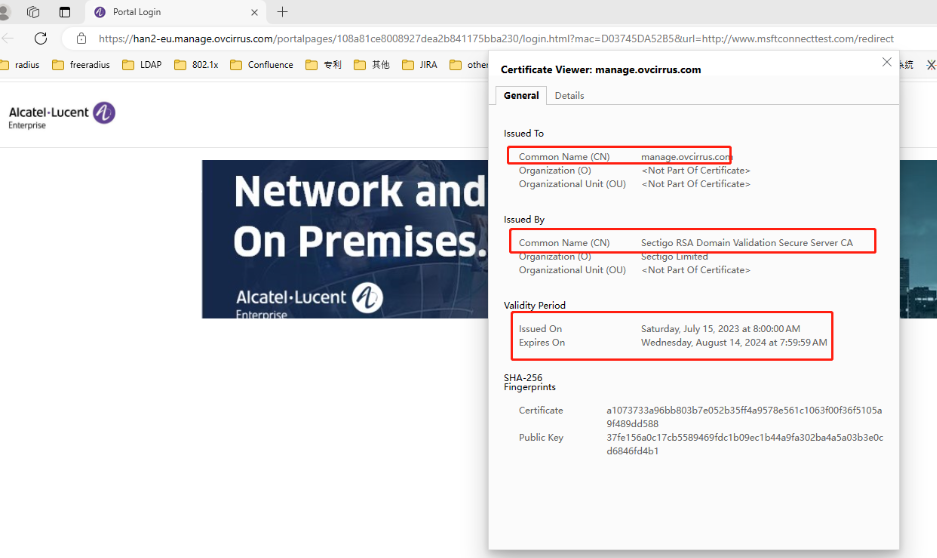
Summary: When a guest device using a Microsoft Edge browser opens the Captive Portal Template after connecting to an SSID, the sign in/sign up form may not display (no username, password input shown). If this happens, there may be a mismatch between the hostname the Web browser is attempting to reach and the hostname sent by the Web server in a digital certificate.
Workaround: Click the Lock → Connection is Secure → Certificate Icon on the browser to check if the certificate is correct. For example:
Wireless
Cannot Edit an AP Web/External CP Certificate if Name Contains a Dot (OVNG-23397)
Summary: If you create an AP Web/External CP certificate with a name that contains a dot (.) character, such as “AP_Cert.1”, you will not be able to save any edits to that certificate.
Workaround: There is no workaround at this time.
Mesh Topology and Topology Do Not Show Links for AP Bridge Connections (OVNG-22977)
Summary: When you configure an AP as an AP Bridge (either Root or non-Root role), the links for AP Bridge connections are not displayed in the Mesh Topology or Topology applications.
Workaround: There is no workaround at this time.
Each AP Group Can Only Support Up to Seven SSIDs (OVNG-9610)
Summary: When you try to assign a new SSID into an existing AP Group that already has seven SSIDs, that AP group will not be included into the new SSID.
Workaround: Enable the Extended SSID Scale attribute for the AP Group. When enabled, only AP models that support up to 14 SSIDs can join the AP Group. When disabled, any AP model can join the group, but the limit is 7 SSIDs per AP Group. Note that 6GHz networks do not support the Extended SSID Scale attribute and support only 4 SSIDs per AP Group.
AP does not Send “portal.report” Event when Wrong Username/Password Entered (OVNG-2811)
Summary: When a user logs in to UPAM Captive Portal with an incorrect username/password, the login will fail but the failure is not immediately indicated on the QoE Analytics UI. Only after 15 minutes will QoE report the failure and the failure is reported as a “Timeout”. Two consequences of this are: Users won’t find out about the failures to login to UPAM Captive Portal until after 15 minutes, and the user will not be able to differentiate between a true “Timeout” with UPAM Captive Portal versus wrong credentials entered at UPAM Captive Portal login.
Workaround: No workaround at this time.
"HostName" Information Lost in “user.report” After the Client Roams to Another AP (OVNG-7792)
Summary: The Client Name (aka “HostName”) information in WLAN Client List is lost after the client roams to another AP.
Workaround: No workaround at this time.
AP Client is Assigned to Untagged VLAN Instead of Tunnel ID Configured in Access Role Profile (OVNG-11683)
Summary: When an Access Role Profile (ARP) with Tunnel only mapping is applied to an AP client, the client is assigned an IP Address in the Untagged VLAN network, not an IP address in the Tunnel network.
Workaround: No workaround at this time.
Issues Fixed
PRs Fixed Since Release 10.5.1 Patch 1
-
Unable to add static neighbor for AP (OVNG-23562)
Customer PRs Fixed
-
Cannot import company property from CSV or XLSX. (CRNOV-7494 OVNG-21709)
-
Unable to search the RF profile details. (CRNOV-7604 OVNG-21903)
-
The username with "space" in captive portal guest account is not working if it is created using self-registration strategy. (ALEISSUE-2249)
-
Unable to modify SSID parameters after update 10.5.1. (CRNOV-7632 OVNG-22034)
-
Issue with License Release when deleting Floor/Building. (CRNOV-7635 OVNG-21962)
-
Reset UPAM/Email templates after customization. (CRNOV-7600 OVNG-22821)
-
OmniVista should allow user to delete Incremental/Value mapping template that was not used. (CRNOV-7375 OVNG-22906)
-
Notify When Access Role Profiles Are Removed from Switches. (CRNOV-7621 OVNG-21933)
-
License utilization is showing incorrectly in OmniVista. (CRNOV-7500 OVNG-21556)
-
Unable to SSH the switch from OmniVista with 3 letter usernames. (CRNOV-7495 OVNG-21774)
-
There's a typo error in the External Captive Portal Template. (CRNOV-7852 OVNG-22951)
PRs Fixed in Release 10.5.1 Patch 1
-
Cannot Import a Flexible Pay License (OVNG-21421)
-
License Management > Manual assignment behavior (Step 2) differs during license import vs License Management (OVNG-21544)
-
License Status Information Count is Incorrect in Org List, Default Dashboard, and License Management (OVNG-21210)
-
Automatically assign licenses are disabled when clicking F5 (OVNG-21486)
-
"Do you want to automatically assign licenses to any new device added to the Device Catalog?" When you enable by clicking “Yes” (during import license), it initially appears to be enabled but switches back to “No” after the license upgrade. (OVNG-21533)
-
When you click on the device Friendly Name in the Alerts list, the Device Details screen opens with the following error message: “The requested source does not exist” (OVNG-21453)
-
Alerts not displayed in the Alerts table when the “Group by Window” option is not set to “none” (OVNG-21324)
-
Alerts are not displayed for Organization Limited Admin and Viewer user when the Organization scope filter is applied (OVNG-21461)
-
When editing a Unified Policy List with AOS and AP Group change, the AOS device is not updated (OVNG-21465)
-
Unable to SSH to the switch from OVC 10 with 3-letter usernames (OVNG-21539)
-
Error message “The requested source does not exist” displays when you click on Create Access Classification (OVNG-21456)
-
Changes made in Edit IP interface screen for device type IPIP tunnel and GRE tunnel are not reflected in the UI and AOS (OVNG-21433)
-
Unit in “Upload Bytes distributed by Top 10 Connection Mode” and “Upload Bytes distributed by Top 10 SSID” is not correct in “Client Summary Report and Client Health Report” (OVNG-21355)
-
The Custom Attributes value of the Guest Account is not visible in the UI after registration (OVNG-21025)
-
Guest Account addition failed (OVNG-21184)
-
Cannot import Guest Accounts after creating one manually (OVNG-21468)
-
Missing Service Level / Registration Profile attribute when creating Guest Account (OVNG-21420)
-
Export of Guest Remembered Devices data fails (OVNG-21313)
-
When the "OmniVista Advanced Analytics" switch in the Provisioning Configuration is turned off, the AP mdps process does not exit (OVNG-21153)
-
The “Copy whole content to clipboard” option for the Golden Configuration is not working (OVNG-21416)
-
When you disable “Mesh/Bridge Configuration”, only the “Mesh/Bridge Configuration” parameter changes (OVNG-21229)
-
IOT failed to start in EU Prod after production upgrade (OVNG-21609)
-
EU Prod 10.5.1 ovng-lan, two instances crashed 3 times due to webview error in content of ext_ov_lan_mqtt_src_aos_ip_interface_info_incoming_messages (OVNG-21703)
-
OVC 10.5.1 backend fails to connect to datapond due to expired token (OVNG-21462)
-
The Actions button does not display on the AP Details screen (OVNG-21815)
Issues Fixed Since Release 10.4.3
Customer PRs Fixed
-
Management connectivity status is OFF for AOS switch (SR # 00807386 CRNOV-7152)
-
OV Cirrus Account Activation Failure due to time zone mismatch (SR # 00810183 CRNOV-7191/OVNG-19901)
-
AP stuck in calling home in hash mode with FailedToGetCertificate status when onboarding to OmniVista Cirrus (SR # 00816825 CRNOV-7318/OVNG-14879)
-
AP Friendly Names Reverting to Default (AP-XX:XX) (SR # 00820756, 00821852 CRNOV-7334/OVNG-21004)
Release Note Issues Fixed
-
If the SSID Name in a “aproqueinfo.report” Contains a Semicolon, WIPs Alerts and Analytics are Not Generated (OVNG-14205)
-
Need to Wait One Day After License Renewal to Add Devices (OVNG-14988)
-
Error Message When Filtering Auth Resource Column in Authentication Records List (OVNG-15414)
-
Incorrect Event Responder Information When Device is Moved to a Different Site (OVNG-15663)
-
Link on the Topology Map Is Lost When the Switch Goes Down (OVNG-14922)
-
CSV Analytics Report File Displays More Fields Than the Created Report (OVNG-15429)
-
Completed Wired Client Sessions Not Shown After Device is Deleted (OVNG-15250)
Issues Fixed Since Release 10.4.2
-
Start/End Date Values Not Shown When Editing a Report with a Custom Date Range (OVNG-14672)
-
Cannot Edit a Tunnel Profile with “%” or “+” in the Profile Name (OVNG-15410)
-
Creating/Editing Unified Policy With Allowed Special Character Does Not Always Work (OVNG-15415)
-
Save Disabled When Editing the Responder Status (OVNG-15530).
-
Auto-Group VLANs Fails to Apply a New Profile to an AP (OVNG-15351)
-
Limitation When Selecting an Existing Group for a Unified Policy Condition (OVNG-10690)
-
Limitations for Deleting Unified Access Profiles on AOS Switches (OVNG-17942)
-
All of the Special Characters Not Allowed in Unified Policy List Name are Not Specified (OVNG-15404)
-
Data VPN Setting With Shorthand Mask IP Address Ending in Zero Fails (OVNG-15394)
-
Rogue AP Cleared Alert Is Not Generated if Organization Status Is Update Requested (OVNG-14906)
Issues Fixed Since Release 10.4.1
-
Current Client Density Screen Displays Incorrect Session Start Time for AP Clients (OVNG-11243)
-
AP Location is Empty in Live Wireless Client Additional Information (OVNG-12164)
-
Editing the AP Device Location Disrupts Connectivity With the AP (OVNG-12252)
-
Mismatch Between Time Filters on the Client Analytics Screen and the Clients Screen (OVNG-12257)
-
Service Temporarily Unavailable Message With External RadSec Server (OVNG-11277)
Issues Fixed Since Release 10.3
-
PKSC8 private key is not supported for LDAP cert and AP Web Cert (OVNG-7726)
-
False Portal Authentication Failure Alert Messages Received (OVNG-11239)
-
Current Client Density Screen Displays Incorrect Session Start Time for AP Clients (OVNG-11243)
Additional Documentation
Online help is available in OmniVista Cirrus and can be accessed by clicking on the Help Link (?) in the upper-right corner of any screen. You can also search through the online help on the OmniVista Cirrus Documentation home page to familiarize yourself with OmniVista Cirrus 10.5.2 features and functionality.
Technical Support
Alcatel-Lucent Enterprise technical support is committed to resolving our customer’s technical issues in a timely manner. Customers with inquiries should contact us at:
Region Phone Number
North America 1-800-995-2696
Latin America 1-877-919-9526
Europe Union +800 00200100 (Toll Free) or +1(650)385-2193
Asia Pacific +65 6240 8484
Internet: Customers with Alcatel-Lucent service agreements may open cases 24 hours a day via Alcatel-Lucent’s support web page at: https://myportal.al-enterprise.com/.
Upon opening a case, customers will receive a case number and may review, update, or escalate support cases on-line. Please specify the severity level of the issue per the definitions below. For fastest resolution, please have telnet or dial-in access, hardware configuration—module type and revision by slot, software revision, and configuration file available for each switch.
Severity 1 - Production network is down resulting in critical impact on business—no workaround available.
Severity 2 - Segment or Ring is down or intermittent loss of connectivity across network.
Severity 3 - Network performance is slow or impaired—no loss of connectivity or data.
Severity 4 - Information or assistance on product feature, functionality, configuration, or installation.