
The Global Configuration Setting Screen displays information about all devices to which a Global Configuration has been assigned.
Use the Global Configuration Settings screen to display setting information about all of the configured devices. This screen also allows you to create, edit, manage and delete global configuration settings. To access the Global Configuration Setting screen, click on LAN > Global Configuration > Setting under the “Configure” section of the OmniVista Cirrus Menu.

Creating Global Configuration Settings
The Create Global Configuration Settings screen sets basic settings and network assignments for configured devices. To access this screen, click on Create Global Configuration Settings.
The screen provides the following step-by-step process for creating a Global Configuration setting:
-
Basic information - Enter the basic information for settings such as Global Configuration Name.
-
Network Assignment - Select Switch devices from one or more Sites. The Setting is applied to the Switch devices in the selected Sites/Switch groups.
Complete the following sections of the Create Global Configuration Settings screen, then click on Create.
1. Basic Information
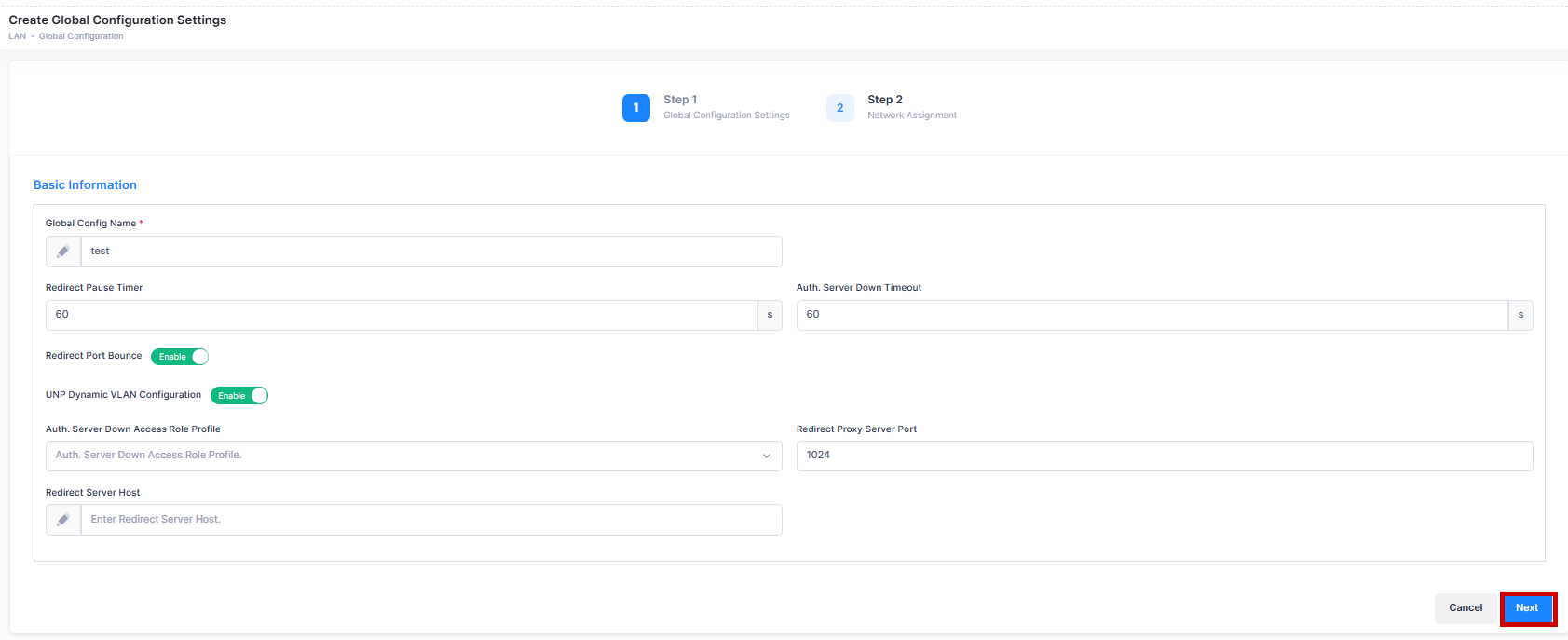
Complete the fields on the Global Configuration Settings tab, as described below, then click Next to go to the next tab (Step 2).
-
Global Config Name - Enter an unique Global Config Name.
-
Redirect Pause Timer - Enter the global pause timer value, in seconds, for the switch. Use this command to configure the amount of time the switch filters traffic from a non-supplicant (non-802.1x device) on a UNP port. This is done to allow enough time for the switch to clear the authentication state of the non-supplicant, at which time the device is re-authenticated. The pause timer is triggered when a COA request is received that requires a VLAN change for a non-supplicant (non-802.1x device) and the port bounce action is not triggered for the device. (Range = 60 – 65535, default value = 60).
-
Auth. Server Down Timeout - Enter the authentication server down timer value, in seconds. When the timer runs out for a particular device, the switch clears the device from the Auth Server Down Access Role Profile and triggers another authentication attempt for that device. If authentication fails again, the device is classified back into the Auth Server Down Access Role Profile. The switch will repeat this process until the device authentication is completed. (Range = 10 to 43200, default value = 60).
-
Redirect Port Bounce - Enables/Disables Port Bounce. By default, it is enabled. This is required where a client is switched from one VLAN to other after a Change of Authorization (COA) request. When port bounce is enabled, the port will be administratively put down. This is to trigger DHCP renewal and re-authentication.
-
UNP Dynamic VLAN Configuration - Enables/Disables UNP Dynamic VLAN configuration when assigning Access Role Profiles to Switch devices.
-
Auth. Server Down Access Role Profile - Specifies an Authentication Server Down Access Role Profile. This is the profile to which a device is classified if MAC or 802.1x authentication fails because the RADIUS-capable server is unreachable.
-
Redirect Proxy Server Port - Enter the HTTP proxy port number to use for redirection to UPAM or the CPPM Server.
-
Redirect Server Host - Enter the server host address used for redirection of HTTP traffic to UPAM or the CPPM Server.
-
Network Assignment
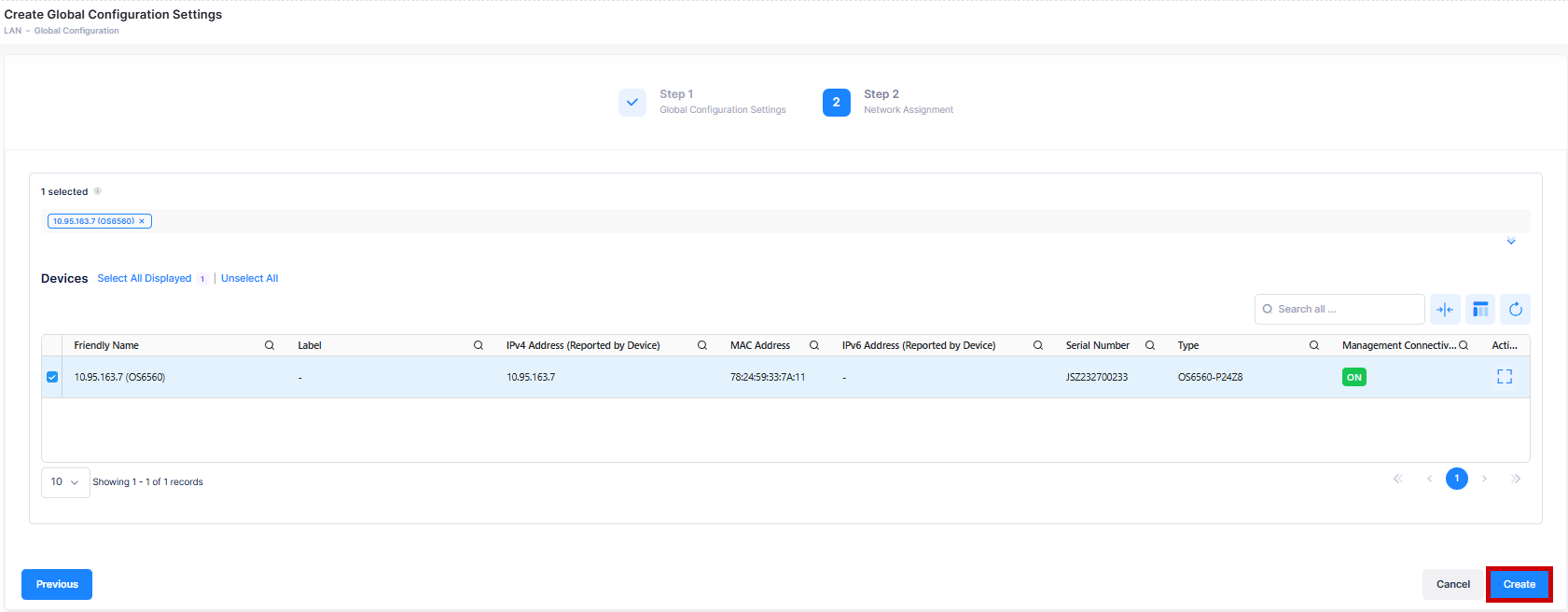
The Network Assignment tab is used to select Switch devices from the available list to apply the Global Settings. Complete the network assignment as described below, then click on Create to complete the Global Configuration Settings.
-
Devices - Select the switch devices. The global configuration is applied to the selected devices.
Editing a Global Configuration Setting
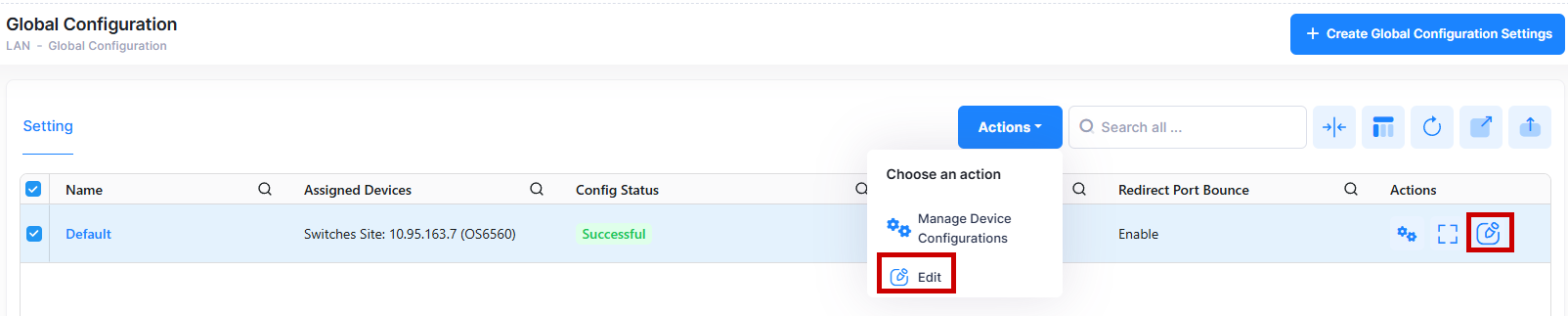
You can edit the values for an existing Global Configuration by accessing the Edit Global Configuration Setting screen. Use one of the following methods to access the edit screen:
-
Select the Global Config Name to edit by clicking on the checkbox next to the name, click on Actions, then select Edit from the drop-down menu.
-
Click on the pencil icon under the “Actions” column next to the Name.
The following Edit Global Configuration Setting screen displays. Edit the fields as described above, then click on Save.
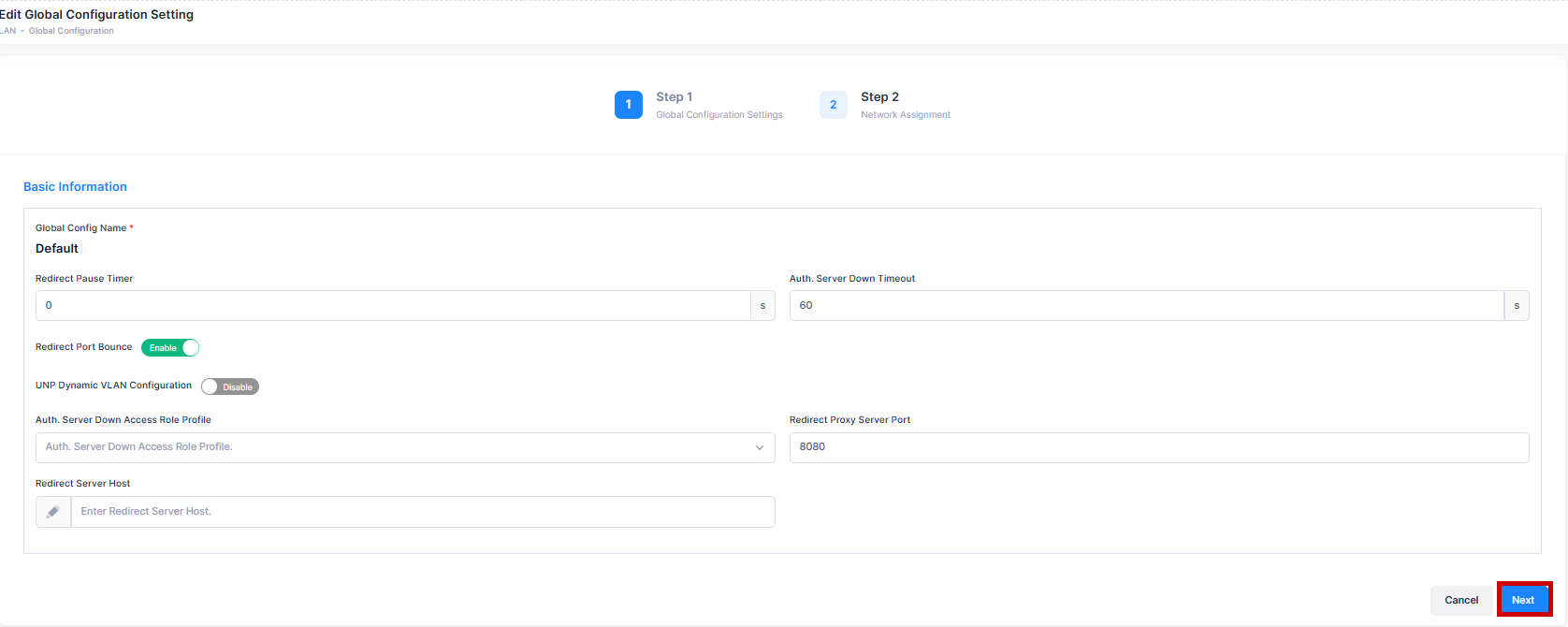
Note: You can edit multiple Global Configuration Settings. You cannot edit the Global Config Name.
Deleting a Global Configuration Setting
To delete a Global Configuration, use one of the following methods to select the Global Config Name you want to delete:
-
Select the Global Config Name to delete by clicking on the checkbox next to the name, click on Actions, then select Delete from the drop-down menu.
-
Click on the trash can icon under the “Actions” column next to the name you want to delete.
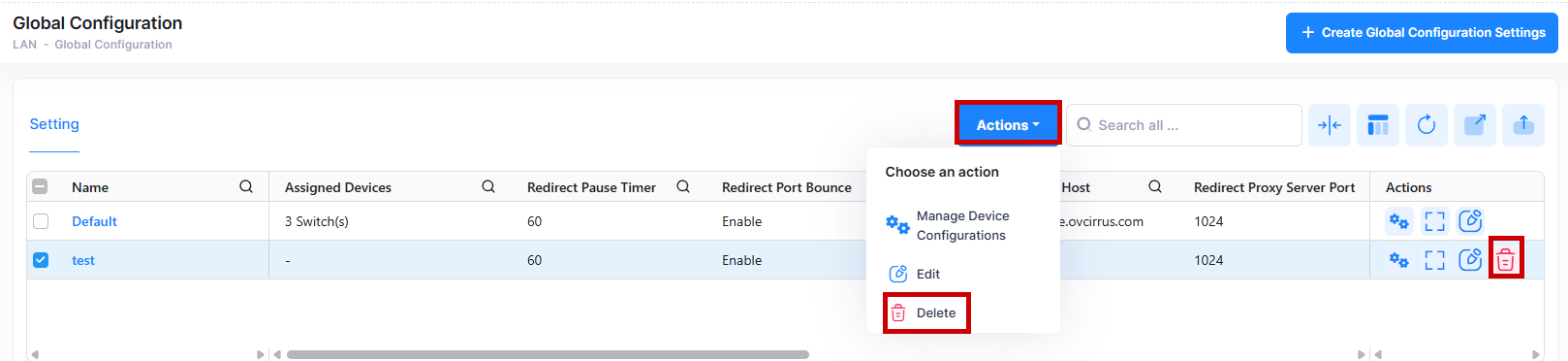
When you select the Global Config Name you want to delete, the following confirmation prompt appears:
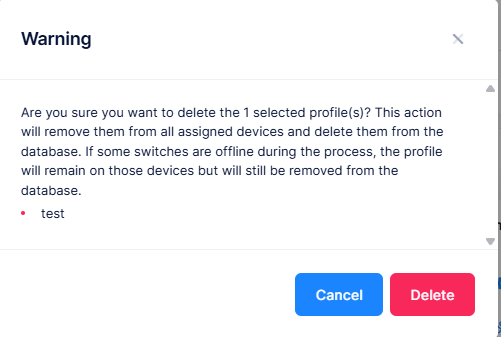
Click on Delete to confirm that you want to delete the selected Profile.
-
Profiles containing device configurations will not be selected for deletion.
-
Multiple deletions for templates are not supported.
Display Global Configuration Setting Additional Information
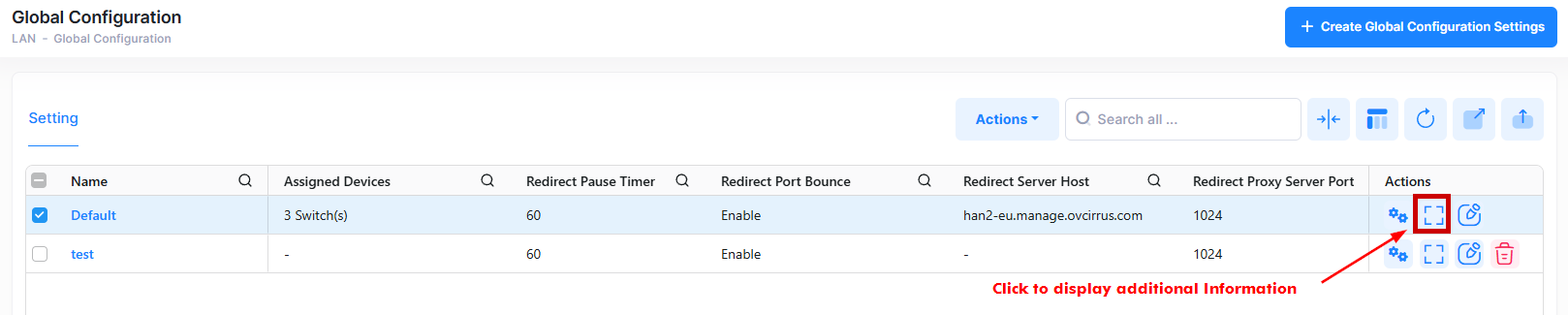
To display additional information about a specific profile, click on the Additional Information icon under the “Actions” column. The information displayed on this screen is defined below.
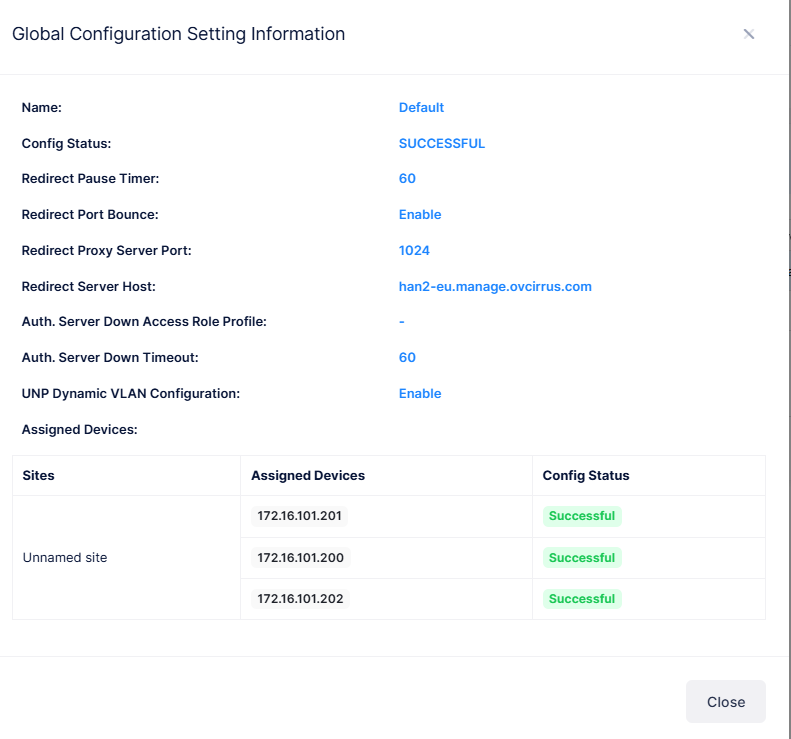
The following information is displayed for each Profile:
-
Name - Specifies the Global Configuration Profile name.
-
Redirect Pause Timer - Specifies the global pause timer value, in seconds, for the switch.
-
Auth. Server Down Timeout - Specifies the authentication server down timer value, in seconds.
-
Redirect Port Bounce - Status of Redirect Port Bounce. When port bounce is enabled, the port will be administratively put down. This is to trigger DHCP renewal and re-authentication.
-
UNP Dynamic VLAN Configuration - Status of UNP Dynamic VLAN configuration when assigning Access Role Profiles to Switch devices.
-
Auth. Server Down Access Role Profile - Specifies an Authentication Server Down Access Role Profile. This is the profile to which a device is classified if MAC or 802.1x authentication fails because the RADIUS-capable server is unreachable.
-
Redirect Proxy Server Port - Specifies the HTTP proxy port number to use for redirection to UPAM or the CPPM Server.
-
Redirect Server Host - Specifies the server host address used for redirection of HTTP traffic to UPAM or the CPPM Server.
-
Config Status - The status of applying the profile to devices (Successful, Failed, Pending, or Partially Failed).
-
Pending - The configuration is being pushed to the devices and has still not received any response from any device.
-
Failed - The configuration failed to apply to all the selected devices. Possible reasons include a timeout while applying the configuration due to the device being unreachable or a network issue, or the configuration being invalid and rejected by the device. Check alerts to identify the specific reason.
-
Successful - The configuration is pushed to all the selected devices successfully.
-
Partially Failed - The configuration is pushed to some devices successfully, while to others it failed or remains in a pending state.
-
-
Assigned Devices - The Switches and associated Sites to which the Global Configuration Setting is applied.
Display and Manage Device Configuration Details
The Global Configuration Profile list shows information for the configured Global Configuration Profiles. To view detailed switch configuration for a specific Profile, click the Profile Name below or can select the Manage Device Configurations under the “Actions” column.
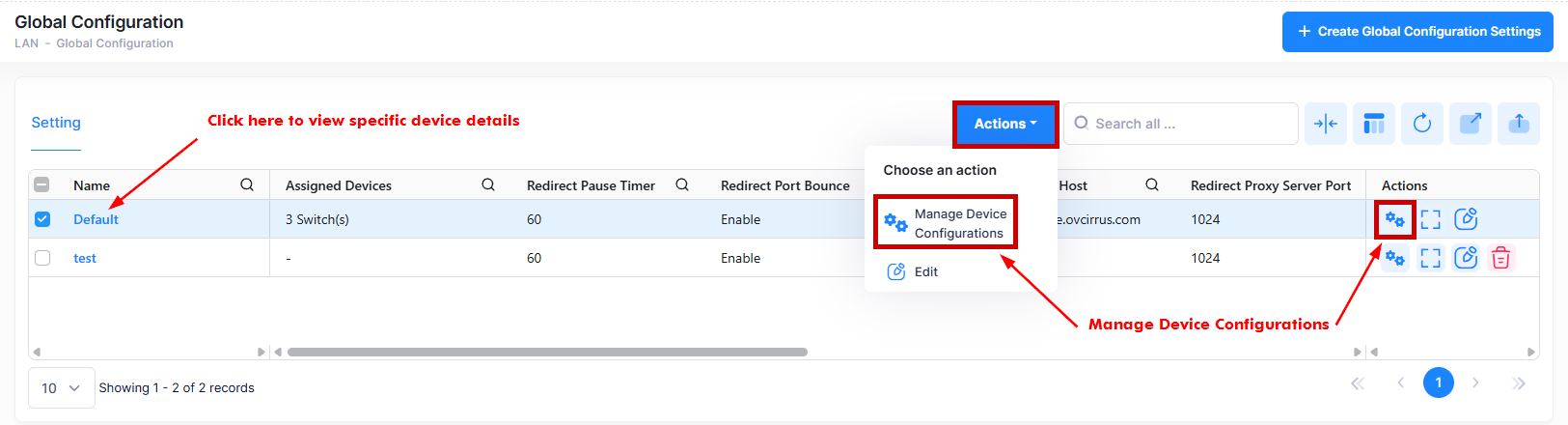
The following screen appears:
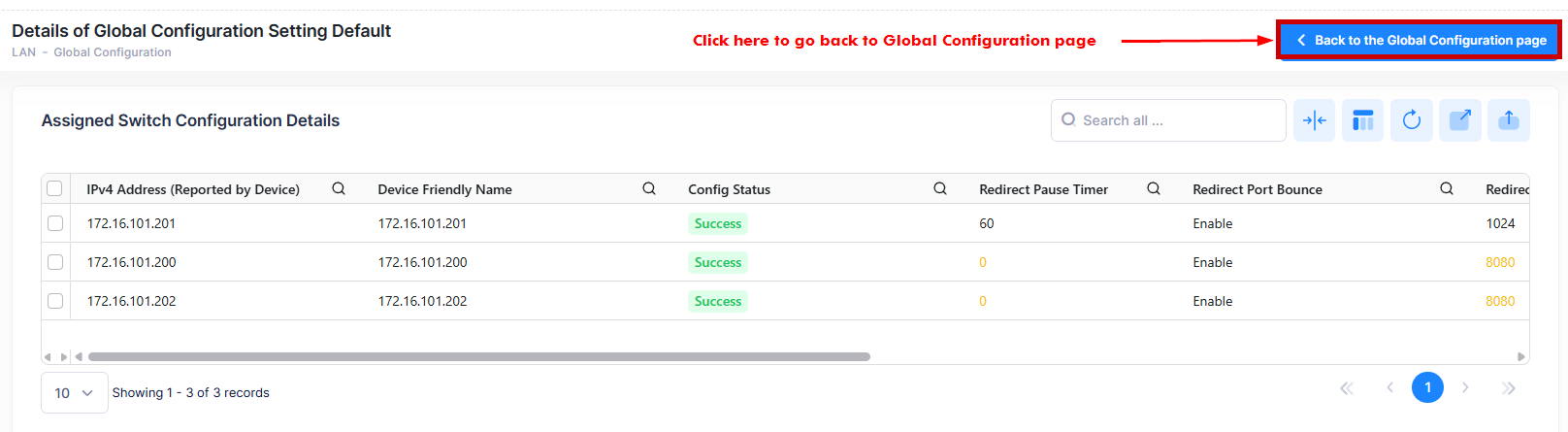
You can now view the current profile configuration for selected Switch that is assigned to a Global Configuration Setting. This screen also allows you to export, search and filter the data. You can click the back icon on the top right to navigate to the Global Configuration List page.
The following Device Configuration of the selected Profile is displayed.
-
IPv4 Address - The IPv4 address of the device.
-
Device Friendly Name - The name assigned to the device is derived from the Preferred Device Naming convention specified in the user preference settings. By default, the Friendly Name is set to IP Address (System Name).
-
Config Status - The configuration status of the device. (Successful or Failed or Pending).
-
Pending - The configuration is being pushed to the device and is still not receiving a response from the device.
-
Failed - The configuration failed to apply to the device. Possible reasons include a timeout while applying the configuration due to the device being unreachable or a network issue, or the configuration being invalid and rejected by the device. Check alerts to identify the specific reason.
-
Successful - The configuration is pushed to the device successfully.
-
-
Redirect Pause Timer - Specifies the global pause timer value, in seconds, for the switch.
-
Auth. Server Down Timeout - Specifies the authentication server down timer value, in seconds.
-
Redirect Port Bounce - Status of Redirect Port Bounce. When port bounce is enabled, the port will be administratively put down. This is to trigger DHCP renewal and re-authentication.
-
UNP Dynamic VLAN Configuration - Status of UNP Dynamic VLAN configuration when assigning Access Role Profiles to Switch devices.
-
Auth. Server Down Access Role Profile - Specifies an Authentication Server Down Access Role Profile. This is the profile to which a device is classified if MAC or 802.1x authentication fails because the RADIUS-capable server is unreachable.
-
Redirect Proxy Server Port - Specifies the HTTP proxy port number to use for redirection to UPAM or the CPPM Server.
-
Redirect Server Host - Specifies the server host address used for redirection of HTTP traffic to UPAM or the CPPM Server.