
AIVA (AI Assistant) is an AI-powered network management assistant embedded directly in OmniVista Cirrus. Ask questions in plain language and receive instant, formatted answers about your network—including infrastructure summaries, health reports, configuration guidance, and active alerts. AIVA reduces the time you spend navigating between screens by bringing key network insights into a single conversational interface.
Consider the following prerequisites before configuring AIVA:
-
An OmniVista Cirrus subscription is required. See License Management in OmniVista Cirrus for more information.
-
AIVA is disabled by default. An Organization Administrator must enable AIVA before any user in that Organization can access the AI assistant. See Configuring AIVA Settings for more information.
To start using the AI assistant, click on AIVA at the top-right of the header toolbar.
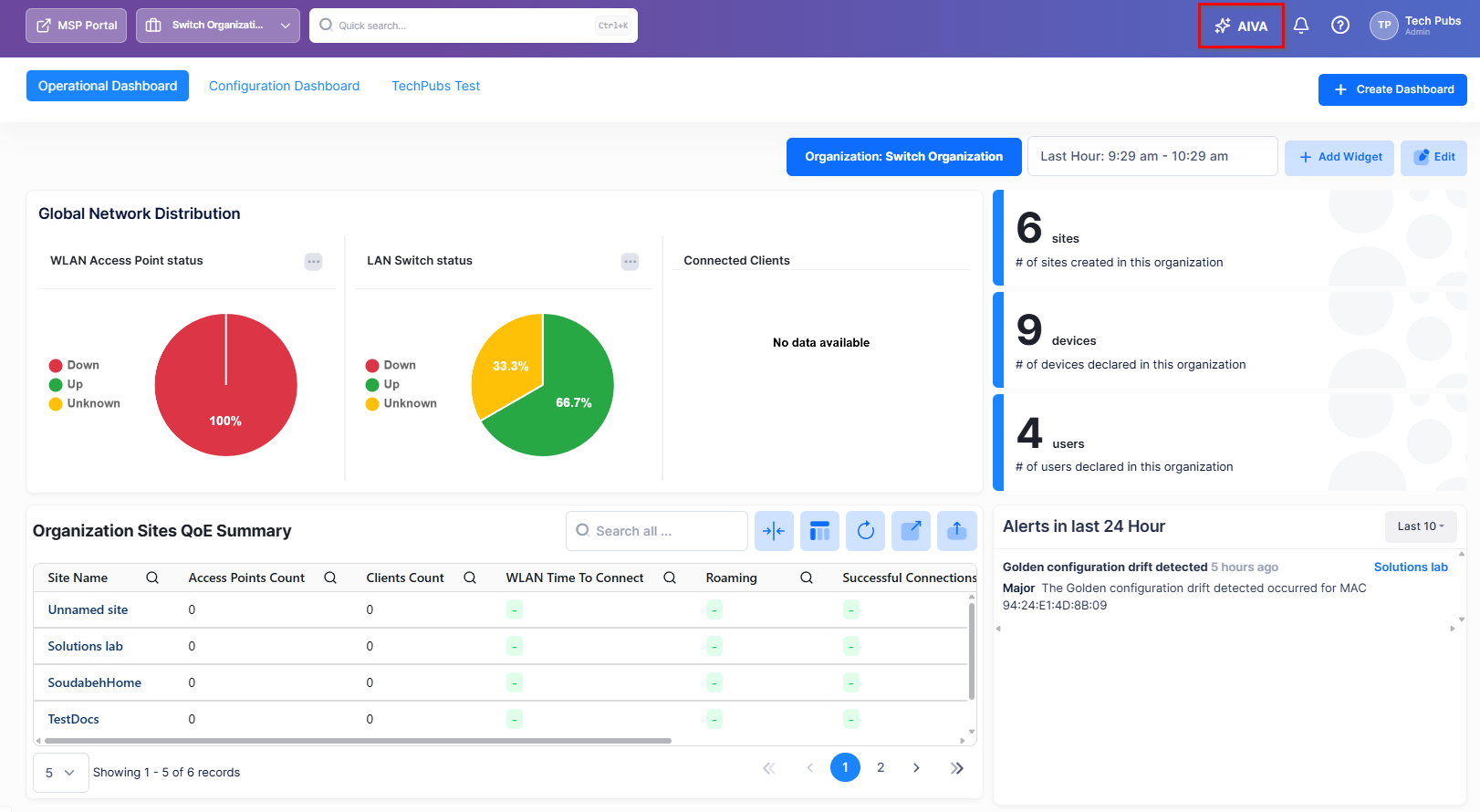
The AIVA panel slides open on the right side of the screen, alongside the current page. You are greeted with: "Hello [your name]! I'm AIVA, your AI assistant for OmniVista Cirrus. How can I help you manage your network today?"
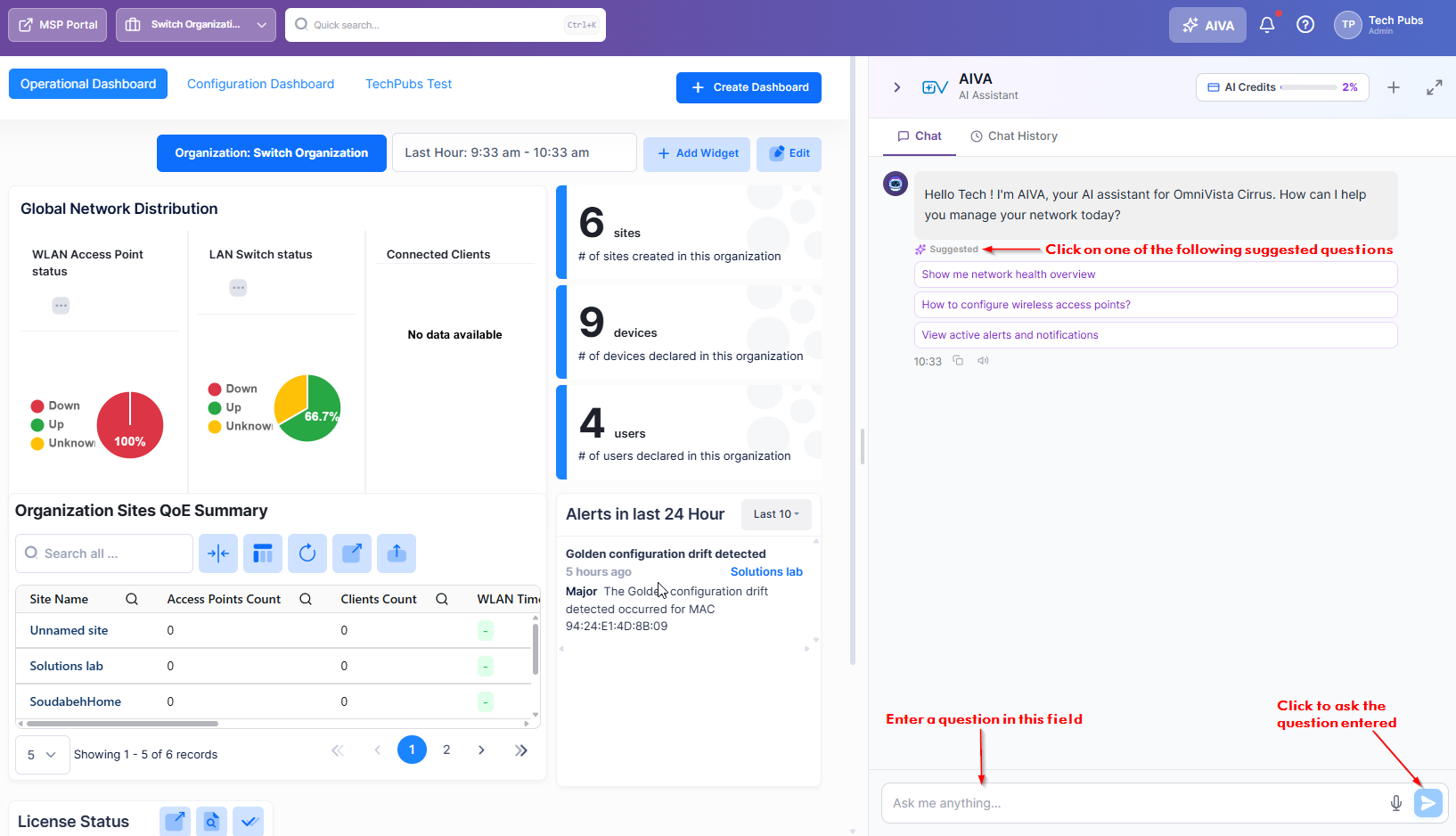
Click on a suggested question or enter a question in the Ask me anything... field at the bottom of the panel and click the Send icon. AIVA processes your question and streams the answer directly in the chat. See Starting a Conversation With the AI Assistant for more information.
If the AIVA icon appears grayed out, the assistant is disabled for the Organization. An Organization Administrator can enable it (see Configuring AIVA Settings).
The following sections provide detailed information on using AIVA to assist with network management:
Using the AIVA Panel
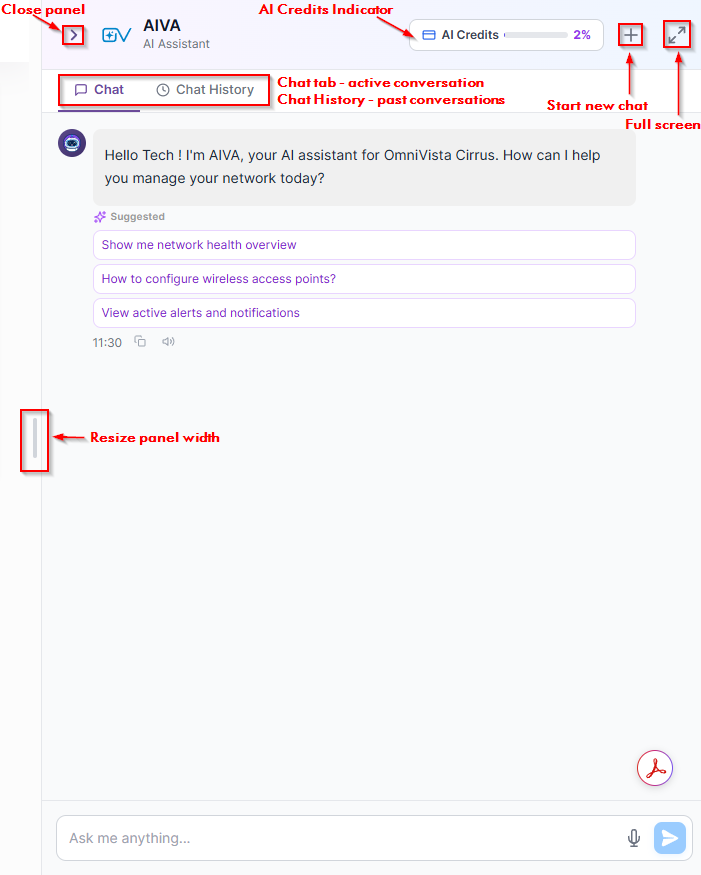
The AIVA assistant panel provides the following tools and operations:
-
Chat Tab- The active conversation where you ask questions or select suggested questions.
-
Chat History Tab - A list of all past conversations in this Organization.
-
AI Credits Indicator - Indicates the number of AI credits remaining for the Organization. Each question you ask consumes AI credits.
-
Resizing and Full Screen View - Change the width of the panel or display in full screen mode.
-
Close the AIVA Panel - Close the assistant panel to return to main screen view.
Starting a Conversation With AIVA
On the Chat tab, you can perform the following actions to interact with the AI Assistant:
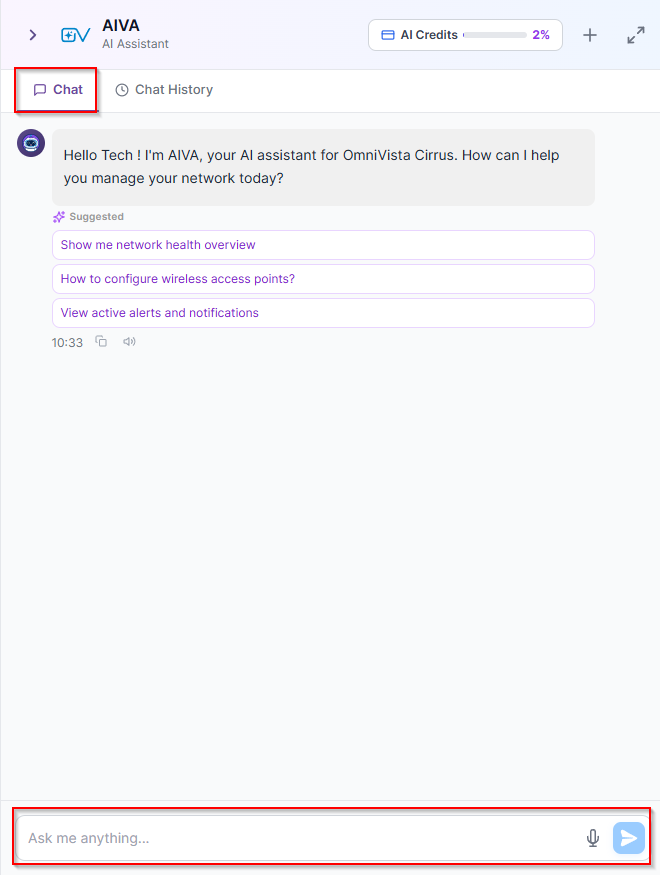
To start an active conversation, click on the Chat tab (if it is not already active).
Type a Question
-
Click inside the Ask me anything... text field at the bottom of the panel.
-
Type your question. Press Shift + Enter to insert a line break within your message.
-
Press Enter or click on Send (paper plane icon) to submit.
AIVA starts generating a response immediately. A streaming animation confirms that the answer is being composed in real time. Click Stop (square icon), which replaces the Send icon during streaming, to cancel the current response at any time.
Using the Suggested Questions
When you open a new conversation on the Chat tab, three suggested questions appear below the welcome message:
-
Show me network health overview
-
How to configure wireless access points?
-
View active alerts and notifications
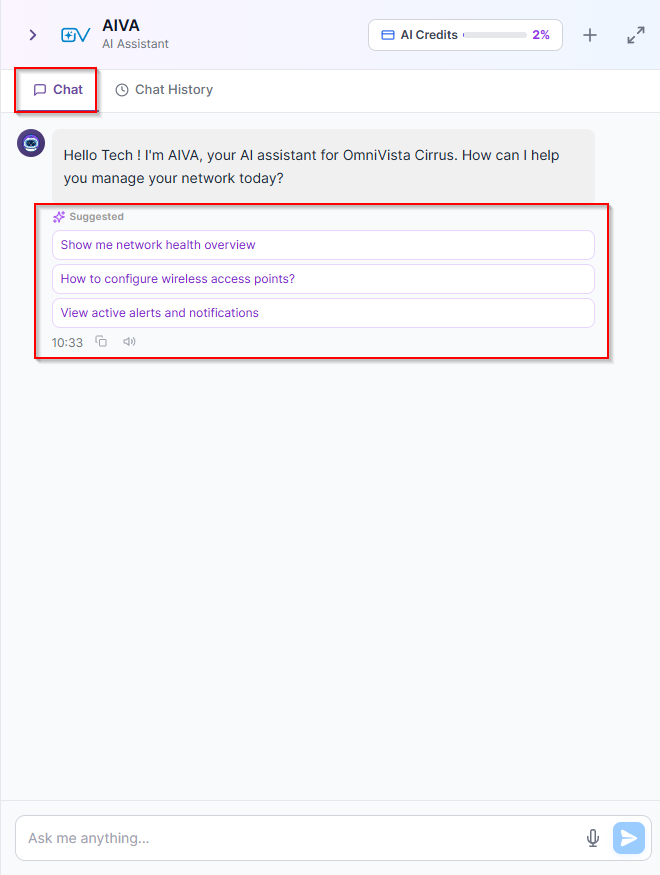
Click any suggestion to send it immediately as your opening message. These prompts cover common network tasks and help you start without knowing the exact phrasing AIVA expects.
Using the Voice Input (Speech-to-Text)
Instead of typing, you can record a voice message and let AIVA automatically transcribe it to text.
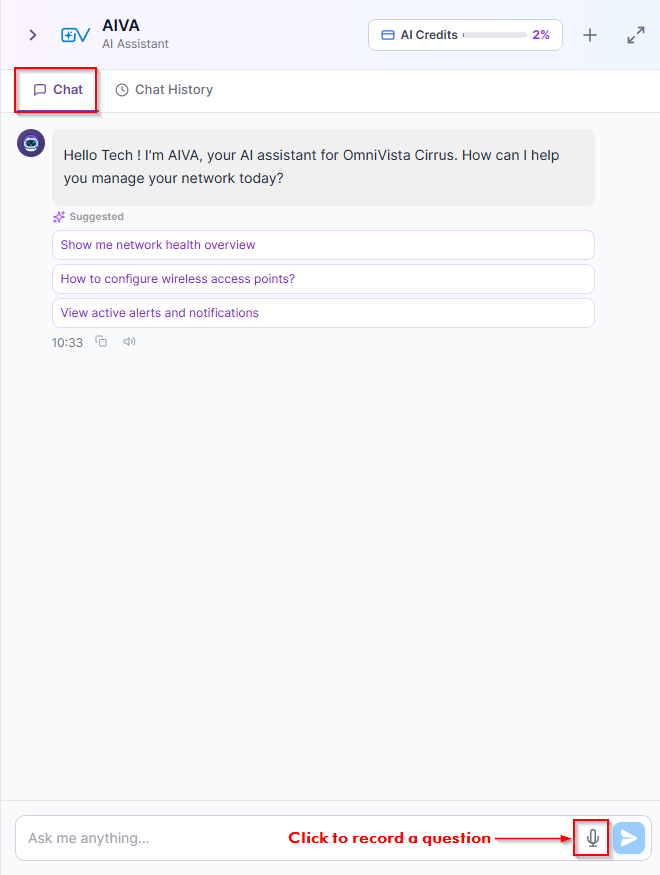
Click on the microphone icon located inside the message composer, to the left of the Send icon.
The microphone icon is only available when your browser supports audio recording. If the icon is absent or grayed out, use a supported browser such as Google Chrome or Microsoft Edge.
-
When your browser prompts for microphone access, click Allow.
-
Speak your question clearly. A waveform animation and a live recording timer appear to confirm the recording is active.
-
When you finish speaking, click Stop recording and transcribe (checkmark icon). AIVA transcribes the audio to text and automatically sends it as a message.
-
To discard the recording without sending, click Cancel (X icon).
Listen to AI Responses (Text-To-Speech)
AIVA can read each AI response aloud using text-to-speech.
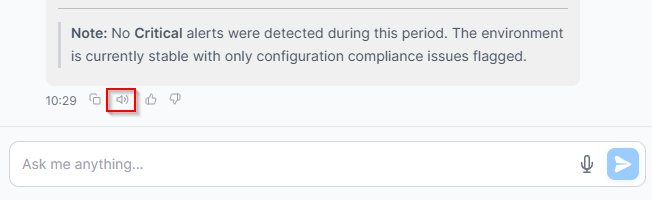
After a response is fully generated, click the Listen to response (speaker icon) below the message. AIVA generates the audio and automatically begins playback. To stop playback before it finishes, click the Stop playback icon (which replaces the speaker icon during playback).
The voice used for playback is determined by the Output voice setting configured by your Organization Administrator. See Configuring AIVA Settings for the available voice options.
The Listen to response icon is only available after a response is fully generated—it does not appear while AIVA is still streaming.
How AIVA Processes Your Questions
AIVA can answer questions about your live network data and present results in structured, formatted tables. Example questions you can ask:
-
"Show me network health overview"
-
"How many access points are currently offline?"
-
"Summarize client activity for the last 24 hours"
-
"Are there any active alerts I should know about?"
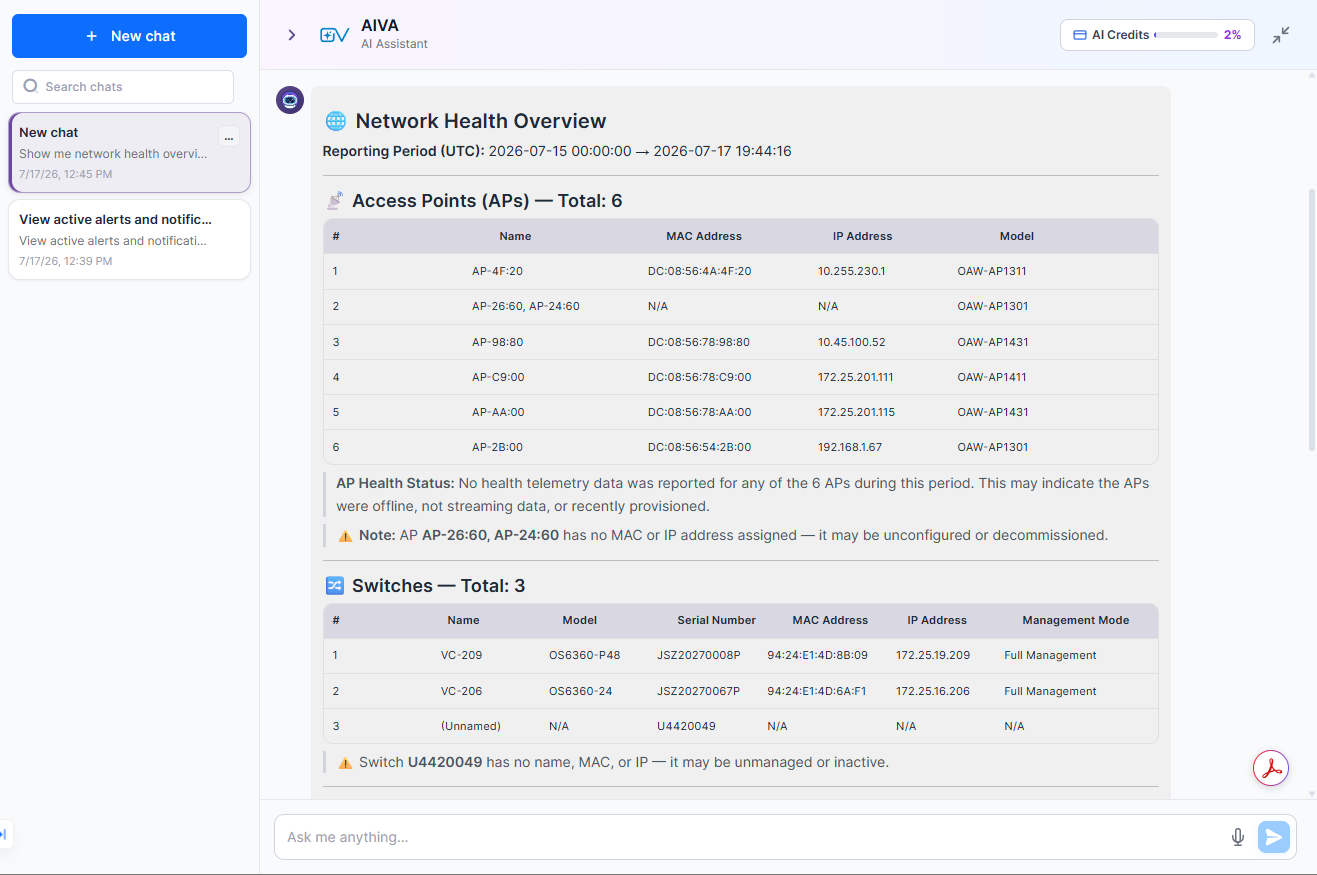
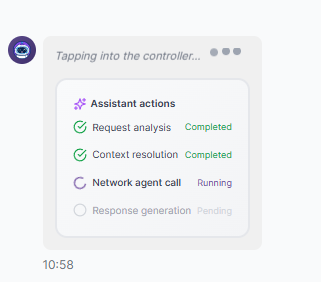
While AIVA works on your question, an Assistant actions panel appears within the response bubble showing the progress of each internal step.
-
Request analysis - AIVA interprets your question and determines the best way to answer it.
-
Context resolution - AIVA gathers the relevant network context needed for your query.
-
Network agent call - AIVA retrieves live data from your network.
-
Response generation - AIVA composes and formats the final answer.
Each step displays one of the following statuses: “Pending”, “Running”, “Completed”, or “Failed”. The assistant actions panel disappears once the response is fully delivered.
The response AIVA delivers may include formatted tables such as:
-
Infrastructure Summary — counts of access points, switches, and total managed devices.
-
Access Point Inventory & Health — per-device CPU, memory, and flash usage.
-
Client Categorization — a breakdown of connected clients by type or connection status.
-
Overall Network Health Summary — health scores across AP Health, Switch Health, Client Health, Management Mode, and Device Connectivity.
-
Recommendations — prioritized action items based on the current state of your network.
AIVA retrieves real-time data from your Organization's network. Responses reflect the state of the network at the exact time of the query.
Providing Feedback to AIVA Responses
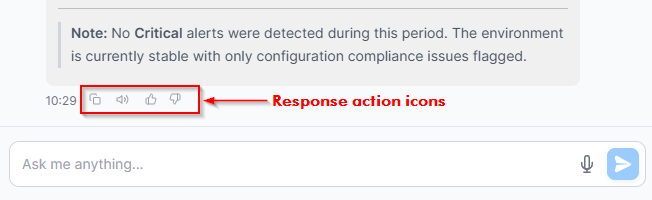
After AIVA finishes generating a response, action icons appear below the message:
-
Copy (clipboard icon) — copies the plain text of the response to your clipboard.
-
Listen to response (speaker icon) — plays the response as audio.
-
Useful (thumbs up icon) — marks the response as helpful.
-
Needs improvement (thumbs down icon) — marks the response as needing improvement.
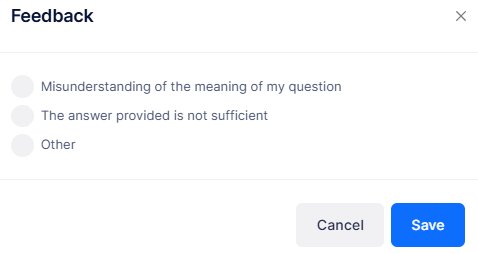
When you click Needs improvement, a short form appears asking you to select a reason.
-
Misunderstanding of the meaning of my question
-
The answer provided is not sufficient
-
Other — with an optional free-text field to describe the issue in your own words.
Your feedback helps improve future response quality. Only one rating can be submitted per response.
Managing Conversations
AIVA stores all your conversations so you can return to them at any time. You can view past conversations on the Chat History tab screen or on the sidebar of the full screen view. Past conversations are listed with their titles and last-activity timestamps.
This section covers the following actions for managing your conversations:
Starting a New Conversation
You can start a new conversation on the Chat History tab screen or on the AIVA full screen view.
To start a new conversation from the Chat History screen, click the plus icon in the upper right corner of the AIVA panel.
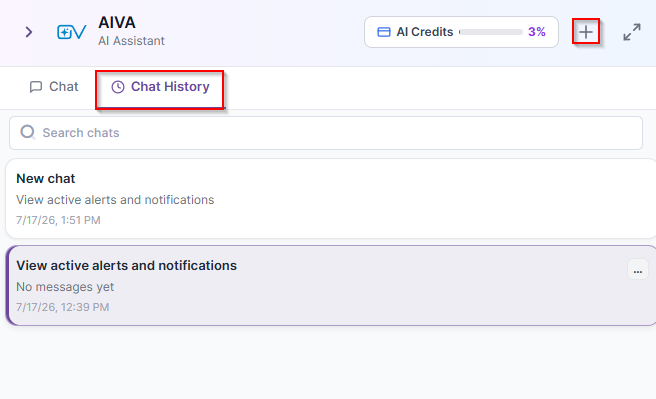
To start a new conversation from the AIVA full screen view, click + New Chat at the top of the sidebar.
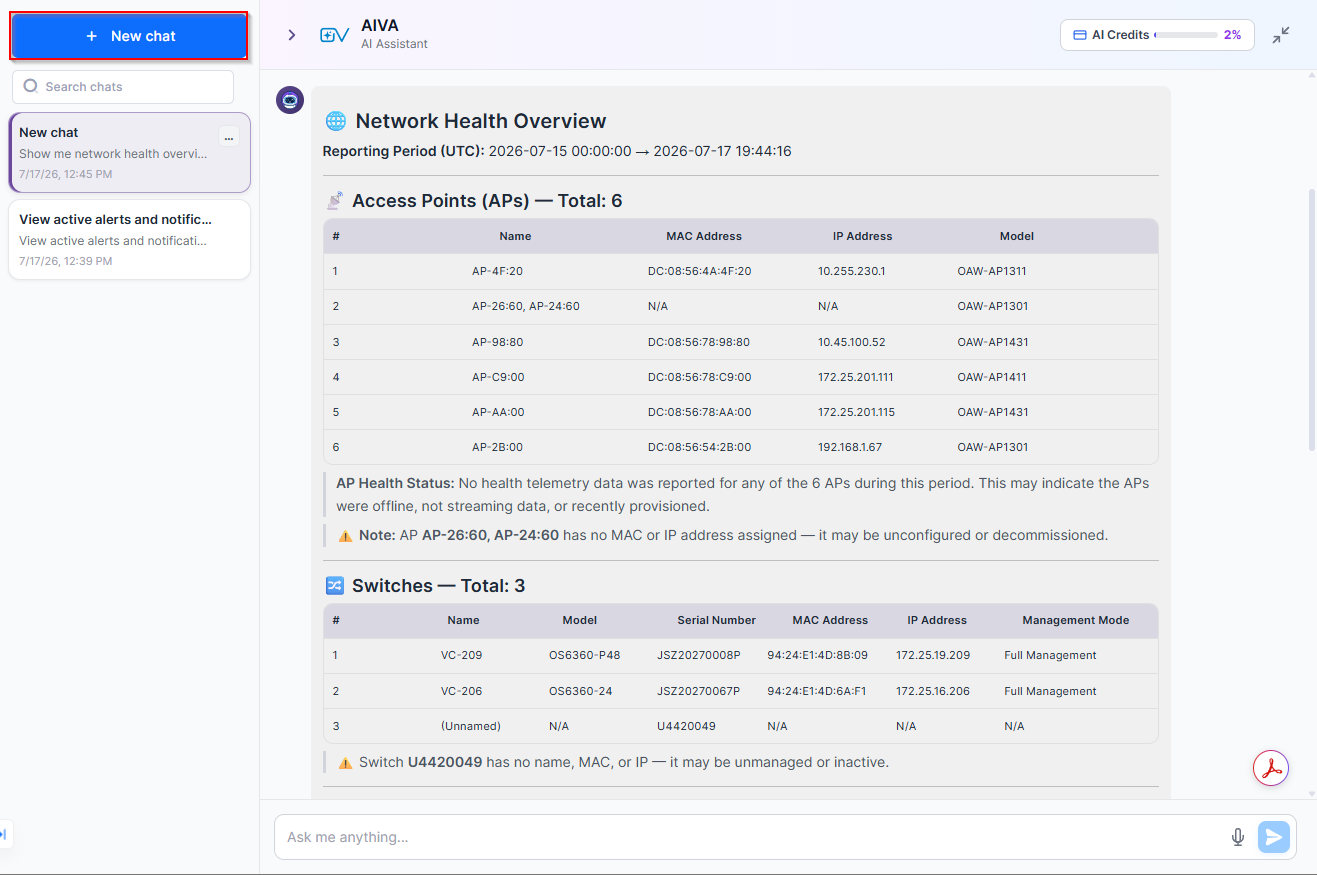
The New chat option is only available after you have sent at least one message in the current conversation.
A fresh, empty conversation opens in the Chat tab.
Searching for a Conversation
You can search for a conversation by title on the Chat History tab screen or on the AIVA full screen view. The chat list updates as you type in the search phrase.
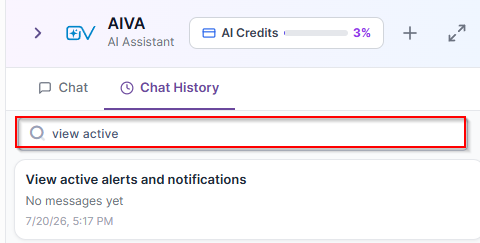
To search for a conversation on the Chat History tab, enter the search phrase in the “Search chats” field. For example, enter “view active” to find the View Active Alerts and Notifications chat.
To search for a conversation on the AIVA full screen view, enter the search phrase in the “Search chats” field on the sidebar. For example:

Switching Between Conversations
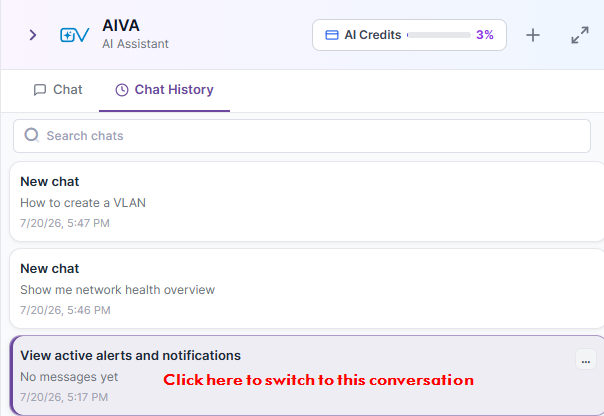
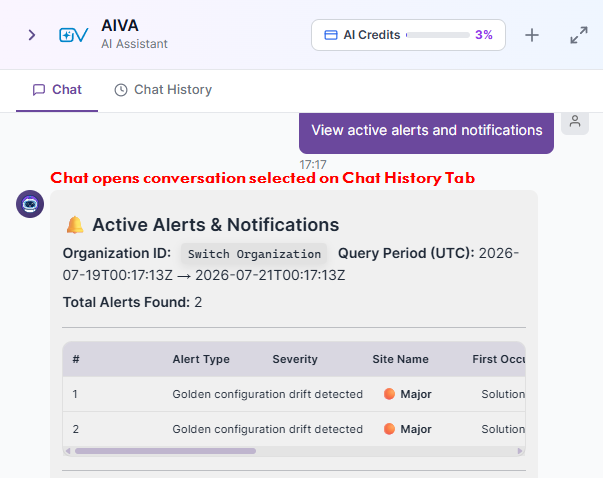
Click any conversation in the Chat History list to open it. The Chat tab switches to that conversation and displays the conversation messages.
Renaming a Conversation
To rename a conversation, click the “…” (options) on the conversation and select Rename from the menu.
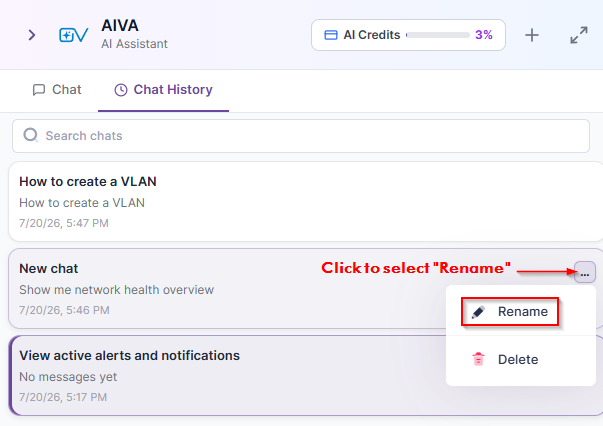
An inline text field appears highlighting the current name.

Type in a new name the press Enter or click on Save. Note that you can enter up to 120 characters for a conversation name.
Deleting a Conversation
To delete a conversation, click the “…” (options) on the conversation and select Delete from the menu.
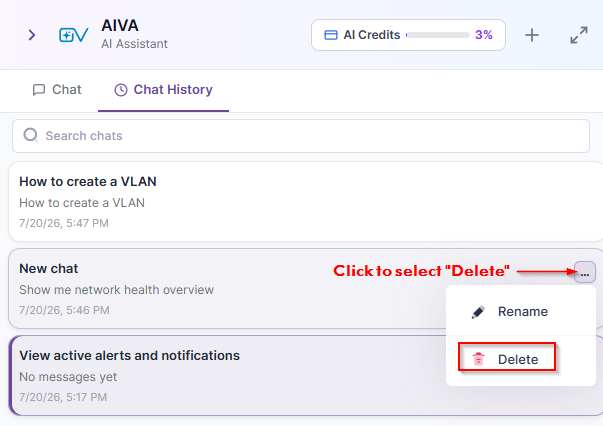
A confirmation dialog appears.
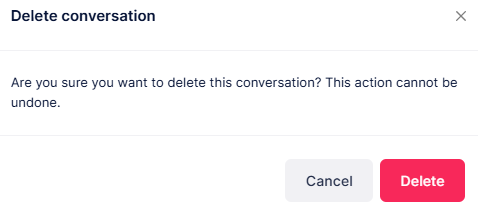
Click Delete to permanently remove the conversation, or click Cancel.
You cannot recover deleted conversations.
Monitoring AIVA Credits Usage
AIVA uses a credit system. Each question you submit deducts AI credits from your Organization's balance. The AI Credits indicator in the AIVA panel header indicates the percentage of credits used.

To view detailed credit usage, click on the AI Credits indicator. The AI Credits Usage dialog appears.
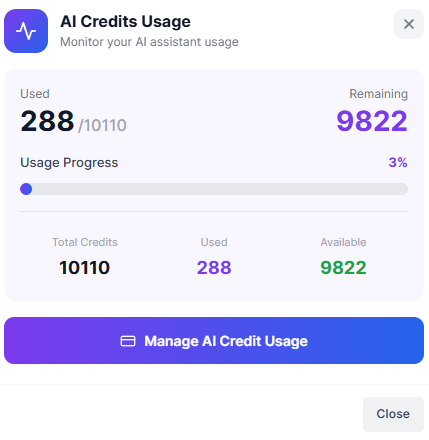
The following usage information is displayed on the AI Credits Usage dialog:
-
Used — credits consumed so far.
-
Remaining — credits available to your Organization.
-
Usage Progress — a progress bar and percentage showing consumption relative to your total.
-
Total Credits — full credit allocation for your organization.
Click Manage AI Credit Usage to navigate to the License Management screen, where an Organization Administrator can review or purchase additional credits.
When 80% or more of your credits are consumed, the AI Credits indicator changes color to signal a low balance. When all credits are exhausted, AIVA becomes unavailable for the entire Organization until additional credits are added.