
The Archived Reports screen displays all report files generated from all completed runs for the last 2 years.
To access the Archived Reports screen, click on Report > Archive section of the Fleet Supervision Menu.
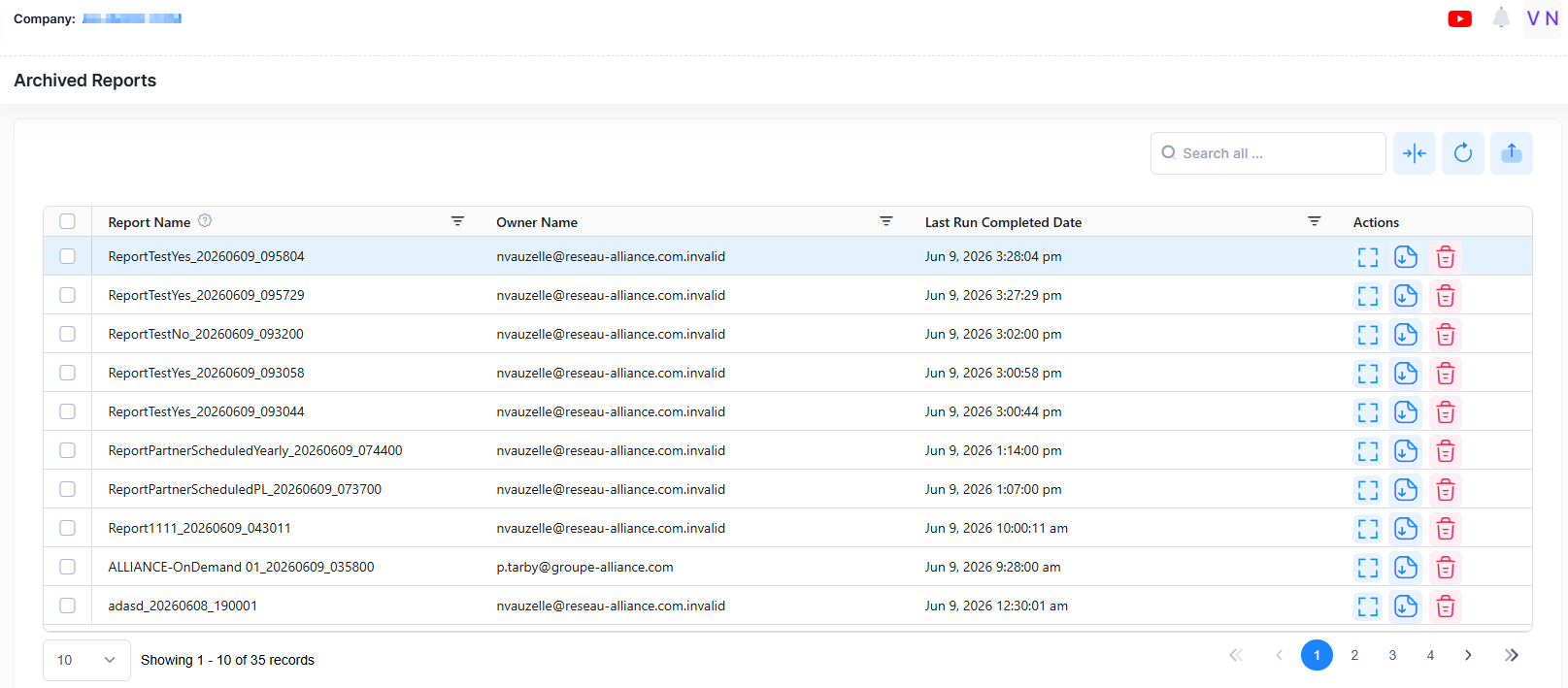
Users have permissions to view, create, edit, download, and delete Archived Reports.
-
Users with “view” permission can only view and download reports.
-
Users with “modify” permission who own the report can view, delete, and download report files.
-
Users with “Admin” permission can view, delete, and download report files.
-
Report files are deleted automatically two years after creation.
Display Archived Reports Information
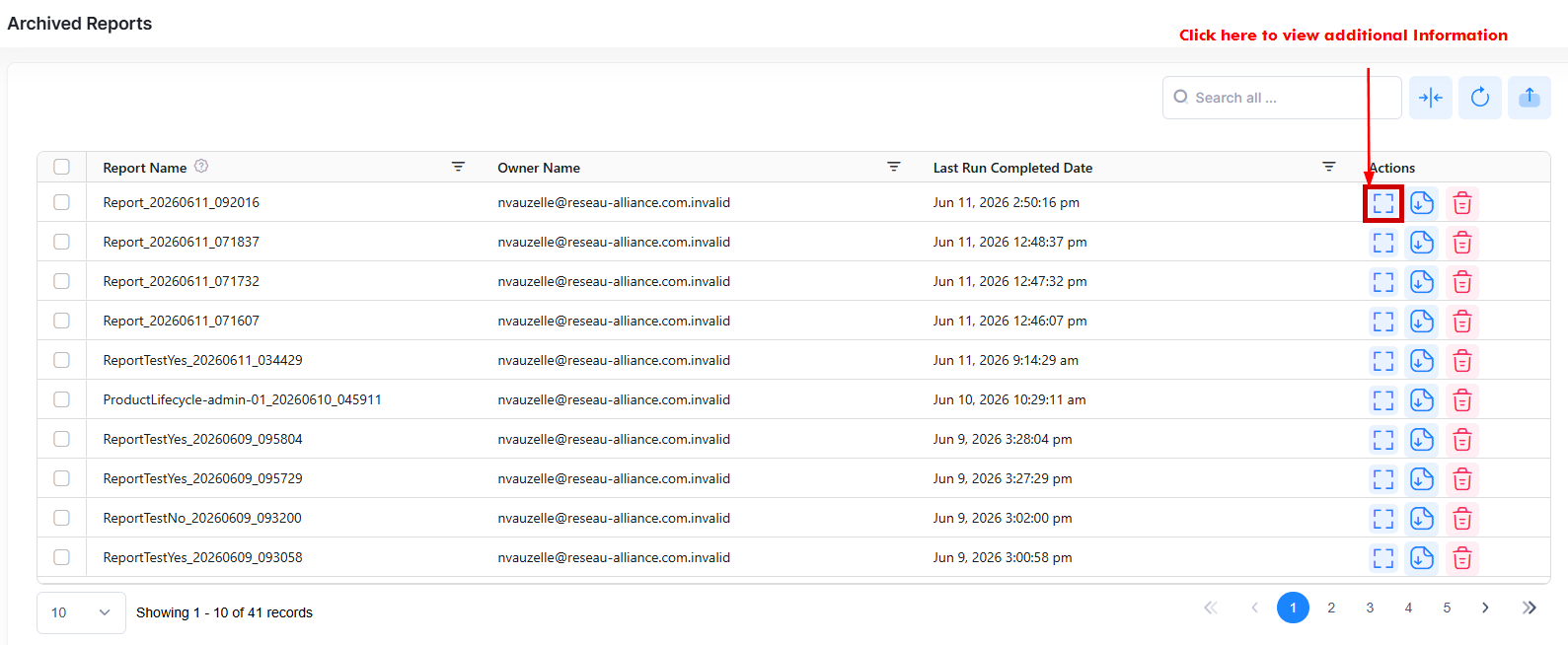
To display detailed information about a specific report, click on the Additional Information icon under the “Actions” column. The information displayed on this screen is defined below.
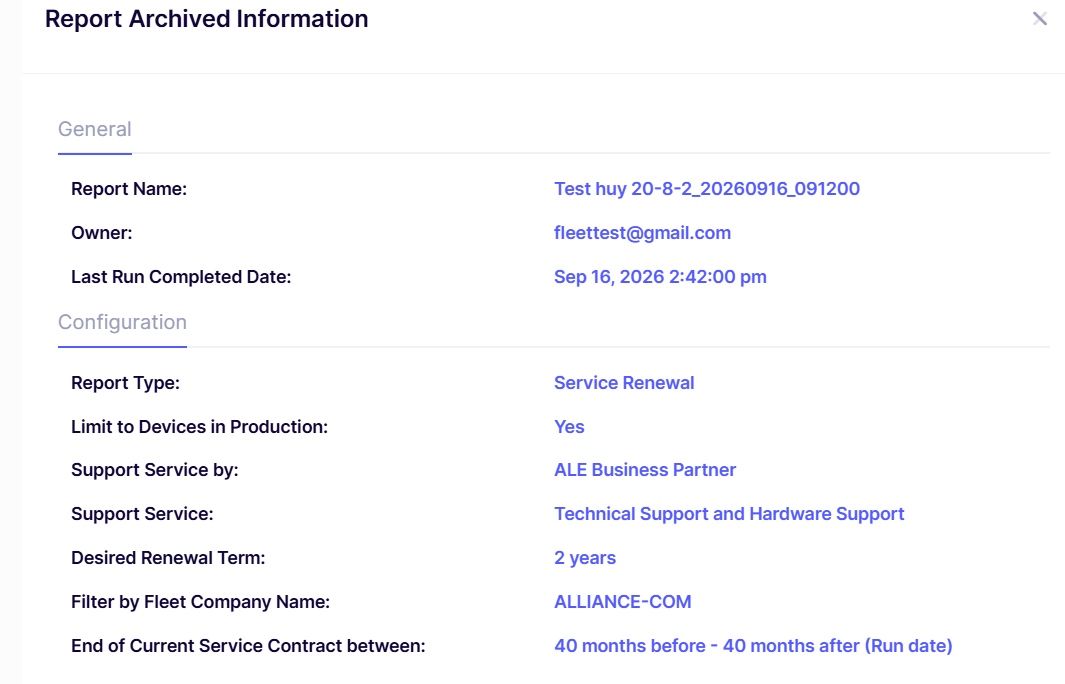
The following information is displayed for each report generated.
-
Report Name - The generated report file name.
-
Owner - The email address of the user who created the report definition.
-
Last Run Completed Date - The last date and time when the report was run.
-
Report Type - The type of Report (Service Renewal or Product Lifecycle).
-
Email Recipient - Recipient list (can be empty for On Demand runs).
-
Limit to Devices in Production - Select Yes or No from the drop-down menu list. (By default, Yes is selected).
-
Support Service By - Select the support service option from the drop-down menu, either by ALE Business Partner or ALE Directly.
-
Support Service - Select the Support service type from the drop-down menu, Technical Support and Hardware support, or Technical Support and Hardware support based on Warranty.
-
Desired Renewal Term - Display the selected renewal term.
-
Filter by Fleet Company Name - Select the End Customer company from the available list supervised by the current Partner company or Partner company. (Note: This option is enabled for Partner companies only).
-
End of Current Service Contract between - Enter the months between the Service Contract.
-
month(s) before report date - Input the month in numeric format. Default= 0.
-
month(s) after report date - Input the month in numeric format. Default= 3.
-
-
End of Support date between - The date when support and updates for the product will officially end.