
The POD table displays the status and resource usage of Kubernetes pods running OmniVista Terra services. It provides real-time monitoring of service health, resource consumption, and operational metrics.
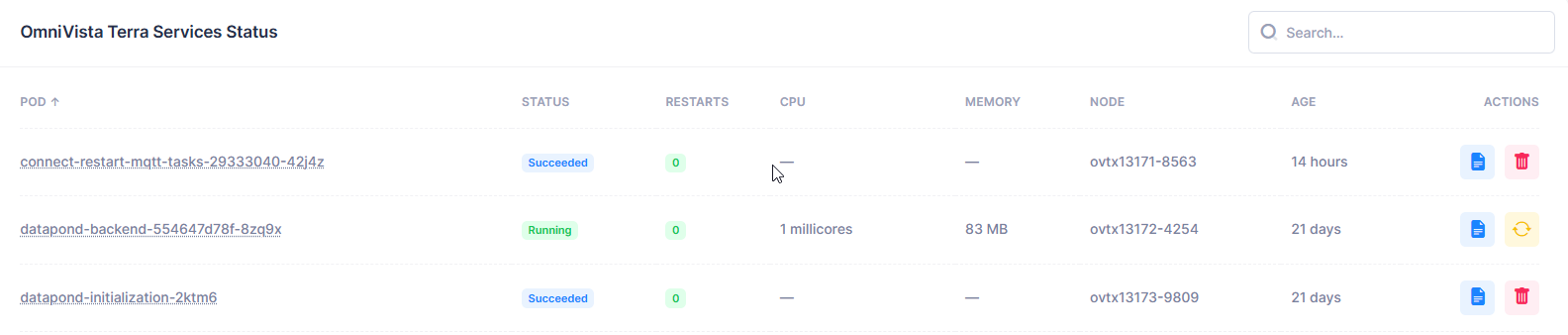
POD - Name of the Kubernetes pod. This is a unique identifier for each pod instance. This column can be sorted alphabetically using the arrow.
STATUS - Current operational state of the pod, provides a quick health check indicator.
-
Running (green) - Pod is operational and healthy.
-
Succeeded (blue) - Pod completed its task successfully (it is not running anymore).
-
Error (red) - Pod encountered an error or failure and was not able to complete its task.
-
CrashLoopBackOff (red) - Pod tried to restart too many times.
RESTARTS - The number of times the pod has restarted.
-
0 - No restarts (healthy).
-
>0 - Pod has experienced issues requiring restarts.
CPU - The CPU resources allocated or being used, displayed in millicores. A dash "—" will be displayed when not applicable or not measured.
MEMORY - Memory consumption of the pod in Megabytes. A dash "—" will be displayed when not applicable or not measured.
NODE - Kubernetes node where the pod is running. Identifies the physical/virtual host machine, for example ovtx-1-5804, ovtx-2-5192, ovtx-3-9306.
AGE - The time elapsed since the pod creation, displayed in hours or days. This helps identify the pod lifecycle and stability.
ACTIONS - Available operations on the pod.
-

-
This will only retrieve the last 500 lines of logs from each container running inside the pod. Use the dedicated “Logs” page for more advanced log retrieval options.
-
-

-
Deletion is only for “job” pods.
-
It is safe to delete as it is only possible to do on pods once they are in completed or error state.
-
The main purpose is to remove the job from the history. The system will only keep the last few jobs for each job type, and the last few that were in error state.
-
It’s recommended not to delete pods manually unless instructed to do so as it is always useful to keep the last error.
-

-
This deletes the target pods and restart a new instance immediately.
-
Some services are replicated on multiple nodes, in that case one instance can be safely deleted without any expected service disruption.
-
If you restart all instances (pods) of the same service at once, then you will encounter service disruption on the features managed by these services.
-
-
It’s recommended only to restart pods if you are instructed to do so.
Usage Tips
-
Monitor Restarts: Frequent restarts (>0) may indicate instability.
-
Check Resource Usage: High CPU/memory may require scaling.
-
Node Distribution: Verify pods are distributed across nodes for high availability. Restarting pods manually can help re-balance their distribution across all nodes, but future version of the product will have a way to do this automatically.
Pods are not automatically rescheduled when a disconnected node comes back online as this can cause unnecessary restarts and service disruption. This behavior may result in imbalanced CPU and Memory utilization between nodes. This is expected behavior and is automatically handled by Kubernetes through built-in eviction mechanisms when resource pressure becomes critical.