
OmniVista Terra is an on-premise Network Management System that simplifies the monitoring and managing of Stellar Access Points and AOS Switches from an easy-to-read dashboard display. An on-premise version of OmniVista is particularly useful for customers with local installation requirements.
This release of OmniVista Terra is available as a free trial or paid version of the full OmniVista Terra Solution. The trial version extends for 90 days and can be used to monitor up to 20 Access Point and Switch devices combined (additional time and number of devices can be requested). You can then upgrade from the free trial version to a paid licensed version of OmniVista Terra.
You can access OmniVista Terra 10.5.2 using any approved browser and device (e.g., workstation, tablet). Access to OmniVista Terra is supported on the following browsers: Chrome 79+ (on Windows and Redhat/SuSE Linux client PCs), and Firefox 62+ (on Windows and Redhat/SuSE Linux client PCs).
These Release Notes detail features and functions, network/device configuration prerequisites, supported devices, and known issues/workarounds in OmniVista Terra 10.5.2. Please read the Release Notes in their entirety as they contain important operational information that may impact successful use of the application.
New in This Release
The following sections provide an overview of the features and enhancements introduced with this release.
New Devices Supported
Stellar Access Points
The following Wi-Fi Gen 7 OmniAccess Stellar Access Points are now supported:
-
OAW-AP1501
-
OAW-AP1561
-
OAW-AP1571
-
OAW-AP1572
AOS Switches
The following AOS switch models are now supported:
-
OS6920-D32, OS6920-C40D6
-
OS6575-P12, OS6575-MP16, OS6575-U28
See the Supported Devices section below for a list of all devices currently supported in OmniVista Terra 10.5.2.
New Software Supported
-
AWOS 5.0.4 - OmniVista Terra 10.5.2 supports AWOS 5.0.4 on all supported Access Points.
AOS 8.9R4 is the minimum software version supported by OmniVista Terra 10. AOS software versions below 8.9R4 are not supported.
-
AOS 8.10R4 - OmniVista Terra 10.5.2 now supports AOS 8.10R4 on all supported AOS Switches, except for the OS6900-T20/T40/X20/X40/X72/Q32 models, which do not support AOS 8.10R1 or higher versions.
-
OS6360, OS6465, OS6560, and OS6570M switches require a manual U-boot update to version 8.10R4 (or later) before you can update the switch to AOS 8.10R4 (or later). Failing to update U-boot externally will cause boot failure.
-
OmniVista does not support U-Boot upgrades; therefore, the U-Boot update must be performed outside of OmniVista.
-
For all other switch models, a U-Boot upgrade is not mandatory but is recommended. Refer to the AOS release notes for details.
-
To check the U-Boot version on a switch, select the switch in the Device Catalog, click the Additional Information icon, and locate the U-Boot version in the Modules section. Alternatively, you can run the show hardware-info CLI command on the switch.
-
-
Modifying the default password of “admin” user is strongly recommended for all switches. Changing the password is a mandatory requirement for AOS versions 8.10.R04 and above.
-
If the default credentials have not yet been changed on the switch, you must set the new password on switches through the Management User Template by either creating a new template or editing an existing template. Otherwise, the switch will fail to onboard in OmniVista.
-
For switches running AOS 8.10.R03 or earlier, changing the default password is not mandatory but is still strongly recommended.
-
New Features and Functions
This section details the following new features introduced in this release.
Global Configuration Settings
You can now apply the following global configuration settings to network devices:
-
Redirect Pause Timer - Configures the amount of time the switch filters traffic from a non-supplicant (non-802.1x device) on a UNP port.
-
Auth. Server Down Timeout - Configures the authentication server down timer value, in seconds. When the timer runs out for a particular device, the switch clears the device from the Auth Server Down Access Role Profile and triggers another authentication attempt for that device.
-
Redirect Port Bounce - When a client is moved from one VLAN to another after a Change of Authorization (COA) request, the port is administratively put down. This triggers DHCP renewal and re-authentication.
-
UNP Dynamic VLAN Configuration - Enables UNP Dynamic VLAN configuration when assigning Access Role Profiles to Switch devices.
-
Auth. Server Down Access Role Profile - Specifies an Authentication Server Down Access Role Profile. This is the profile to which a device is classified if MAC or 802.1x authentication fails because the RADIUS-capable server is unreachable.
-
Redirect Proxy Server Port - Specifies the HTTP proxy port number to use for redirection to UPAM or the CPPM Server.
-
Redirect Server Host - Specifies the server host address used for redirection of HTTP traffic to UPAM or the CPPM Server.
IPv6 Support
-
DHCPv6 option for IPv6 address
-
Inter-AP communication via IPv6
-
IPv6 address for VPN server's public IP address
-
IPv6 address for VPN server's VPN IP address
-
IPv6 address for Client VPN address pool
-
UPAM IPv6 support
-
OmniSwitch IPv6 Management support
-
Stellar AP IPv6 Management support
Data VPN profile with IPv6 address can be created in OmniVista Terra, but it is not pushed to the device.
Locator
The Locator feature in OmniVista provides a centralized and intuitive way for network administrators to find, identify, and track user devices and clients across the network. The primary purpose of the Locator feature is to provide operational overview of the device or user connected in the network.
-
Using the Locator screen, you can quickly view an overview of the type of devices connected (APs and Switches), the number of devices up, the number of devices down, the number of live wireless clients, and the number of live wired clients.
-
The search bar allows you to locate entities using:
-
MAC address
-
IP address (IPv4 or IPv6)
-
Username (Client or Device)
-
-
The time filter allows you to:
-
Search for currently connected entities.
-
Review recent or historical activity.
-
Organization Dashboard Improvements
Two new Organization Dashboards are automatically created by default for new Organizations:
-
Operational Dashboard - Displays a real-time view of your network health, highlights key metrics, device status, and active alerts so you can quickly identify and troubleshoot issues.
-
Configuration Dashboard - Provides visibility into sites, devices, users, licenses, and recent configuration changes to help you set up and manage your Organization. Focuses on deployment status, setup progress, and administrative actions, giving you a clear overview of how your environment is configured.
The Default Dashboard for existing Organizations is retained and labeled “Default Dashboard (archived default)”.
MACsec Encryption
MACsec Encryption for provisioning configurations assigned to Access Points Groups. This allows you to configure MACsec support for member devices of the associated Access Point Group.
-
MACsec functionality is supported in AWOS 5.0.3 GA (and above) only on the AP1321 and AP1361.
-
Only specific OmniSwitch models and ports support MACsec. Ensure your AP is connected to a port that supports MACsec. Refer to the AOS documentation for the OmniSwitch model you are using for more details.
Remote Packet Capture (AWOS)
Remote packet capture allows users to remotely trigger, collect, and manage packet captures (pcap) from OmniVista-connected Access Points (APs), enabling centralized network troubleshooting, security analysis, and performance diagnostics without on-site intervention. Captures can be done in wireless or interface mode. Once the capture is done, it will be uploaded to OmniVista.
-
Unsupported AP models: AP11xx, AP12xx.
-
Unsupported AP versions: 5.0.3.x and below.
Service Manager - Shortest Path Bridging (SPB)
Configuring SPB Services on AOS Switches is now supported. This implementation of SPB provides the following functionality:
-
SPB Fabric (Backbone) - View the ISIS-SPB backbone VLAN (BVLAN) configuration for the bridge or ISIS protocol enabled network devices, SPB ISIS interface configuration, and SPB ISIS Adjacency.
-
L2 Profile - Configure Layer 2 Profiles that you can associate with an SPB Service Access Point (SAP).
-
Service Configuration - View and configure Services on network devices.
-
SPB Topology Overlay - Can select to view an SPB Map on the Topology application screen. The SPB Map displays SPB-configured switches as an overlay of the Topology network. The Topology for non-SPB devices remains visible beneath the SPB Map overlay.
SAML SSO (Single Sign-On)
SAML SSO is a protocol that allows users to log into multiple applications and online services using a single authentication. This means that a user only needs to log in once, and can then access all applications that support Azure or OKTA without having to re-enter their password.
-
The OmniVista Terra implementation is based on the SAML 2.0 Authentication and Authorization framework, which is an XML-based open standard for exchanging authentication and authorization data between an application service provider and an identity management system used by an enterprise. The “Service Provider” initiated SSO is supported.
-
“Service Provider” is the provider of a business function or OmniVista Terra service. OmniVista Terra requests and obtains an identity assertion from the customer’s Identity Provider (IDP). Based on this assertion, OmniVista Terra allows users to access the service.
Upload Software Image Files
A new Image Versions tab is now available on the “Firmware - Scheduler” screen to support upgrading device images through OmniVista Terra. This new tab provides the following functionality:
-
Displays a list of all of the software image files stored in OmniVista. Use these files to select the software version when upgrading your network devices.
-
If a software version image file is not included in this list, you can download the necessary image files from the Technical Support website and upload the files into OmniVista.
-
The image files listed on the Image Versions screen are available for selection across all Organizations when upgrading devices. This list appears in the drop-down menu for selecting the software version on the following screens:
-
Create an Upgrade Schedule
-
Schedule an Upgrade from the Device Catalog Screen
-
Add a Device to the Device Catalog
-
Set the Desired Software Version
-
If the image file you want does not appear in the drop-down menu, click the "Import the image" link on the above screens. This link opens the Image Versions screen, where you can upload the desired image file(s). Uploaded files appear in the Image Versions list and become available in the drop-down menu for selecting the software version.
UPAM Authorization of Celona Devices - Celona Integration (Phase 1)
-
Celona Edge first performs authentication based on SIM, then users are authorized by validating the SIM card (IMSI) or the device (IMEI) with Enterprise NAC (UPAM).
-
NAS Clients are configurable as third-party devices to accommodate Celona device integration.
-
UPAM IMSI/IMSE database for UPAM authorization of Celona devices.
UI Improvements
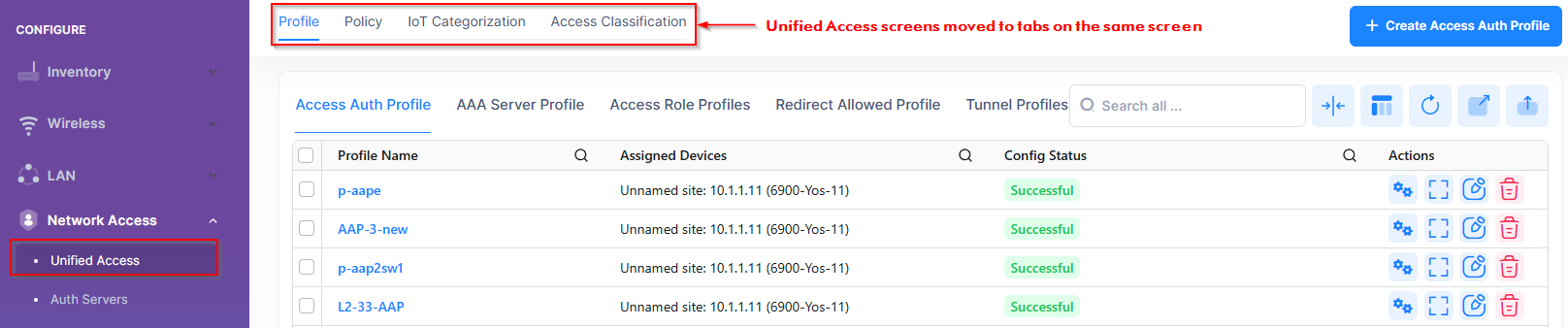
OmniVista Terra Left-Hand-Side (LHS) menu and feature screens optimized for efficient menu navigation and management of Organization data.
-
Two levels of screen nesting. Third and fourth level screens are combined into groups or accessible as tab views.
-
Multiple tab views displayed on a single screen.
-
Table functionality remains unchanged from its original standalone view (search, filters, sorting, pagination)
For example, Unified Access sub-menus combined onto a single screen accessible with tabs instead of sub-menu items.
Application Updates/Enhancements
-
Countries of Service for OmniVista Terra - You can now select the country of Japan to create a 6GHz band RF Profile.
-
Guest Access Strategy - New “Don’t Allow Guest Registration from the Following Domains” option when creating a Guest Access Strategy. This option allows administrators to specify the email domains to block from guest self-registration.
-
The “Don’t Allow Guest Registration from the Following Domains” parameter becomes visible when “Email ID” is selected under the Required Attributes section.
-
Note that this new option does not work with customized Captive Portal templates created prior to release 10.5.2.
-
-
DHCP Option 82 - The Global DHCP Option 82 is now configurable for Access Points. DHCP Option 82 allows a DHCP Relay Agent to insert specific information into a request that is being forwarded to a DHCP Server.
-
External Engines (Asset Tracking) - The “iBeacon & Raw Data” option is now available when configuring the BLE tag beacon format that will be reported to the BLE Location Server.
-
External LDAP/AD Server - An External LDAP (Lightweight Directory Access Protocol) or Active Directory Server is now supported as an external source for Authentication and Authorization with role mapping.
-
License Management - AP license categories are now based on specific AP models. It is possible to use an APH license for any supported AP models, even models that use an APL license when there are not enough APL licenses available. For example, when sufficient APL licenses are available, models that use an APL license will prioritize using an APL license and cannot be assigned an APH license. Only when there are not enough APL licenses will those models use an APH license.
-
Management Template - You can now automatically change the default “admin/switch” login credentials during the switch onboarding process using the new “Change default password of 'admin' user" option. This option is available when selecting existing credentials or creating new credentials to use for the Management Template.
Note: Changing the default “admin” password is highly recommended and mandatory after the first login starting with AOS 8.10.R04. -
Report Sharing - You can now share analytics reports to users that do not have access to OmniVista. A new “Emails” field allows you to enter one or more email addresses for users that you want to receive the report.
-
Restore Switch Configuration Backups - You can now restore a configuration to the device from a previous backup.
-
Scheduled Upgrades - You can now schedule automatic upgrades to specific AOS Switches during specific time windows (e.g., non-business hours) to ensure minimal network disruption.
-
SSID
-
WPA3-AES Transition Mode - Support added to enable WPA3-AES Transition Mode for an SSID.
-
Enable this mode to define a single SSID across the three bands: 2.4GHz, 5GHz, and 6GHz.
-
The WPA3-AES Transition Mode is an encryption option available only when the SSID usage is set to Enterprise Network for Employees (802.1X).
-
Note: WPA3_AES Transition Mode is supported only on APs running AWOS 5.0.3 MR1 or above. Enabling this mode for APs running older AWOS versions may cause the SSID to revert to an open SSID after a reboot. Upgrading your network is highly recommended.
-
-
-
Topology Enhancements
-
Network Topology Map Views:
-
Physical (Default View) - Displays a representation of Switch icons and AP icons with lines connecting the icons to represent physical connections.
-
SPB - Displays a Shortest Path Bridging overlay representing SPB service connections in the network.
-
VLAN - Displays a visual representation of the VLANs configured in the network and the VLAN connections.
-
-
Geography - Displays a Wi-Fi heatmap to provide a visual representation of the wireless signal coverage and strength of Access Points connected to the network.
-
-
Unified Access
-
Access Role Profile - Attributes now supported on AOS Switches:
-
Location Policy - Defines a specific location from which a device can access the network.
-
Period Policy - Specifies the days and times during which a device can access the network
-
Access Classification - Provides an additional method for classifying a device into an Access Role Profile. If authentication is not available or does not return a profile name for whatever reason, Access Classification rules are applied to determine the profile assignment.
-
-
Early Availability Features
The following Early Availability (EA) features are available in OmniVista Terra 10.5.2 and can be configured. However, they have not gone through the complete validation cycle and are therefore not officially supported.
-
OmniVista AIVA (AI Virtual Assistant) - AIVA, our new AI-powered chatbot for the OmniVista platform, is now available in early access. AIVA is available in early access upon request, with a free two-week activation. Customers interested in participating should contact their ALE sales representative.
-
Celona Integration (Phase II) - The following functionality further enhances OmniVista Terra integration with the Celona Private Wireless solution:
-
OmniVista Terra implementation of SAML SSO (Single Sign-On) - Provides the required login to access the Celona Orchestrator.
-
If the same SSO user account is configured for both the Celona Orchestrator and OmniVista Terra, users will have seamless access to both systems via single sign-on.
-
Single Sign-On is integrated with Okta and Azure identity Providers to follow the SAML 2.0 protocol authentication.
-
The OmniVista Terra SSO access to Celona Orchestrator authenticates users and provides tokens/assertions (like SAML tokens) to the Celona Orchestrator.
-
-
Device Catalog View - OmniVista Terra fetches Celona access points on demand from the Celona Orchestrator and displays detailed inventory information in the OmniVista Device Catalog view.
-
Network Topology View - The network topology for Celona access points is shown in the OmniVista Terra topology view. Topology is derived from LLDP information provided by the configured switch.
-
Alerts (Rainbow notifications) - Alerts from the Celona Orchestrator are reported in OmniVista Terra on the Alerts page. If desired, alerts can also be pushed as Rainbow notification bubbles.
-
-
Application Visibility (DPI) - Support for AOS Switches.
Network and Device Prerequisites
To ensure the necessary communication between devices (Access Point/Switch) and OmniVista Terra 10.5.2, verify/configure the following prerequisites on your local network:
-
Network Prerequisites - Network deployment, bandwidth, proxy, firewall, and NTP server requirements.
-
Device Prerequisites - Supported Access Point software and models.
-
If your fully managed Access Points are running AWOS 4.0.8, it is recommended that you upgrade to AWOS 5.0.4 by setting the Desired Software Version first before accessing OmniVista Terra.
-
It is also recommended that you upgrade your OmniSwitch AOS release to 8.10R3 or higher.
-
-
Onboarding Devices Workflow - The basic steps involved to onboard Switches and Access Points for management in OmniVista Terra.
Installing OmniVista Terra
OmniVista Terra is installed from a download file available on the Customer Support website. Refer to the OmniVista Terra Installation Guide for information about how to install OmniVista Terra.
Consider the following guidelines when installing OmniVista Terra:
-
Install OmniVista Terra 10.5.2 as a fresh installation; upgrading from 10.5.1 to 10.5.2 is currently not available.
-
The OmniVista Terra HA L2 cluster supports ONLY a 3-node setup.
-
When managing more than 1000 devices in OmniVista Terra, setting the Data Persistency values to 7 days for all parameters is recommended to prevent a potential disk full scenario. This configuration helps maintain optimal system performance and storage efficiency in large-scale environments.
-
You must upload AOS and AWOS image files to the OmniVista Image Server. This process is required to support the upgrade of device images through OmniVista Terra. Refer to the Upload Software Image Files online help for the step-by-step procedure.
When the installation is complete, you will have an initial Network Administrator login and an Organization that was created based on the information you provided during the installation process. The login consists of the email address entered during the installation process and “changeme” as the default password.
Launching OmniVista Terra
To launch OmniVista Terra, enter myovterra.myovcloud.com in your browser to access the login screen. When you login to OmniVista Terra for the first time, use the email address for your account (specified during the installation process) and “changeme” as the default password. You are then required to change the password at that time.
Email availability is required to change the login password. Make sure that Email is enabled and SMTP settings are configured for the OmniVista Terra installation (see the OmniVista Admin Center online help).
Supported Devices
-
Click here for a list of supported Stellar Access Points and AOS Switch models, which includes the supported software releases and the license information based on the licensing model (Flexible Pay or CAPEX).
-
The following Access Point models are not supported:
-
OAW-AP1101
-
OAW-AP1201L
-
OAW-AP1201H
-
OAW-AP1201HL
-
OAW-AP1201BG
-
OAW-AP1261
-
REST API Management
You can use REST APIs for scripting or integration with any third-party systems in your management network. The complete API reference can be found at the following link based on your region:
For more information, see Automation with APIs.
Known Issues/Workarounds
Operational Dashboard May Take A While to Load (OVNG-23020)
Summary: In a small OmniVista Terra installation, OmniVista may need approximately five minutes to initialize all the Microservice databases to load the dashboard.
Workaround: Please wait for five minutes after create/activate the subscription before accessing the organization.
BYOD Self-Service Login Page Account Password Rules and the Account Password Rules Are Inconsistent (OVNG-22726)
Summary: BYOD self-service portal login is not successful on iOS devices when the Employee Account password is less than eight characters.
Workaround: Create an employee account with a password length greater or equal to eight characters.
Cannot Edit an AP Web/External CP Certificate if Name Contains a Dot (OVNG-23397)
Summary: If you create an AP Web/External CP certificate with a name that contains a dot (.) character, such as “AP_Cert.1”, you will not be able to save any edits to that certificate.
Workaround: There is no workaround at this time.
Mesh Topology and Topology Do Not Show Links for AP Bridge Connections (OVNG-22977)
Summary: When you configure an AP as an AP Bridge (either Root or non-Root role), the links for AP Bridge connections are not displayed in the Mesh Topology or Topology applications.
Workaround: There is no workaround at this time.
Cannot Save Customized Captive Portal Template with Video Content (OVNG-20902)
Summary: When using the Firefox browser, Captive Portal template customization with a new video layout is not saved.
Workaround: Use the Chrome browser instead of Firefox.
Error Occurs When Accessing/Deleting an Organization (OVNG-22976)
Summary: An error message may appear when you immediately access an Organization that was just created, or when you delete an Organization and try to access another.
Workaround: Wait approximately 5 minutes before trying to access an Organization.
Backup of switches running AOS 8.10R4 or later partially completes when you include security files (OVNG-22975)
Summary: Security files have root-level permissions. Due to enhanced security introduced in AOS 8.10R4 and later, OmniVista can no longer back up these files.
Workaround: Exclude security files from the backup.
Some Services Are Pending When Adding a New Node With the Same IP Address (OVNG-23226)
Summary: Some services show as pending in the Web Admin Center Dashboard when adding a new node with the same IP address as a previously removed node in a 3-node cluster.
Workaround: There is no known workaround at this time.
Node or Browser Times Not Synchronized (OVNG-21212)
Summary: If there a difference between the node time and the browser time the STARTED, ENDED, and DURATION fields may display incorrect times during installation.
Workaround: Use NTP to keep the time synchronized. Or use the example commands below to synchronize the times on the nodes.
1: sudo timedatectl set-timezone America/Los_Angeles
2: sudo date -s "2025-09-02 15:18:00"
Issues Fixed
PRs Fixed Since Release 10.5.1
-
Device Fails to Get Certificates (OVNG-21279)
-
Some Reports Fail When Scheduled to Run at the Same Time (OVNG-21932)
Customer PRs Fixed
-
Cannot import company property from CSV or XLSX. (CRNOV-7494 OVNG-21709)
-
Unable to search the RF profile details. (CRNOV-7604 OVNG-21903)
-
The username with "space" in captive portal guest account is not working if it is created using self-registration strategy. (ALEISSUE-2249)
-
Unable to modify SSID parameters after update 10.5.1. (CRNOV-7632 OVNG-22034)
-
Issue with License Release when deleting Floor/Building. (CRNOV-7635 OVNG-21962)
-
Reset UPAM/Email templates after customization. (CRNOV-7600 OVNG-22821)
-
OmniVista should allow user to delete Incremental/Value mapping template that was not used. (CRNOV-7375 OVNG-22906)
-
Notify When Access Role Profiles Are Removed from Switches. (CRNOV-7621 OVNG-21933)
-
License utilization is showing incorrectly in OmniVista. (CRNOV-7500 OVNG-21556)
-
Unable to SSH the switch from OmniVista with 3 letter usernames. (CRNOV-7495 OVNG-21774)
-
There's a typo error in the External Captive Portal Template. (CRNOV-7852 OVNG-22951)
Additional Documentation
The user documentation is contained in the on-line help installed with this product. Click on the Help link (?) in the upper-right corner of a page to access the online help for the page. You can also access the user documentation directly at OmniVista Terra 10.5.2 Documentation.
Technical Support
Alcatel-Lucent Enterprise technical support is committed to resolving our customer’s technical issues in a timely manner. Customers with inquiries should contact us at:
Region Phone Number
North America 1-800-995-2696
Latin America 1-877-919-9526
Europe Union +800 00200100 (Toll Free) or +1(650)385-2193
Asia Pacific +65 6240 8484
Internet: Customers with Alcatel-Lucent service agreements may open cases 24 hours a day via Alcatel-Lucent’s support web page at: https://myportal.al-enterprise.com/.
Upon opening a case, customers will receive a case number and may review, update, or escalate support cases on-line. Please specify the severity level of the issue per the definitions below. For fastest resolution, please have telnet or dial-in access, hardware configuration—module type and revision by slot, software revision, and configuration file available for each switch.
Severity 1 - Production network is down resulting in critical impact on business—no workaround available.
Severity 2 - Segment or Ring is down or intermittent loss of connectivity across network.
Severity 3 - Network performance is slow or impaired—no loss of connectivity or data.
Severity 4 - Information or assistance on product feature, functionality, configuration, or installation.