
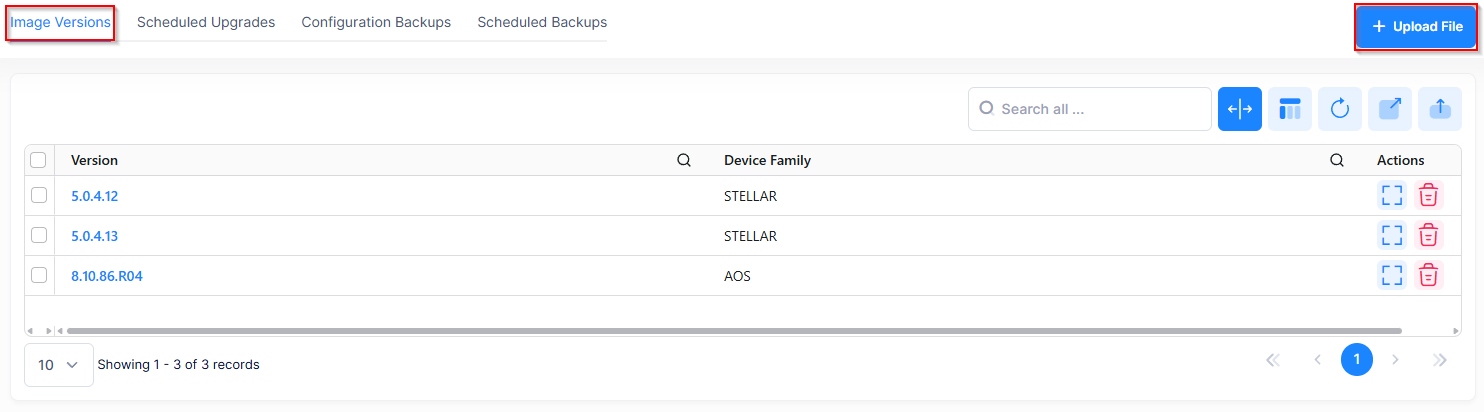
The Image Versions screen displays a list of all of the software image files stored in OmniVista. Use these files to select the software version when upgrading your network devices. If a software version image file is not included in this list, you can download the necessary image files from the Technical Support website and upload the files into OmniVista.
In addition to viewing and uploading image files, you can also perform the following actions:
To access the Image Versions screen, click on Inventory > Firmware - Scheduler under the “Configuration” section of the OmniVista Terra Menu, then select the Image Versions tab.
Never attempt to import or install firmware files or upgrade packages acquired from any source other than Alcatel-Lucent Enterprise. Image and Firmware files are specially packaged by Alcatel-Lucent Enterprise for import into OmniVista, and contain an LSM file that describes the package contents to OmniVista. When such an attempt is made, an error message is displayed informing the user that the upgrade has been rejected. This message also displays details of the versions of the switch software required to successfully perform the upgrade.
The following information is provided for each file in the Image Versions list:
-
Version - The software version of the image file (for example, 5.0.4.8 or 8.10.58.R4)
-
Device Family - Whether the image file is for a Stellar Access Point or an AOS switch.
Displaying the File Sets Information
The individual upgrade files for a software image are contained in File Sets for each device type. To view the File Set for a specific software image, click on the file name in the Image Versions list.
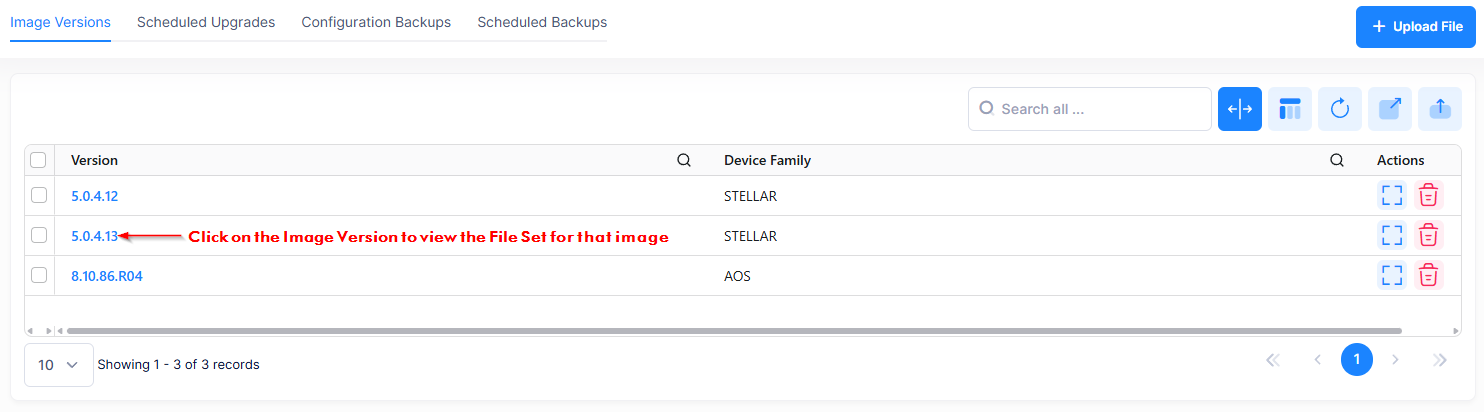
The File Sets screen appears with a list of all the File Sets stored in the Upgrade Image Repository on the OmniVista server.
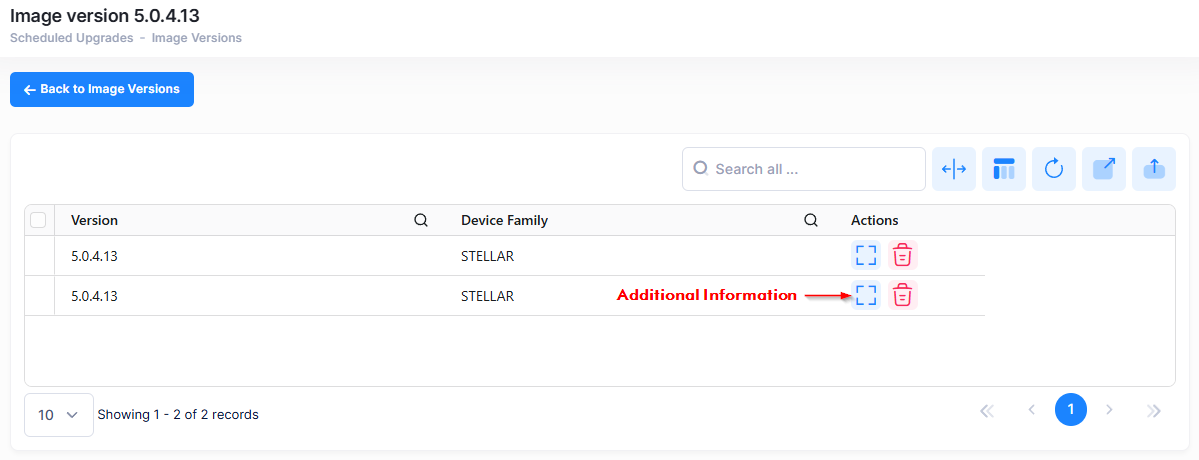
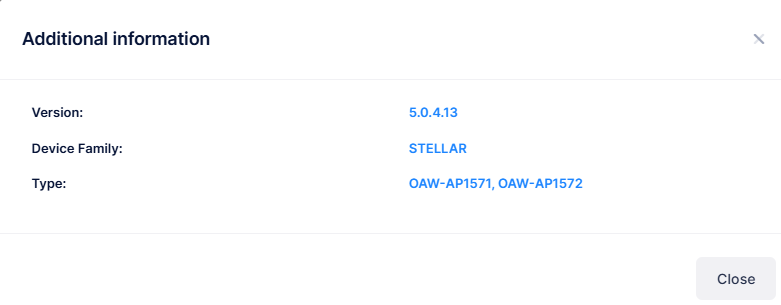
Click on the “Additional Information” icon for the File Set entry to display detailed information. For example:
-
Version - The firmware version of the File Set (for example, 5.0.4.13 or 8.10.86.R4).
-
Device Family - Whether the image file is for a Stellar Access Point or an AOS switch.
-
Type - The model number of the device.
Importing the Software Image Files
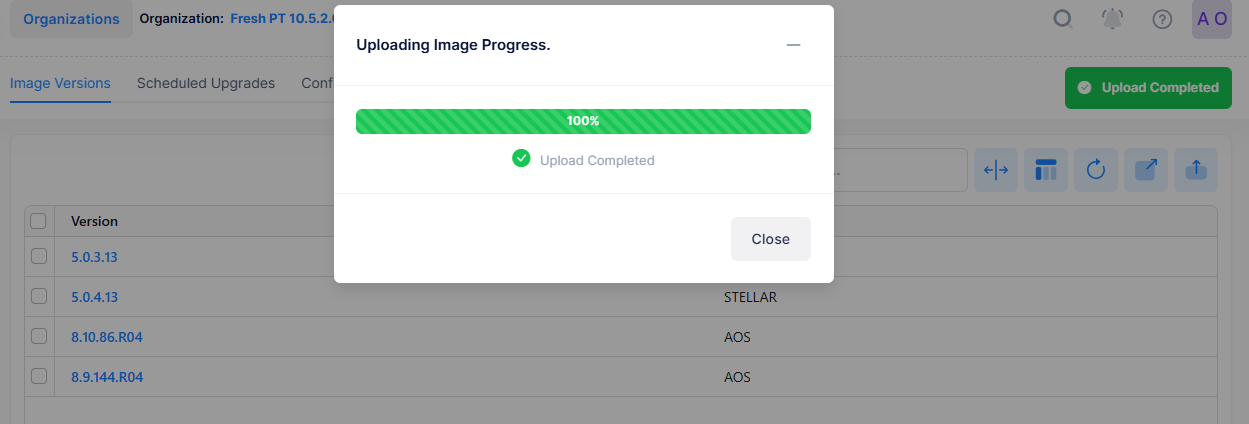
All upgrade files supplied by Alcatel-Lucent Enterprise Technical Support are packaged as WinZip executables and have a *.zip file extension. Do not attempt to manually unzip the firmware files. When you Import the WinZip executable, OmniVista automatically unzips the executable as part of the import process. Once the file is imported, the image file appears in the Image Versions list.
Download the upgrade file to your PC from the Alcatel-Lucent Enterprise Technical Support website. After downloading the file, click on Upload File to open the Upload Image File window.
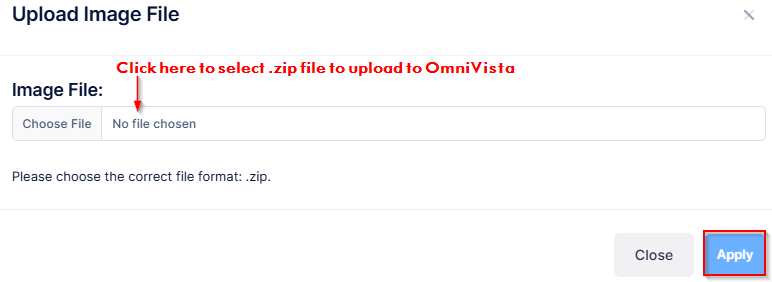
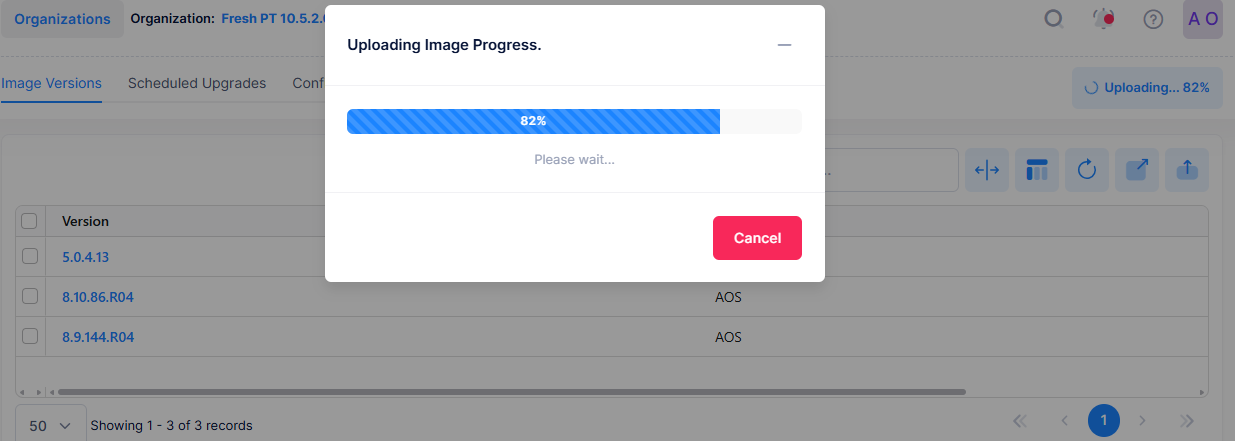
Locate and import the file to OmniVista, then click on Apply. A status window appears showing the upload progress of the image file.
Deleting Software Image Files
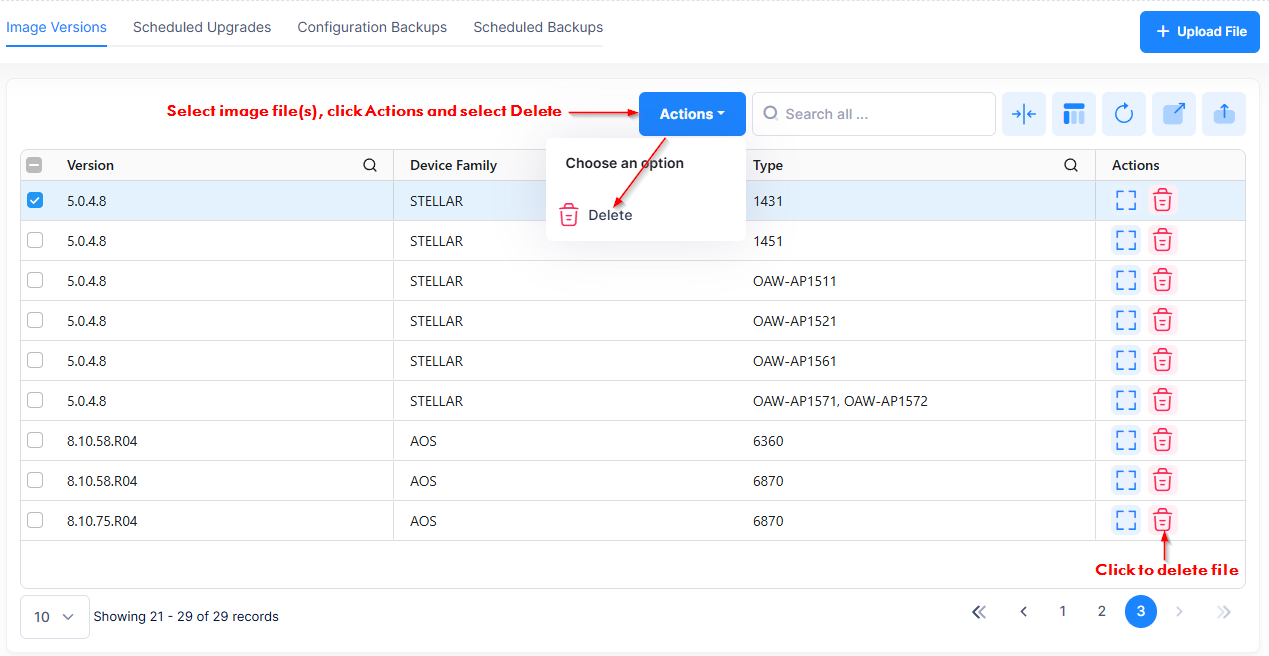
Select the image file(s) that you want to delete in the Image Versions list, then click on Actions and select Delete from the drop-down menu. You can also click on the Delete icon under the “Actions” column for the scheduled upgrade entry.
The following Warning appears:
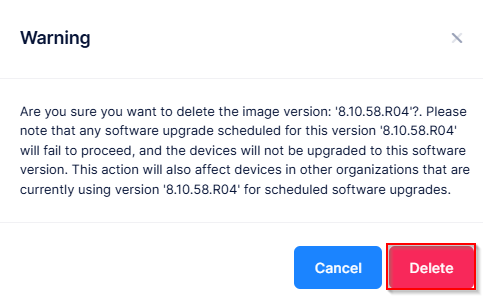
Click Delete to confirm that you want to delete the file(s).
Deleting a File From the File Sets List
To delete a file from the File Sets screen, click on the Delete icon next to the file.
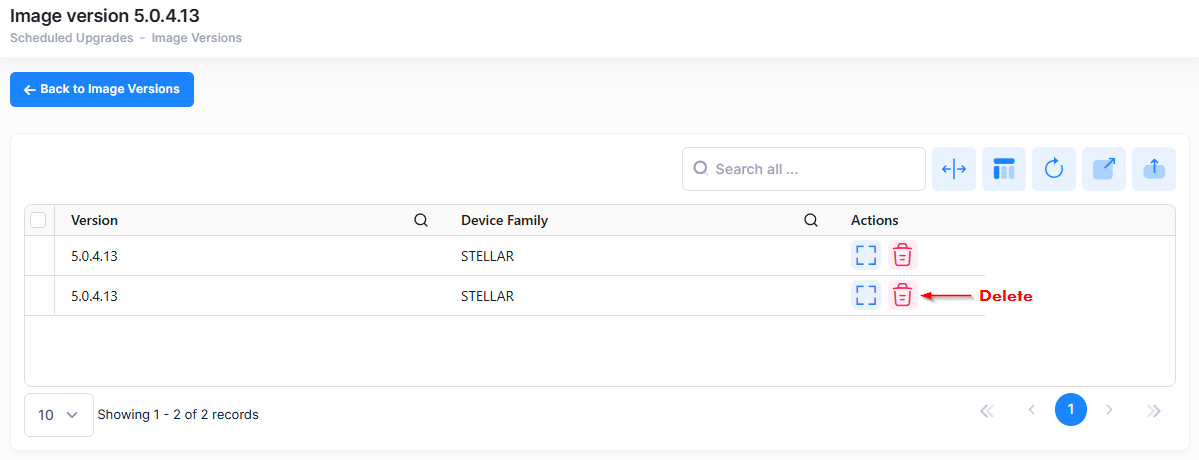
The following Warning appears:
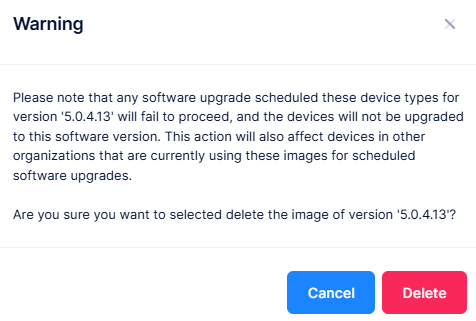
Click Delete to confirm that you want to delete the file.
Installing the Image Files
The image files listed on the Image Versions screen are available for selection across all Organizations when upgrading devices. This list appears in the drop-down menu for selecting the software version on the following screens:
Each of the above screens has a field similar to the following.

If the image file you want does not appear in the drop-down menu, click on the Import the image link. This link opens the Image Versions screen, where you can upload the desired image file(s). Uploaded files appear in the Image Versions list and become available in the drop-down menu for selecting the software version.