
Below procedure applicable for only the builds( 10.6.1.010.6_OVTX_OVA_.ova_hyperV.tar.gz and 10.6.1.010.6_OVTX_Build.7z)
Download Required Files
-
Download the OVTX OVA file and Build release file ( .7z file) from the MyPortal website.
-
Extract the OVAFILE-HyperV-10.6.1.009.14.tar.
-
After extracting, 2 files will be present as shown below.

-
Create the 3 folders in your Hyper-V servers and in each folder copy above 2 disk files.
-
For every node creation use the disk1 and disk2 from one folder for each node.
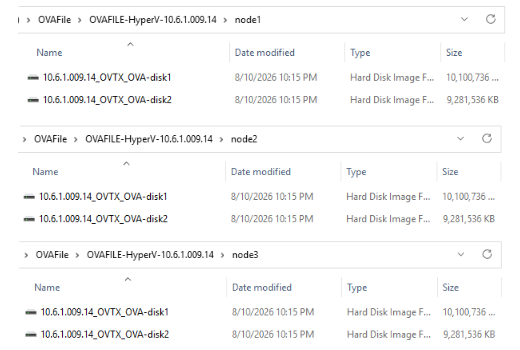
Don’t use the same disk1 and disk2 files for all the 3 nodes.
Create Virtual Machine
-
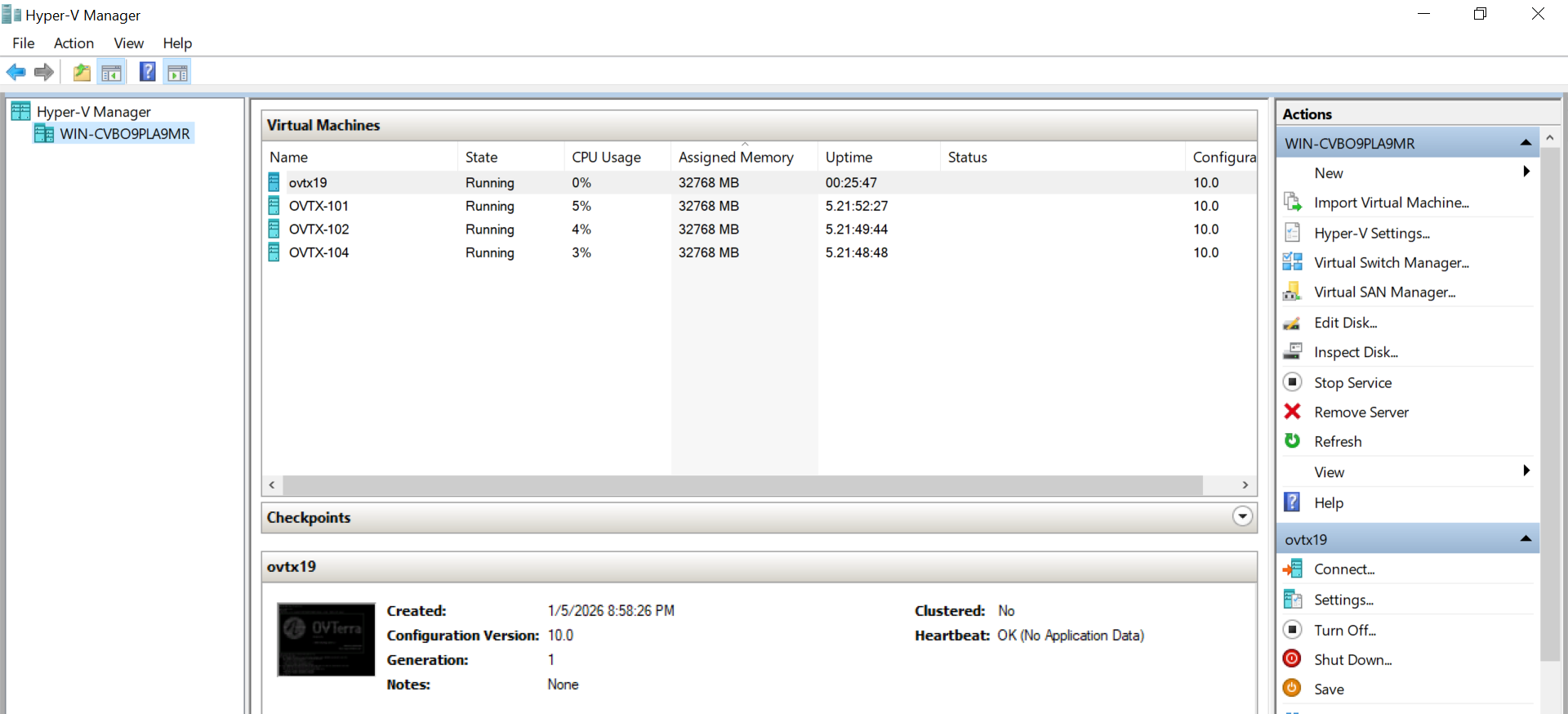
Open the Hyper-V manager.
-
Click New, then select New virtual machine.
-
Click Next.
-
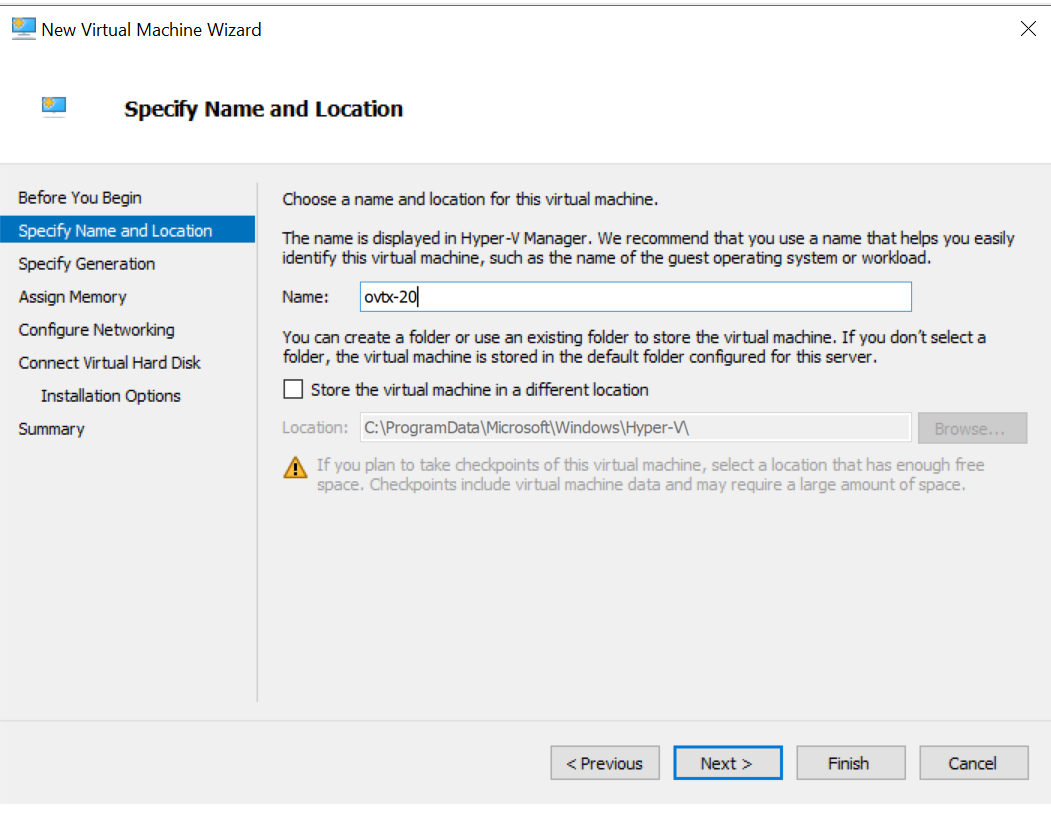
Enter the node name ex: ovtx-20 and click Next.
-
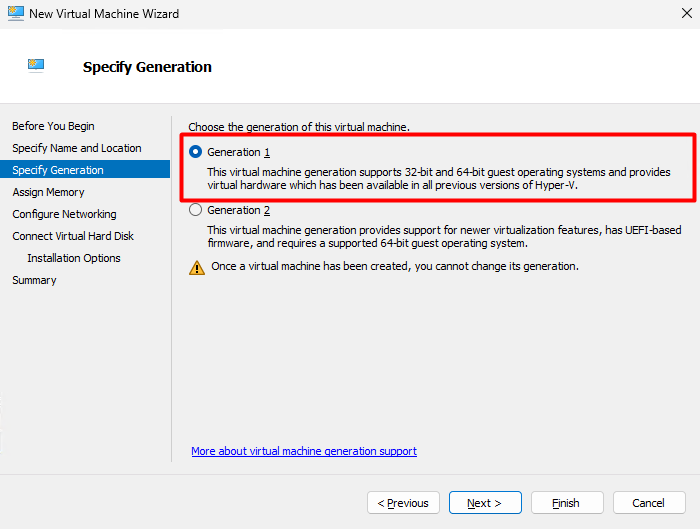
Select Generation 1 and click Next.
-
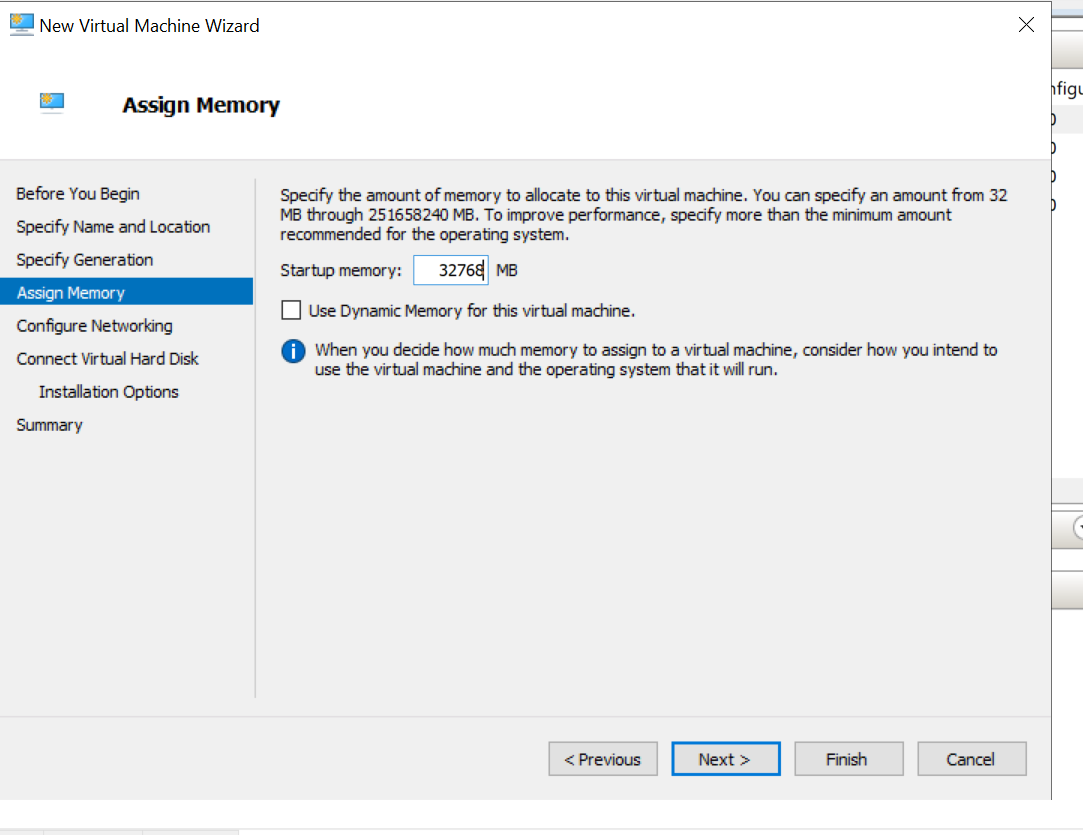
Enter the memory as 32768 MB and click Next.
-
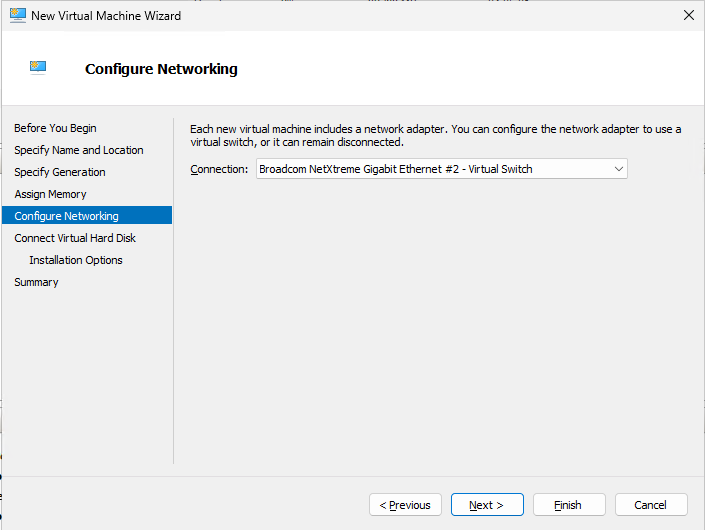
Select the virtual switch to use network adapter and click Next.
-
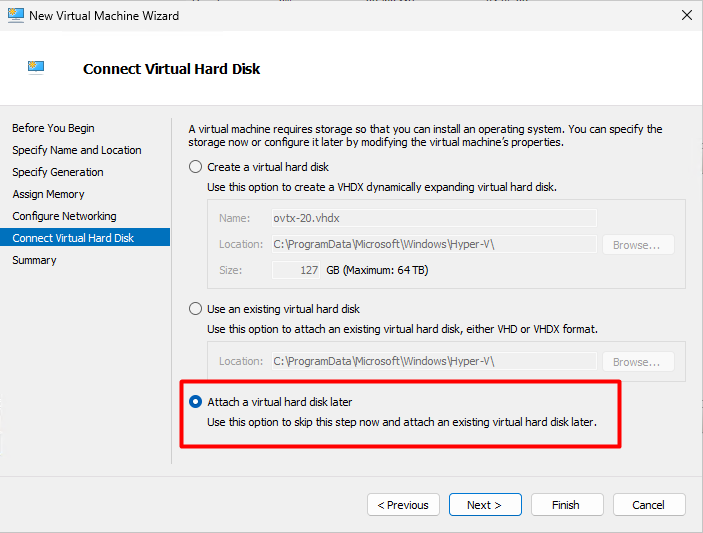
Select the option attach virtual hard disk later and click Next.
-
Click Next, then click Finish.
-
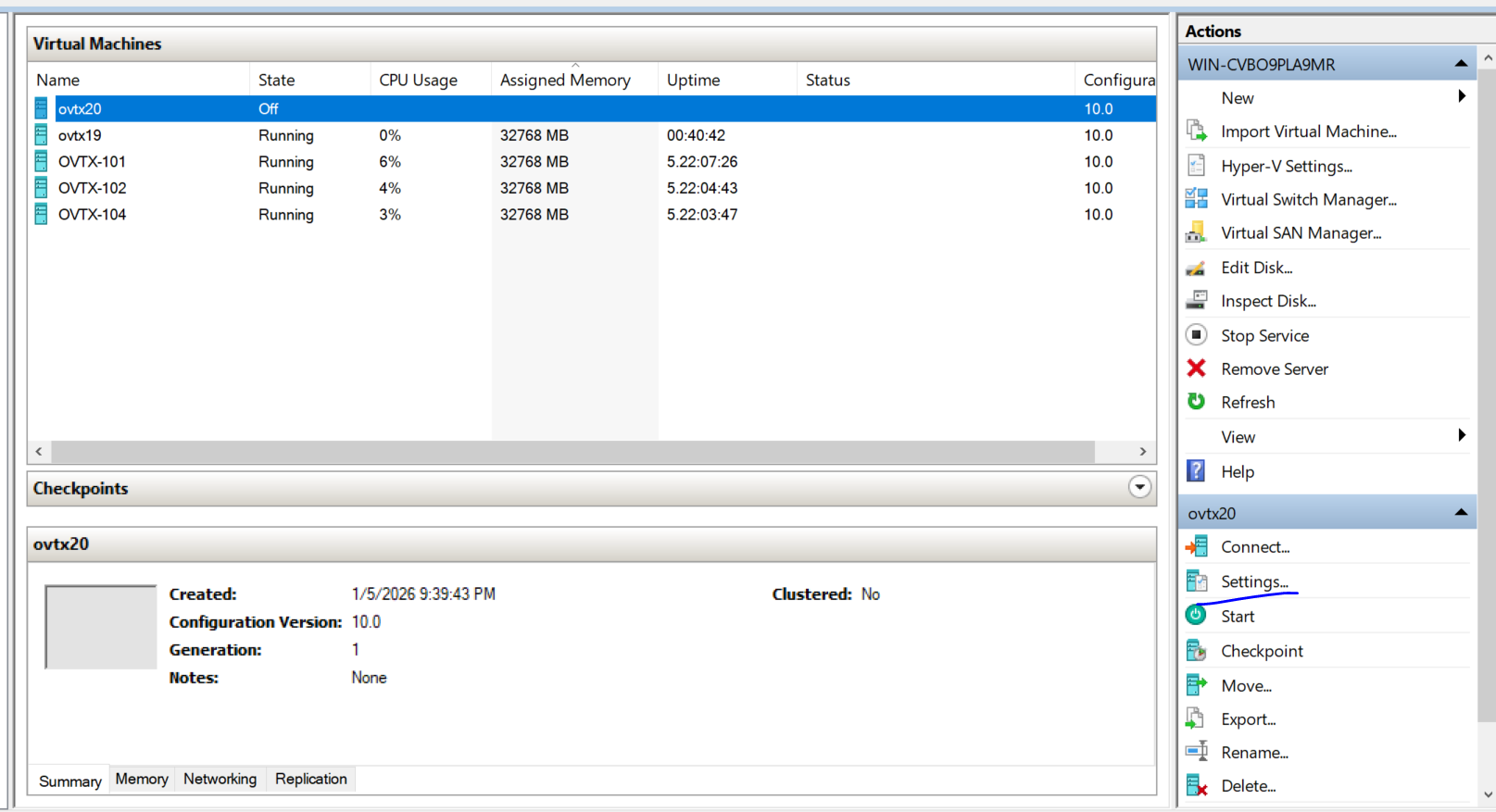
Select the node and click Settings.
-
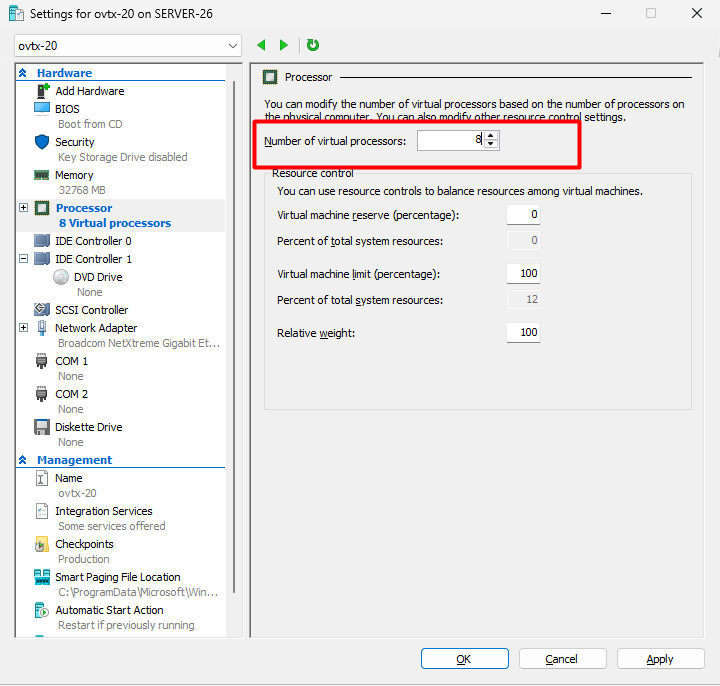
Click Processor, then set “Number of virtual processors” to 8.
-
Click Apply.
-
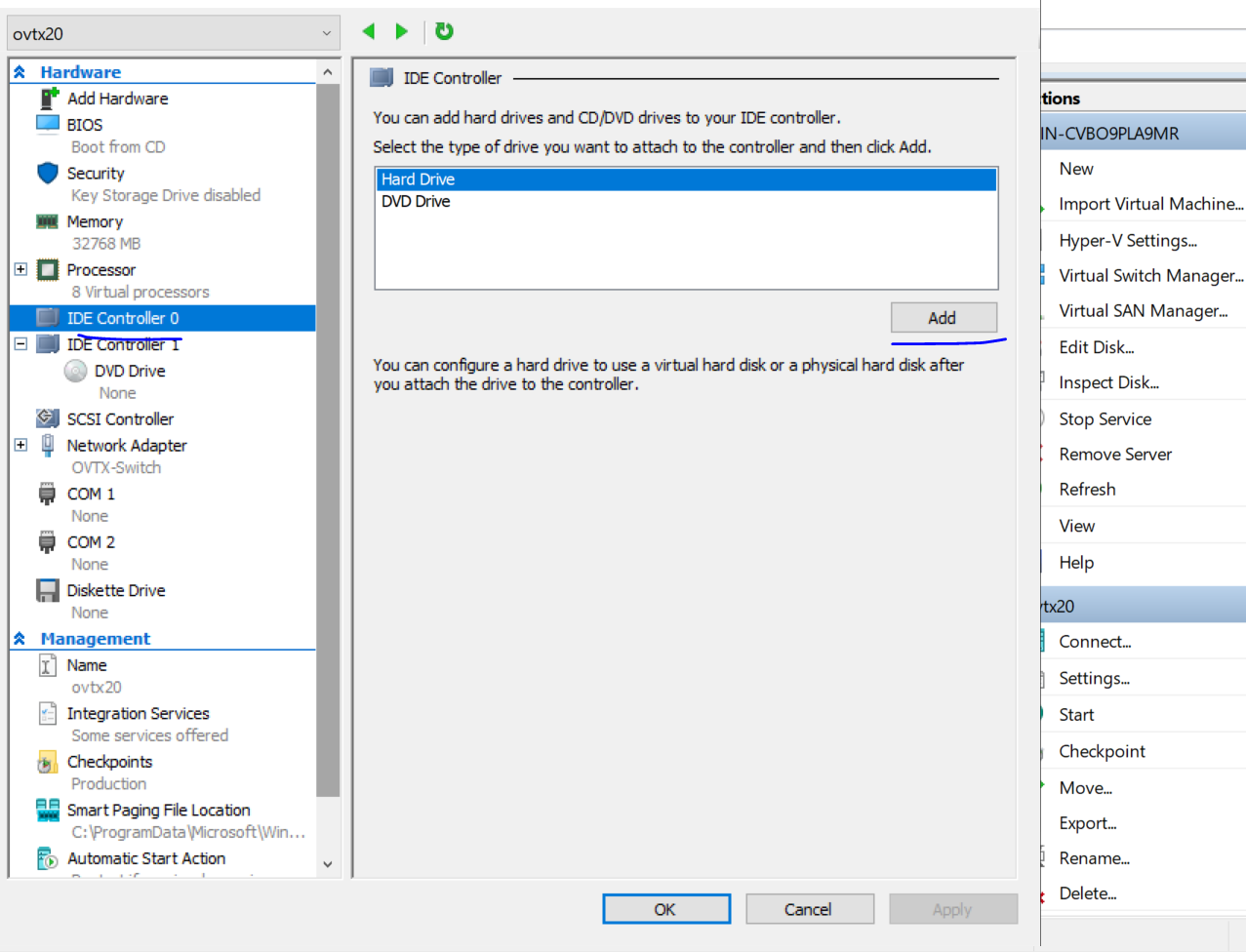
Click IDE Controller 0 and click Add.
-
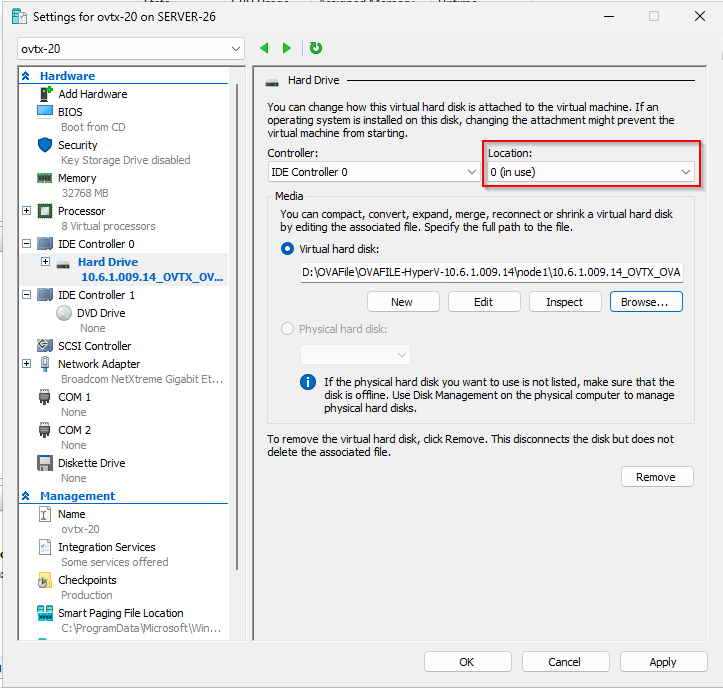
When Location is 0, select or click Browse and choose disk1, then click Apply.
-
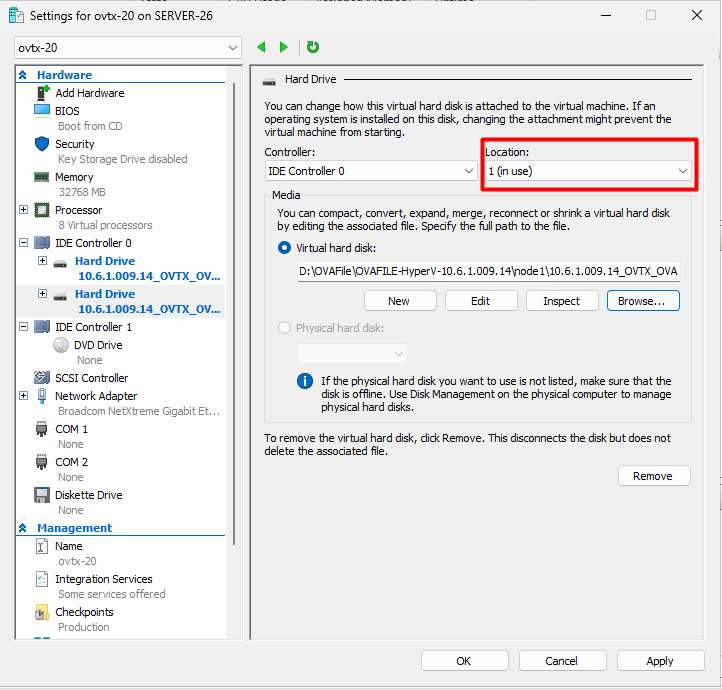
Click on IDE Controller 0 again and click Add.
-
When Location is 1, select or click Browse and choose disk2, then click Apply.
-
Click OK.
-
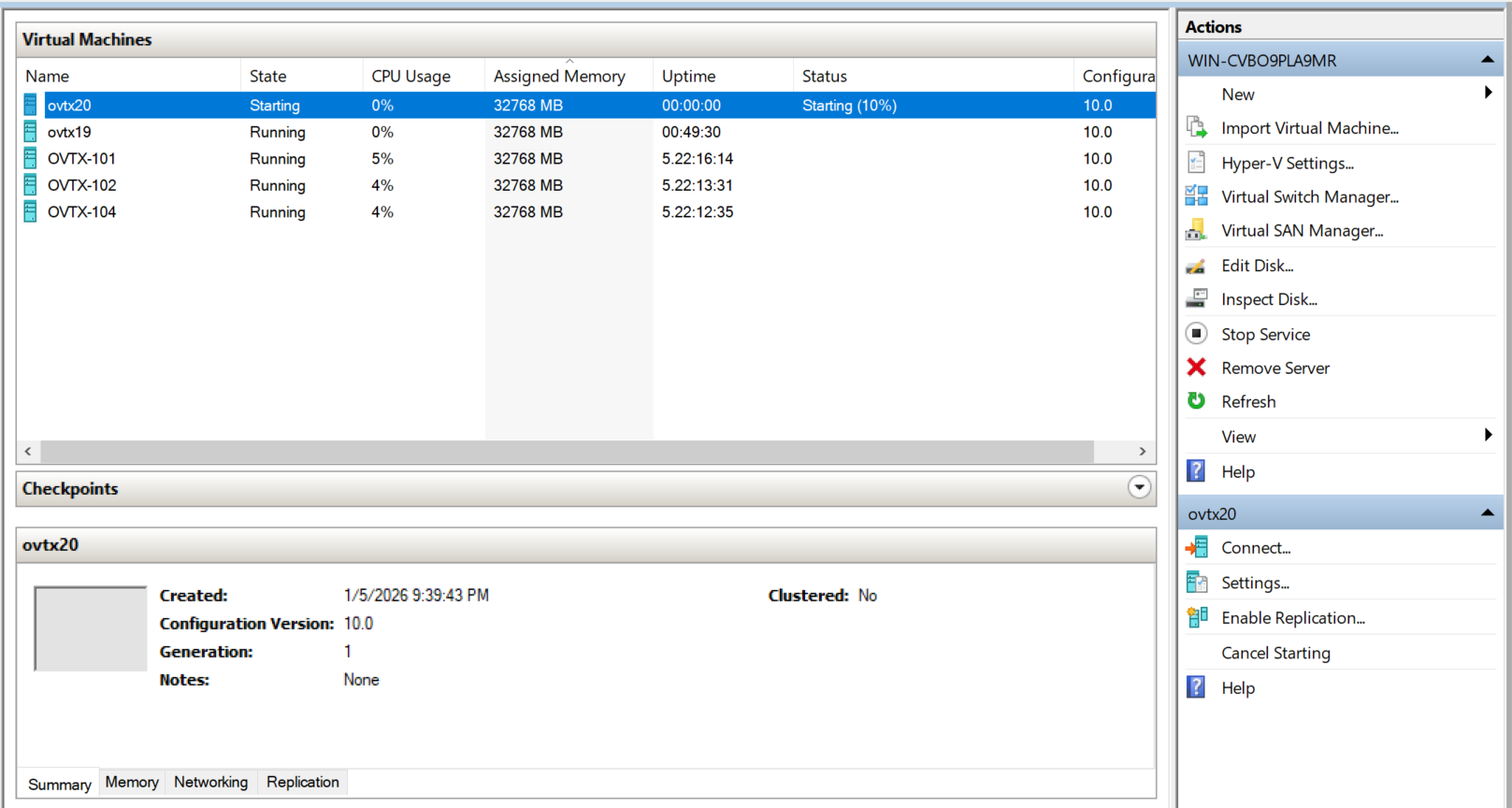
Select the vm(ovtx20) and click on Start.
-
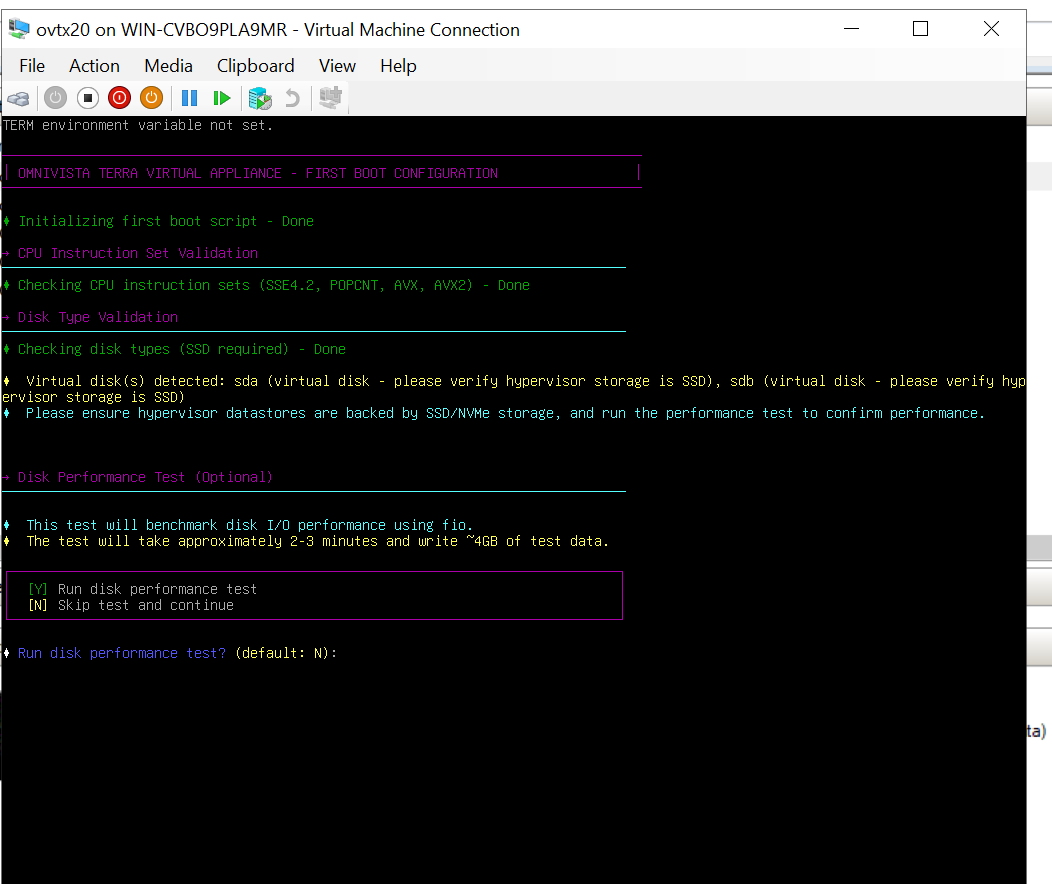
Double click on the node(ovtx20).
-
Disk Performance Test:
-
Enter "N" if you want to skip this step.
-
Enter “Y“ if you want to run Disk Performance Test.
-
-
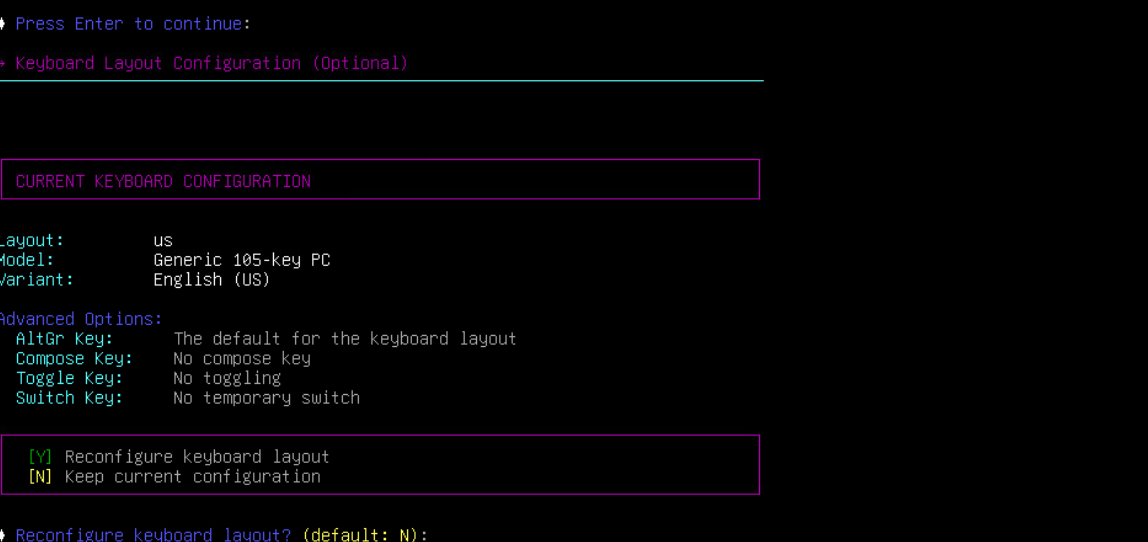
Follow the screen prompts to configure the keyboard options.
-
Enter the hostname: For example : ovtx13171. (Use a different hostname for each of the three VMs.)
-
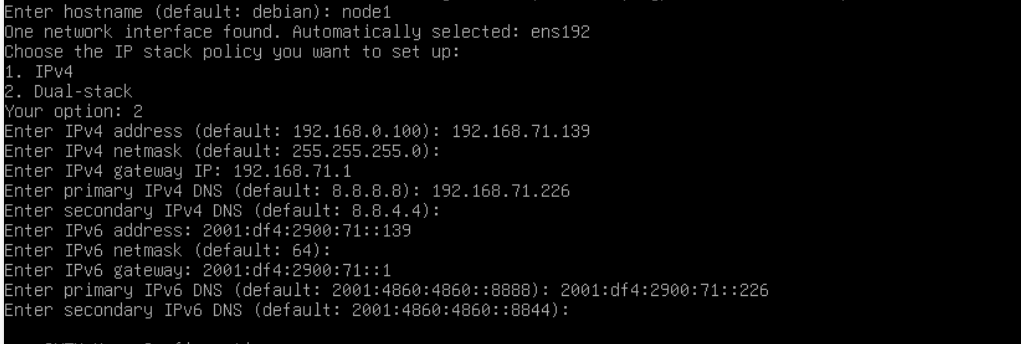
Choose the IP stack policy.

If you enter 1:
▪️ The system will use IPv4 only.
▪️ AP and Switch will be managed through the IPv4 network.
▪️ You only need to enter IPv4 details in the next steps.
-
-
Enter IP address: For example 10.95.161.31. (Use an available IP address from your network corresponding to the NIC selected in the step above)
-
Enter netmask: For example 255.255.255.0.
-
Enter gateway IP: For example 10.95.161.1.
-
Primary DNS and secondary DNS can be kept blank (it takes default ones).
-
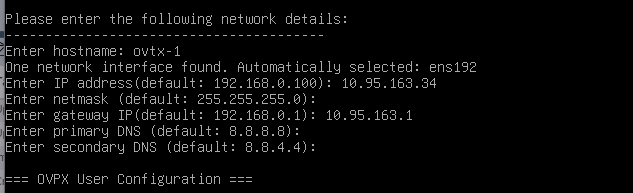
Please make sure your DNS server(s) are able to resolve all domains that you may use (for SMTP, external AD, etc...).
If you enter 2:
▪️ The system will use Dual-stack (IPv4 + IPv6).
▪️ AP and Switch will be managed through both IPv4 and IPv6 networks.
▪️ You must enter both IPv4 and IPv6 details in the next steps.
-
Configure the ovtx user password.
-
Enter ovtx user password:
-
Confirm ovtx user password:
-
Apply this configuration (y/n) : y
-
-
The system will reboot. Wait for sometime and then the OVTX login prompt will appear.
-
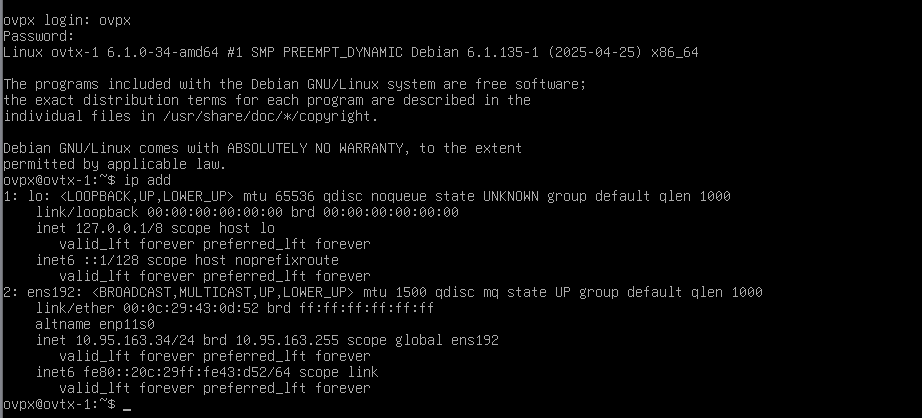
Run the command “ip addr” to check if the IP address is correctly configured.
-
Create a 2nd and 3rd node following the above steps but with different IP addresses.
Access OmniVista Admin Center to Configure OmniVista Terra
After importing the VM and completing the first boot configuration, access the OmniVista Admin Center to create an account. See the OmniVista Admin Center online help for the next steps required to configure OmniVista Terra.