
Your OmniVista login password is created when you create your account. You can change it at any time on the Security menu.
Open the Security tab by clicking on your login initials in the upper-right corner of any screen. Select My Profile, then click on the Security tab. Edit any of the login security attributes as described below.
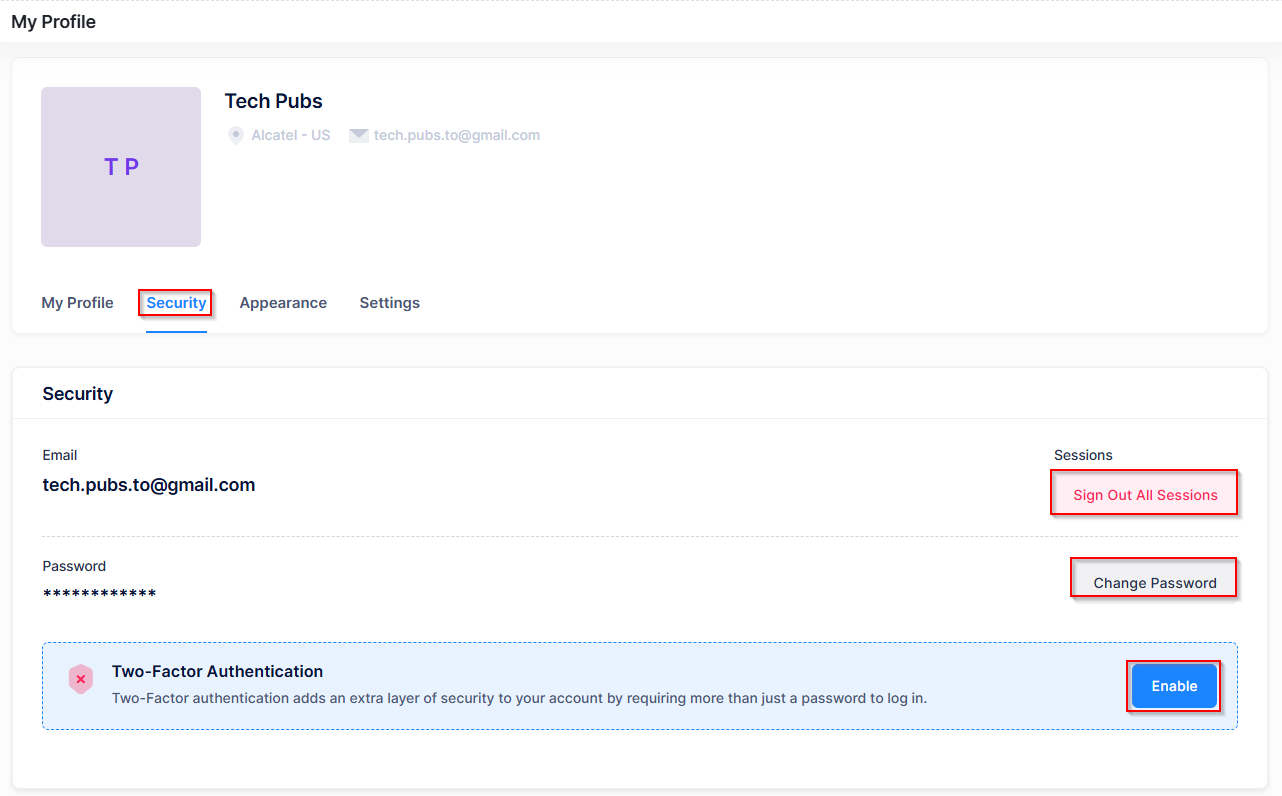
Sign Out All Sessions
The “Sign Out All Sessions” option allows you to log out of all active sessions by disabling all current authentication tokens, including both your current web session and any other web or external application sessions. When you sign out, all authenticated sessions will require you to log in again. You will be redirected to the login page.
Change Password
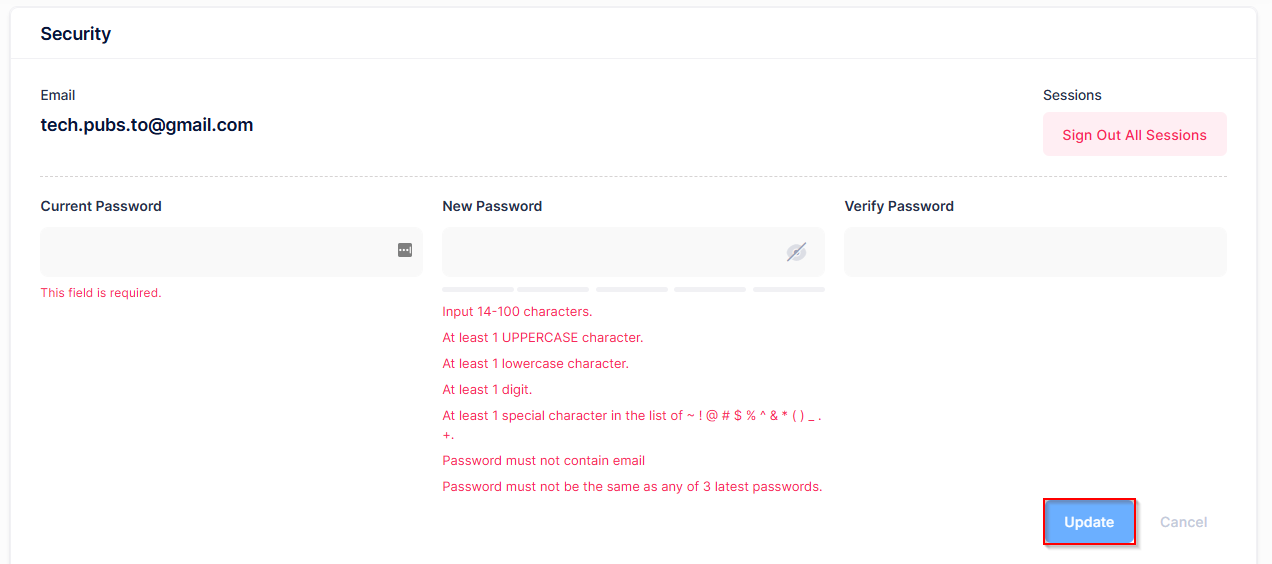
Click on Change Password to update your login password settings. You are prompted to enter the following:
-
Current Password - Enter your current password.
-
New Password - Enter a new password following the guidelines shown below this field.
-
Very Password - Enter the new password again to confirm the password change.
Once you have entered the required password information, click on Update to change the current password to the new one. Note that after the password is changed, all active sessions are disabled and required to authenticate again.
To reset the password, you should follow the Enforcement password policy (EPP) guidelines. For more information, see the Basic Settings online help page.
Two-Factor Authentication
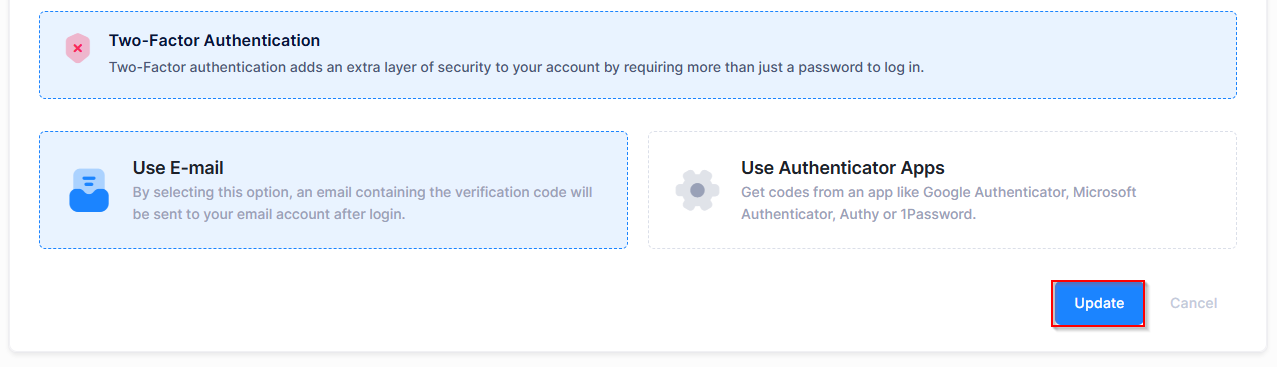
You can also use the Two-Factor Authentication method to enhance the security of your account. Click on Enable to configure Two-Factor Authentication. You are prompted to select the following options:
-
Use E-mail - Select this option to have an email containing a verification code sent to your email account after you login. To log into OmniVista, enter your username/password, then the verification code provided in the email.
-
Use Authenticator Apps - Select this option to use a verification code obtained from an authenticator application (such as Google Authenticator, Microsoft Authenticator, Authy or 1Password). To log into OmniVista, enter your username/password, open the authenticator application, and enter the code for your account.
Users logging in via external authentication cannot change password or two-factor authentication settings.