
You can configure an offsite, remote AP as a Remote Access Point (RAP) that you can manage through a local OmniVista Terra installation Management VPN Tunnel. First, you must install a VPN VM (see the Remote Access Point and VPN VA Installation Guide for installation instructions). You then use OmniVista Cirrus to declare the APs that will be managed remotely by OmniVista Terra and assign the remote APs to a Management VPN Tunnel.
The following steps provide an overview of the process required to onboard RAP devices into OmniVista Terra.
-
OmniVista Cirrus:
-
Create a RAP Organization.
-
Configure the Management VPN settings for RAP devices within the RAP organization.
-
Configure the public IP address and port for the OmniVista Terra Activation Server, VPN Server, and UPAM Server.
-
-
OmniVista Terra:
-
Download and deploy the VPN VA Server with 3 NIC. Refer to the 4.9.3.4 Remote Access Point and VPN VA Installation Guide for installation instructions.
-
Create a Data VPN Profile.
-
-
OmniVista Cirrus: Add the serial number for the RAP device to the RAP Organization and associate the Management VPN settings with the device.
-
OmniVista Terra: Add the serial number for the RAP device to the Organization that will manage the device. Configure the provisioning profile and device group to preconfigure the device before onboarding.
-
Allow the device to call home to the OmniVista Cirrus Activation Server (AS). The device will receive the Management VPN configuration, connect to OmniVista Terra, download the assigned configuration, and complete the onboarding process.
The following tasks are required (in the order shown) to onboard remote APs to OmniVista Terra using OmniVista Cirrus:
-
Create a RAP Organization - Create an OmniVista Cirrus Organization that you will use only for onboarding remote APs for OmniVista Terra management. A specific RAP Organization is required before you can define the necessary VPN Tunnel and add remote APs to the Organization. An MSP user login with administrative privileges is required to create a RAP Organization.
-
Define the Management VPN Tunnel settings for the RAP Organization - The VPN Tunnel configuration between the VPN Server and OmniVista Cirrus. RAPs will use this tunnel to connect to the VPN Server and communicate with OmniVista Terra.
-
Add the RAPs to the RAP Organization - Once the VPN Tunnel settings have been defined (Step 2), you can add RAPs to the Device Catalog for the RAP Organization.
OmniVista Cirrus RAP Organization Menu
When you access the RAP Organization in OmniVista Cirrus, the following menu is displayed on the left-hand side of the screen:
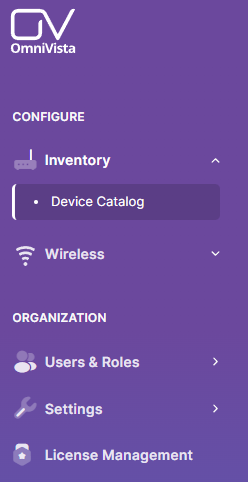
The menu provides links to the following applications that are used to configure the RAP Organization’s network, as well as manage the Organization.
Configure
-
Inventory
-
Device Catalog - Displays a list of remote APs that are declared in OmniVista Cirrus for management by OmniVista Terra. You can add, edit, or delete APs from this list.
-
-
Wireless
-
Management VPN Settings - Configure Management VPN Server profiles to which a remote AP can be assigned.
-
Organization
-
Users & Roles - See the Configure and Manage Users online help for information about how to manage users in your RAP Organization with the following options:
-
Users - Displays a list of current users for the Organization. You can also create users and specify user permissions for the Organization (e.g., Admin, Viewer).
-
Login Attempts - Displays login information for the Organization by time and user.
-
Two-Factor Authentication - Displays the two-factor authentication configuration status for Organization users.
-
Audit Logs - Displays a list of all the actions performed by Organization users (such as inviting a user to join the Organization or updating building information for an Organization Site).
-
-
Settings - See the Configure and Manage Organization Settings online help for information about how to use the following options in your RAP Organization.
-
Basic Settings - Optionally configure the Password Settings to apply password enforcement rules.
-
Network ID Settings - Enable the Network ID feature for devices on your network. Devices specify the Network ID whenever they call home. This provides a secure on-boarding process in that the Network ID from the device must match the Network ID in OmniVista; your devices cannot be on-boarded/managed by other OmniVista installations.
-
AIVA - AIVA (AI Assistant) is an AI-powered network management assistant embedded directly in OmniVista Cirrus. By default, AIVA is disabled for all new Organizations. The Organization Administrator must enable AIVA before users can access the AI assistant.
-
-
License Management - Displays information about the current OmniVista Cirrus license for the RAP Organization (for example, length of licensed period, number of devices managed). You can also request subscription updates (for example, longer licensed period, increase the number of devices managed).