
The Release Notes detail Prerequisites, Upgrade Steps, New Features, and Known Issues/Workarounds for OmniVista Network Advisor. Please read the Release Notes in their entirety as they contain important operational information that may impact successful use of the application.
Technical Support
ALE technical support is committed to resolving our customer’s technical issues in a timely manner. Customers with inquiries should contact us at:
|
Country |
Supported Language |
Toll Free Number |
|
France, Belgium, Luxembourg |
French |
+800-00200100 |
|
Germany, Austria, Switzerland |
German |
+800-00200100 |
|
United Kingdom, Italy, Denmark, Netherlands, South Africa, Poland, Sweden, Czech Republic, Estonia, Finland, Greece, Slovakia, Portugal |
English |
+800-00200100 |
|
Spain |
Spanish |
+800-00200100 |
|
Norway |
English |
+47 800 31 550 |
|
India |
English |
+1 800 102 3277 |
|
Singapore |
English |
+65 6812 1700 |
|
Hong-Kong |
English |
+852 3742 7373 |
|
South Korea |
English |
+822 6123 2099 |
|
Australia |
English |
+61 2 9370 3003 |
|
USA |
English |
+1 800 995 2696 |
|
Your questions answered in English, French, German or Spanish. |
English
|
+1 650 385 2193
|
|
If you are not located in one of the countries listed above, contact us using one of the following phone numbers: English +1 650 385 2193 • French +1 650 385 2196 • German +1 650 385 2197 • Spanish +1 650 385 2198 |
||
Internet: Customers with service agreements may open cases 24 hours a day via the support web page. Upon opening a case, customers will receive a case number and may review, update, or escalate support cases on-line.
Related Documentation
Refer to https://docs.ovcirrus.com for the latest documentation.
-
OmniVista Network Advisor Service Description:
https://myportal.al-enterprise.com -
Rainbow documentation:
https://www.openrainbow.com/app/en -
Microsoft Teams documentation:
https://docs.ovcirrus.com/networkadvisor14/appendix-e-microsoft-teams-bot-setup-guide
Prerequisites
The following prerequisites must be verified/configured before using OmniVista Network Advisor:
-
System Requirements
-
Devices Prerequisites
-
Rainbow Prerequisites
-
OmniVista Enterprise and Cirrus Prerequisites
System Requirements
The following are the suggested minimum requirements for installing and running the OmniVista Network Advisor application.
-
Internet access is mandatory.
-
Processor: Quad-core. The CPU must support Advanced Vector Extensions (AVX).
-
RAM: 8 GB
-
HDD: Up to 200 devices, 50 GB (To allow for storage of syslog messages)
-
For 1,000 devices, 120GB storage is recommended
-
For 2,000 devices, 210GB storage is recommended
-
-
Linux OS: Ubuntu 22.04 Server Edition or Debian 11 or 12
-
For installation on RHEL, ensure that firewalld is turned off.
-
-
The minimum requirements for OmniVista Network Advisor support on OmniVista are:
-
OmniVista Enterprise 4.8R2 and above
-
OmniVista Cirrus 4.8.2 and above.
-
-
When using Microsoft Teams, ensure that smba.trafficmanager is turned off.
-
Ports:
-
TCP 80/443 (HTTP/S for WebUI),
-
UDP, TCP 10514 (Syslog),
-
TCP with secure TLS 6514 (Syslog over TLS)
-
TCP 22 (SSH/SFTP Application to devices or access to Application),
-
TCP 443 (Setup Installation and Cloud Services)
-
Port default of Microsoft Teams
-
-
By default, Kubernetes uses the following IP address ranges for its various components:
-
Pods: 10.42.0.0/16 for IPv4 and IPv6
-
Services: 10.43.0.0/16 for IPv4 and IPv6
-
CoreDNS: 10.43.0.10 for IPv4
-
Please ensure that these address ranges do not conflict with any existing networks or services in your environment, as this may cause connectivity issues with your Kubernetes cluster.
Devices Prerequisites
Applies to ALE OmniSwitch LAN switches and OmniAccess Stellar WLAN APs.
The equipment must be running the following minimum software versions:
-
OS6xxx and 9xxx models, AOS 8.7.R2 or higher.
-
OS2xxx, AOS 5.2.R1 or higher.
-
Stellar APs, AWOS 4.0.3 MR-3 or higher.
Supported equipment listed below and available here
|
OmniVista Network Advisor Supported Equipment List |
||
|
Product Line |
Product Family |
|
|
WLAN AP |
OmniAccess Stellar |
OAW-AP1201 |
|
WLAN AP |
OmniAccess Stellar |
OAW-AP122x |
|
WLAN AP |
OmniAccess Stellar |
OAW-AP123x |
|
WLAN AP |
OmniAccess Stellar |
OAW-AP1251 |
|
WLAN AP |
OmniAccess Stellar |
OAW-AP1301 |
|
WLAN AP |
OmniAccess Stellar |
OAW-AP1301H |
|
WLAN AP |
OmniAccess Stellar |
OAW-AP1311 |
|
WLAN AP |
OmniAccess Stellar |
OAW-AP132x |
|
WLAN AP |
OmniAccess Stellar |
OAW-AP1331 |
|
WLAN AP |
OmniAccess Stellar |
OAW-AP1351 |
|
WLAN AP |
OmniAccess Stellar |
OAW-AP136x |
|
WLAN AP |
OmniAccess Stellar |
OAW-AP1411 |
|
WLAN AP |
OmniAccess Stellar |
OAW-AP1431 |
|
WLAN AP |
OmniAccess Stellar |
OAW-AP1451 |
|
LAN SWITCH |
OmniSwitch |
OS6360 |
|
LAN SWITCH |
OmniSwitch |
OS6465 |
|
LAN SWITCH |
OmniSwitch |
OS6560 |
|
LAN SWITCH |
OmniSwitch |
OS6570 |
|
LAN SWITCH |
OmniSwitch |
OS6865 |
|
LAN SWITCH |
OmniSwitch |
OS6860 |
|
LAN SWITCH |
OmniSwitch |
OS6900 |
|
LAN SWITCH |
OmniSwitch |
OS9900 |
|
LAN SWITCH |
OmniSwitch |
OS2260 |
|
LAN SWITCH |
OmniSwitch |
OS2360 |
Note: Please use the latest supported OmniAccess Stellar and OmniSwitch release.
Note: Correct NTP settings on all devices are mandatory for OmniVista Network Advisor service.
Rainbow Prerequisites
OmniVista Network Advisor users must have an active Rainbow account. A dedicated service account is required for the setup of OmniVista Network Advisor. If you don’t yet have an account navigate to the below URL to sign up.
https://web.openrainbow.com
When using Rainbow, the OVNA host must have access to https:/web.openrainbow.com
Microsoft Teams Prerequisites
-
You should have a Microsoft company account (with administrator rights on a company.)
-
Microsoft license for a product which comes with at least Microsoft Entra ID.
-
A public URL with a defined port exposed on the Internet must be accessible to allow MS Teams to reach your Network Advisor application.
OmniVista Enterprise and Cirrus Prerequisites
-
OmniVista synchronization requires OmniVista Enterprise 4.8.R2 and above.
-
OmniVista synchronization requires OmniVista Cirrus 4.8.2 and above.
NTP Server Requirements
Accurate system time is required for certificate validation (start date and validity period) and for all encryption-related functions. All devices must have access to at least one NTP server, either local or external. For virtual machines, the system clock is initially synchronized with the hypervisor clock by default. Therefore, it is critical to ensure that:
-
The hypervisor itself is correctly synchronized with a reliable NTP source.
-
The virtual machine is allowed to synchronize its time (via hypervisor tools and/or an NTP service inside the VM).
Upgrade Steps from OmniVista Network Advisor 1.X
-
Download the latest package file from MyPortal and copy it to your linux host.
-
Use the following command to upgrade OmniVista Network Advisor
-> sudo ale-ovna update
-
The command will first check if a .deb has to be updated.
-
`if yes, the new .Deb is downloaded after which command will exit saying that a new .Deb has been installed and invite the user to relaunch "ale-ovna update" to update the software using the last ale-ovna.
-
if no , software update is performed normally.
-
[Optional] - If the latest deb package is not already installed, update first to 1.5.0 and force the update of the core using -c.
→ sudo ale-ovna update -c
For installation example, see Installation section of OmniVista Network Advisor User Guide
New Features (Release 1.5.X)
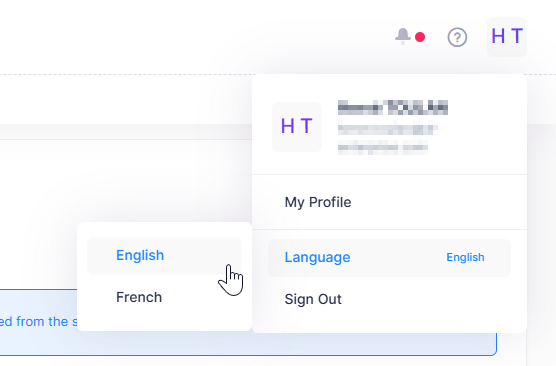
French Language Support - Anomalies Notifications
Anomalies notifications can now be displayed in English or French depending on the language of the administrator.
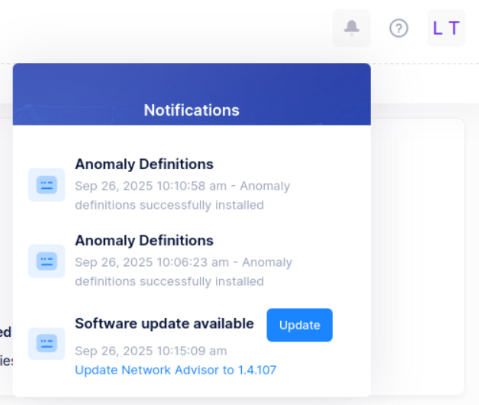
OVNA Update from the UI
To simplify the update of OVNA, a notification will be sent to the administrators when a new version is available. The administrator can then decide to launch the update process from the UI.
Adding Members to Rainbow Bubble from the OVNA UI
The new button opens a dialog box where e-mail addresses can be added. Once "Invite a member" is clicked the recipients will receive an invitation directly in Rainbow to join the bubble.

Install OVNA with Custom Subnet IP Ranges
A new option has been added during the installation process to allow OVNA to be installed using custom subnet IP ranges.
Failed Anomaly Notifications
This enhancement adds a Remediation Warning notification with detailed information about why an anomaly remediation failed, along with the ability to retry the remediation.
Custom Anomalies Export
This enhancement adds support for exporting and importing custom anomalies in ZIP format, enabling easy migration, reuse, and community sharing of anomalies across OVNA instances.
Known Issues and Workarounds
-
Internet access is mandatory for the installation setup and for proper functioning.
-
After any OmniSwitch devices reboot if no ‘write memory’ has been done the following two commands must be run so the devices are still monitored by OmniVista Network Advisor:
-> swlog output socket <IP address> <port>
-> appmgr restart ams cron-app
The above command is valid for OS6xxx and OS9xxx only.
-
Network Loop anomaly is only supported on OmniSwitch models OS6860(E), OS6860N, OS6900.
-
OS6860 and OS6860N Core dumps are generated until the ‘pmd’ directory is full. Fixed in AOS 8.9R01 GA.
· AOS switches: When setting the TLS method in syslog, the correct outgoing interface is not correctly set with the command ip service source-ip <interface-2> all if <interface-1> is changed by <interface-2>. Fix is planned with 8.9R04 GA.
-
Stellar APs running in Express mode support remote syslog server port 514 only.
-
Incorrect NTP settings may prevent a device from being properly monitored by OmniVista Network Advisor.
-
Some anomalies do not work if the switch is configured in aaa JITC or aaa enhanced mode.
-
Activation of DEBUG log on the OmniSwitch can result in a high impact on OmniVista Network Advisor storage.
-
Backup files must be deleted manually by OmniVista Network Advisor operator on the host instance.
Fixed Issues
The issues below were fixed in release 1.5.X.
|
Case / CR |
Description |
|
00831902 CRONA-157 |
The watchdog "stellar_maintenance" is not sending any rainbow messages when the AP is upgraded. Starting from AP version 4.0.6, the log format was changed, which prevents OVNA from detecting and notifying about the AP upgrade. |
|
00830954 CRONA-155 |
Watchdogs: stellar_client_assoc_refused triggering wrong notification details. |
|
00830173 CRONA-153 |
Anomaly not triggered - Stellar AP Firmware Upgrade. |
|
00825033 CRONA-152 |
OVNA GUI custom anomaly variables examples not displayed when creating new anomaly. |
|
00818442 CRONA-147 |
OVNA Frontend Status shows as Running, despite it being in "unknown" state. |
Deprecated Anomalies / Anomalies Changes
The following table lists deprecated anomalies or changes by release.
|
For AOS 8.x Supported Platforms |
|
NA |
|
For AOS 5.x Supported Platforms |
|
NA |
|
For AWOS Supported Platforms |
|
NA |