
This section describes the basic requirements, dependencies, and steps to install the OmniVista Network Advisor application.
System Requirements
The following are the suggested minimum requirements for installing and running the OmniVista Network Advisor application.
-
Internet access is mandatory.
-
Processor: Quad-core. The CPU must support Advanced Vector Extensions (AVX).
-
RAM: 8 GB
-
HDD: Up to 200 devices, 50 GB (To allow for storage of syslog messages)
-
For 1,000 devices, 120GB storage is recommended
-
For 2,000 devices, 210GB storage is recommended
-
-
Linux OS:
-
Ubuntu 22.04 Server Edition
-
Debian 11, Debian 12
-
Red Hat Enterprise Linux 9.3
-
-
For installation on RHEL, ensure that firewalld is turned off.
-> sudo systemctl stop firewalld
-> sudo systemctl disable firewalld
-
The minimum requirements for OmniVista Network Advisor support on OmniVista are OmniVista 2500 4.8R2/ OmniVista Cirrus 4.8.2 and above.
-
When using OmniVista with Microsoft Teams notification system, ensure that smba.trafficmanager is turned off.
-> sudo systemctl stop samba-trafficmanager
-> sudo systemctl disable samba-trafficmanager
-
Ports: TCP 80/443 (HTTP/S for WebUI), UDP/TCP 10514/TCP 6514 (syslog/syslog-TLS), TCP 22 (SSH/SFTP Application to devices or access to Application), TCP 443 (Setup Installation and Cloud Services)
By default, Kubernetes uses the following IP address ranges for its various components:
|
Pods |
10.42.0.0/16 for IPv4 and IPv6 |
|---|---|
|
Services |
10.43.0.0/16 for IPv4 and IPv6 |
|
CoreDNS |
10.43.0.10 for IPv4. |
Please ensure that these address ranges do not conflict with any existing networks or services in your environment, as this may cause connectivity issues with your Kubernetes cluster.
Note: If upgrading from a previous version of OmniVista Network Advisor please refer to Appendix C - Migration to OmniVista Network Advisor 1.5 Version prior to installing OmniVista Network Advisor 1.5.
Application Installation
The application can be downloaded from the following location:
-
From ALE MyPortal -> Network Products -> Network Management -> OmniVista Network Advisor
Configure User Management for Linux Host
Under root account type the following (user account requirements may differ based on installed platform):
$ usermod -aG sudo <username>
Check that the user has sudo rights by logging in to the user session and typing sudo -v.
Installation Procedure
Step 1: Transfer the Application Archive
Use SFTP to transfer the application archive (ale-ovna.deb) to the Linux host.
Step 2: Extract the Package
Run the following commands to extract the package:
$ sudo dpkg -i ale-ovna.deb
Step 3: Install the Package
Run the following commands to install the package:
sudo ale-ovna install
For example:
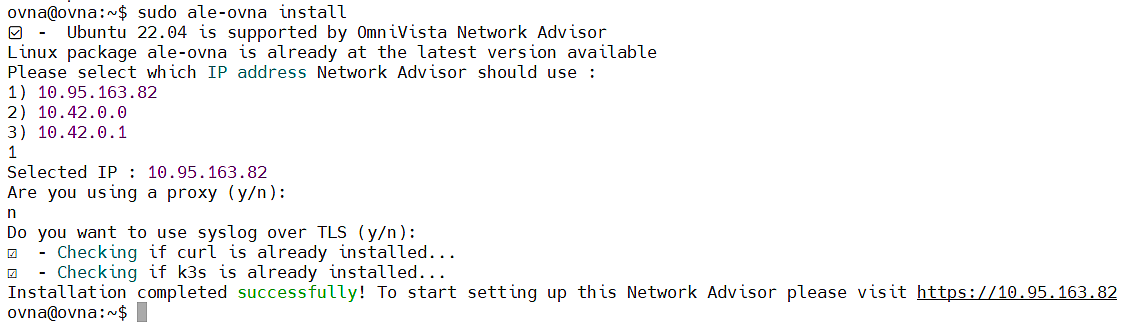
During the installation, follow the prompts to configure IP addresses, proxy settings, and TLS for syslog support, if desired. For detailed guidance, refer to Appendix A.
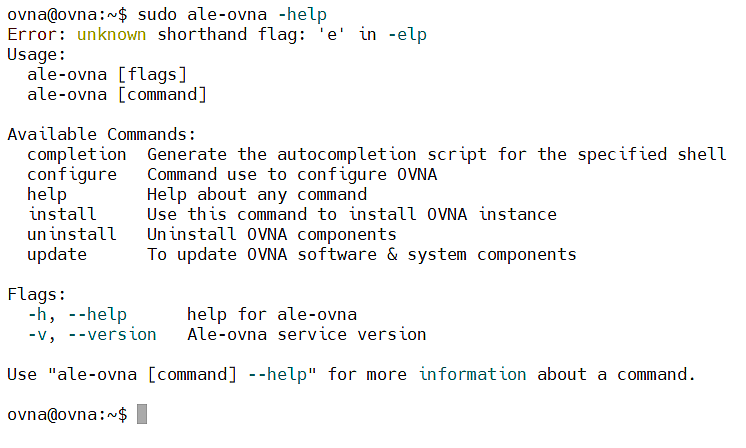
You can use the command sudo ale-ovna --help to view help on OmniVista Network Advisor commands. For Example:
Update Procedure
Good Practices Prior to Upgrading
-
Back Up Before Upgrade: Always create a snapshot of the VM or back up OVNA before upgrading. This makes it possible to restore the previous version in case of any update issues.
-
Back Up Data: A backup of the data can be done from the UI. The back up can be used to restore the data after a reinstall. (Settings->Configuration->Backup-Restore, click +Create backup)
-
Test Updates : Test new updates before applying them. This allows you to identify any potential issues in a controlled setting.
-
Version Compatibility: Only upgrade from older to new versions. Ensure compatibility to prevent unexpected issues.
-
No Downgrade Option: Downgrading is unsupported. If a rollback is required, uninstall and reinstall OVNA, then restore from a backup.
Following these practices can help ensure smooth and reliable upgrades.
To update the package, use the following commands. When upgrading from 1.4 to 1.5 it is recommended to force the update of the core package using '-c'. It will update the version of k3s. (Kubernetes light)
-> sudo ale-ovna update -c
For example:

-
The command will first check if a .deb has to be updated.
-
`if yes, the new .Deb is downloaded after which command will exit saying that a new .Deb has been installed and invite the user to relaunch "ale-ovna update" to update the software using the last ale-ovna
-
if no , software update is performed normally.
-
Configure OmniVista Network Advisor
After the installation is complete, configure OmniVista Network Advisor as needed.